
WPSubscription Pro registers itself as an AutomatorWP integration, so every subscription status change can start an automation — send an email, add a user to a role, post to a webhook, or any of the hundreds of actions AutomatorWP and its add-ons provide. This article covers the eight triggers and one filter WPSubscription contributes, and how to build an automation with them.
Prerequisites
WooCommerce, active.
WPSubscription (the free plugin), active.
WPSubscription Pro, active. The AutomatorWP integration ships in Pro — the free plugin does not register any triggers.
AutomatorWP, active. The free version from WordPress.org is enough; none of the WPSubscription triggers or the filter require AutomatorWP Pro.
Note: The integration appears on its own as soon as both plugins are active. There is no settings page to visit and nothing to switch on.
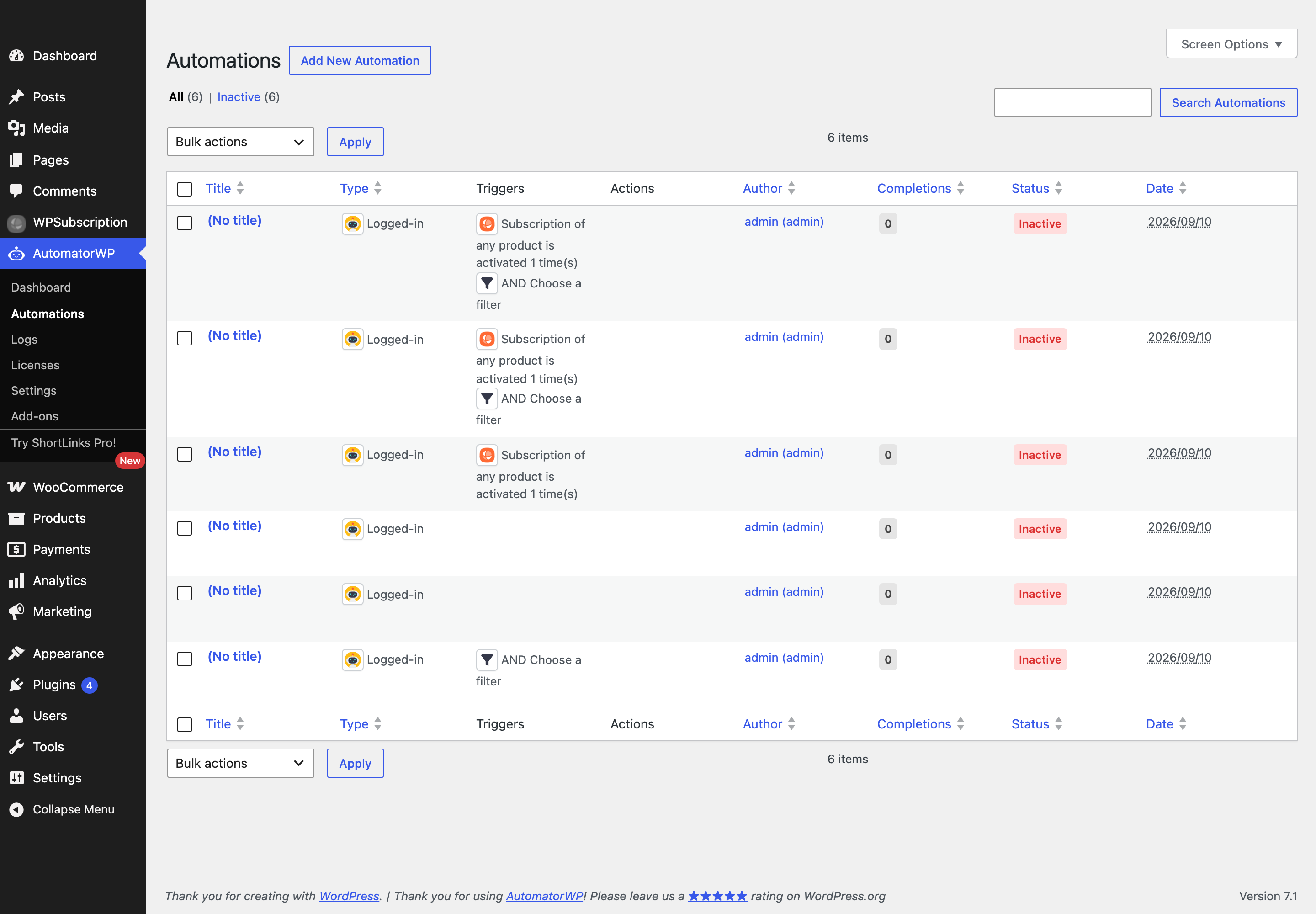
Step 1 — Open Automations
Go to AutomatorWP → Automations. This is the list of every automation on the site.
Step 2 — Create the automation
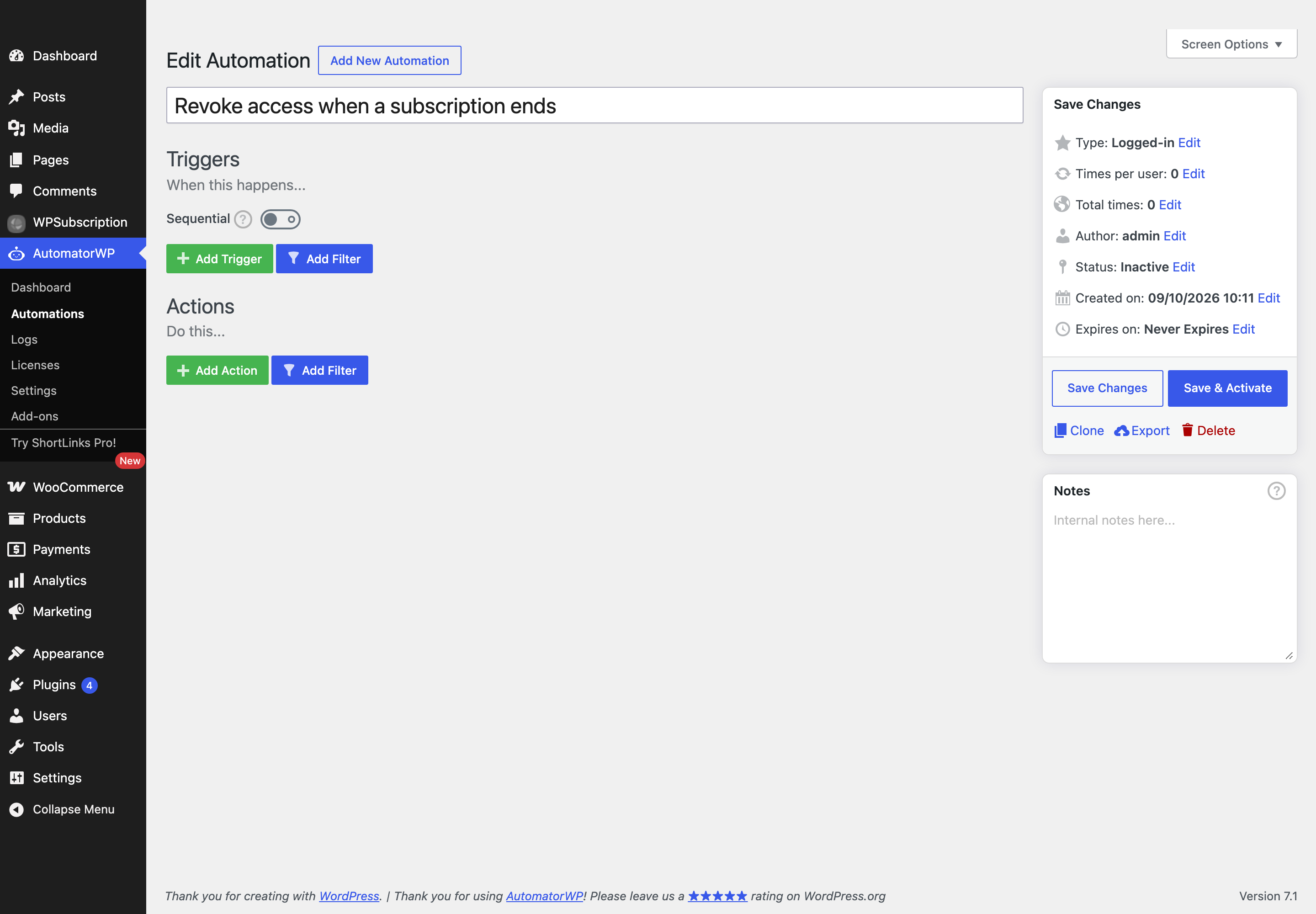
Click Add New Automation. AutomatorWP creates a draft and opens the editor straight away. Give it a name that describes the outcome — you will be reading this name in the list later.
The editor has two halves: Triggers (“When this happens…”) and Actions (“Do this…”).
Step 3 — Add the WPSubscription trigger
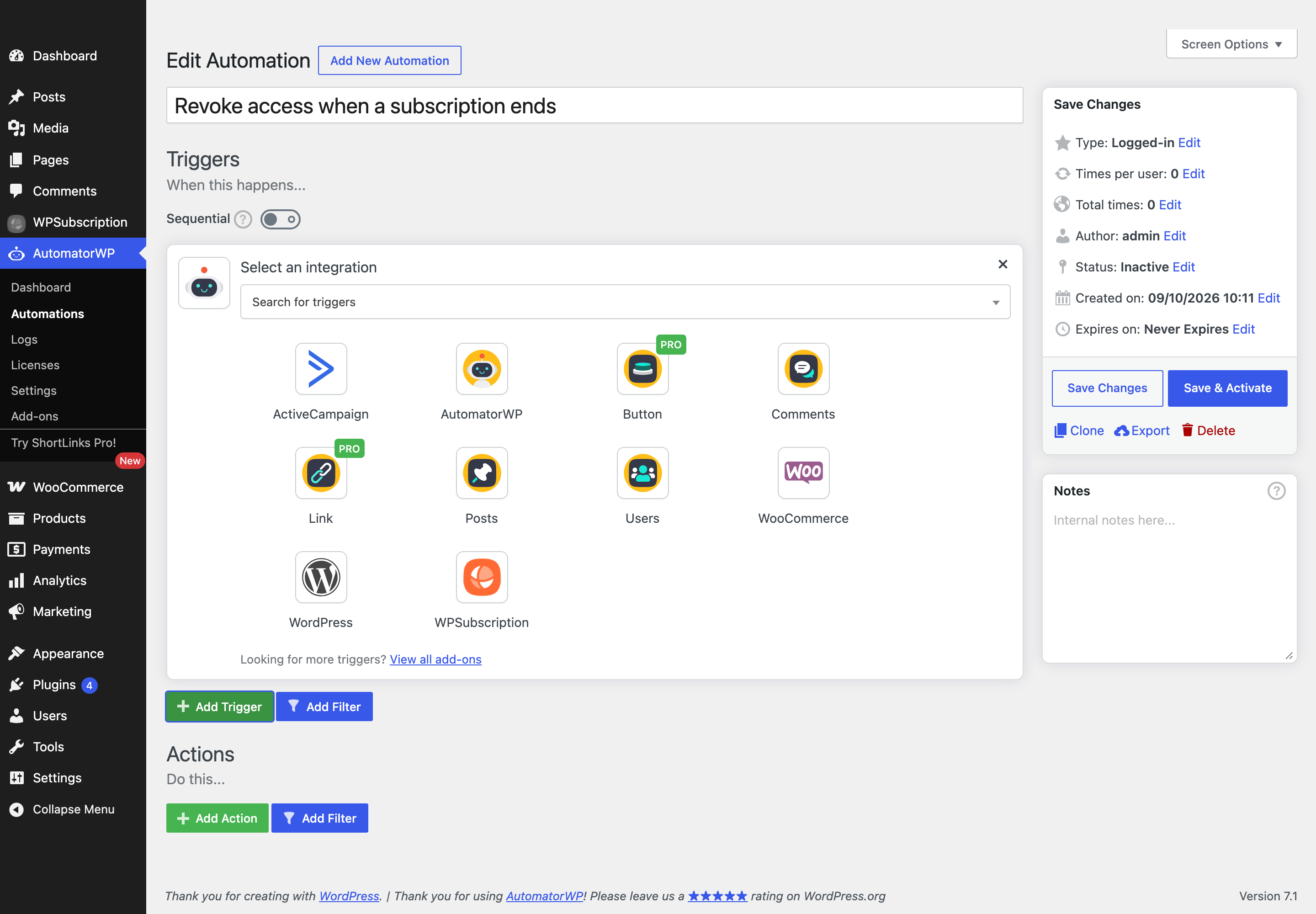
Under Triggers, click Add Trigger. AutomatorWP shows every integration it can see. WPSubscription is in the grid.
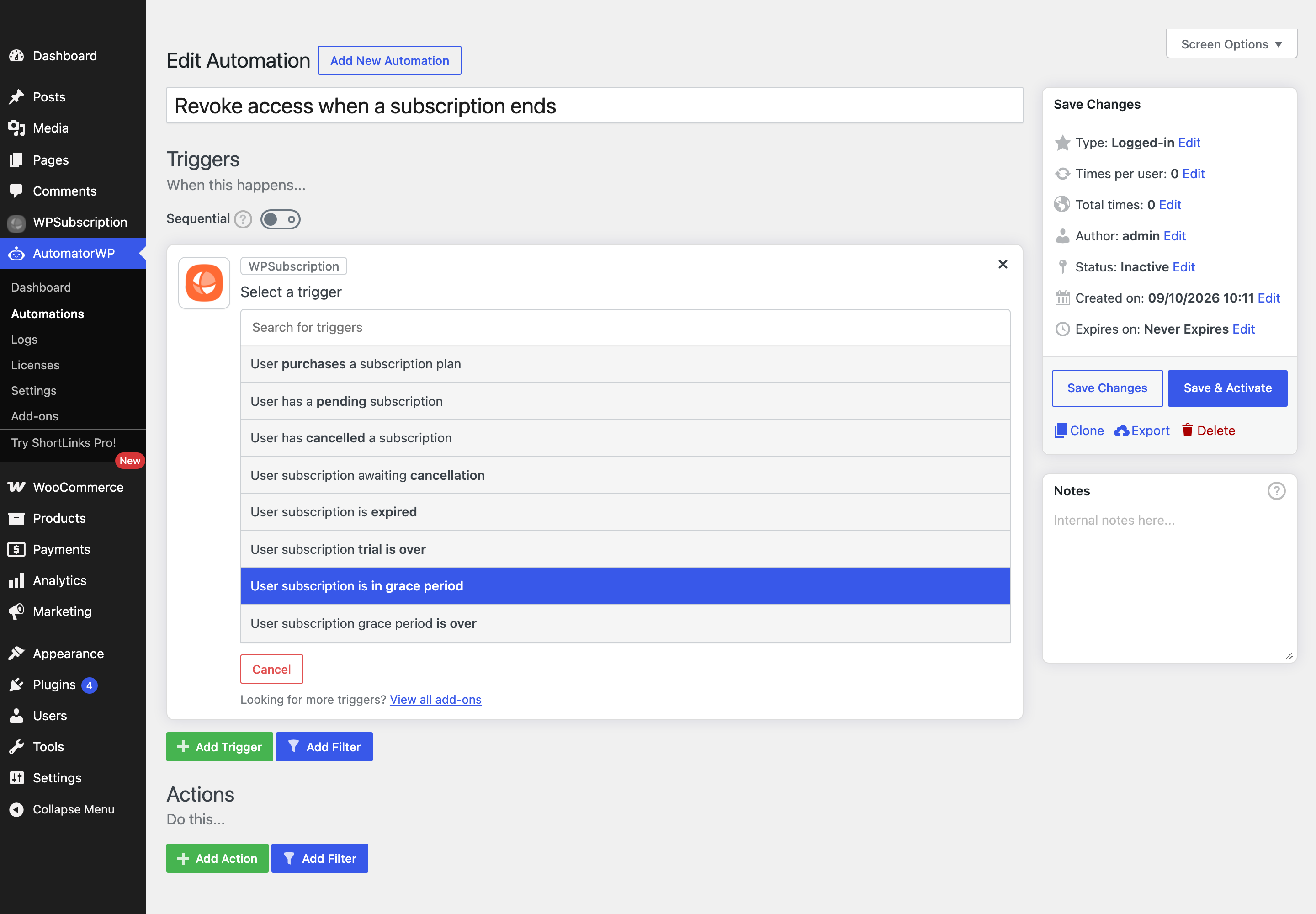
Click WPSubscription to see its eight triggers.
What each trigger means
Every trigger fires on a subscription status change and passes the subscription to the automation. They are status transitions, not schedules — a trigger fires at the moment the subscription enters that state.
Trigger | Fires when |
|---|---|
User purchases a subscription plan | A subscription becomes active. This covers the first payment and every successful renewal, so it is the trigger to use for “grant access”. |
User has a pending subscription | A subscription enters the pending state — the order exists but payment has not completed. |
User has cancelled a subscription | The subscription is cancelled outright and access should stop. |
User subscription awaiting cancellation | The customer has asked to cancel but the period they already paid for is still running. Access normally continues until it expires. |
User subscription is expired | The subscription reached the end of its term without renewing. |
User subscription trial is over | A free trial ended. |
User subscription is in grace period | A renewal payment failed and the grace period has started. Access usually continues while the retries run. |
User subscription grace period is over | The grace period ran out without a successful payment. This is the real “cut off access” moment for a failed renewal. |
Tip: Pair is in grace period with grace period is over. The first is where you warn the customer their card failed; the second is where you actually revoke what they were paying for.
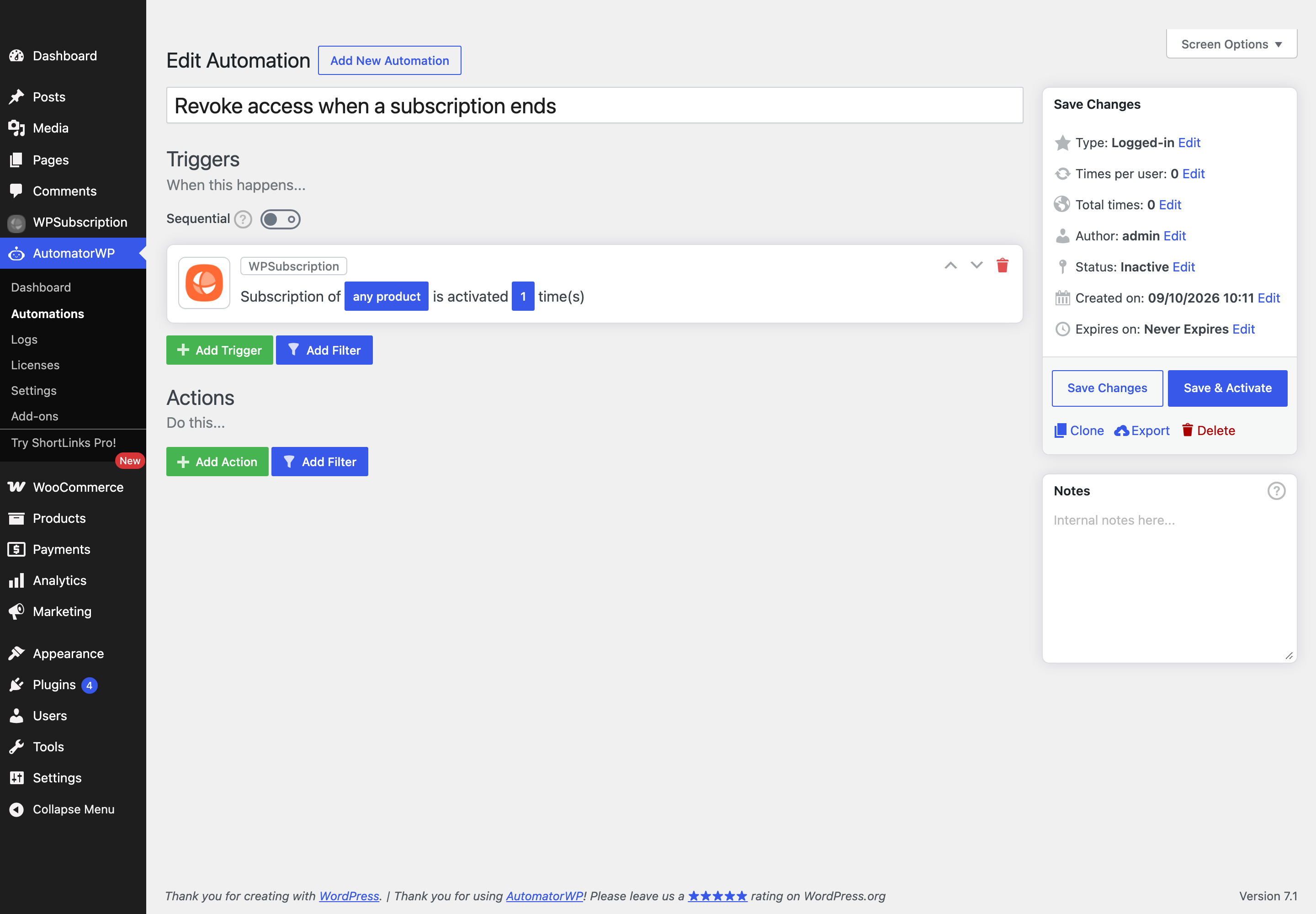
Pick a trigger and it becomes an editable sentence. Click the highlighted parts to choose which product it applies to and how many times it must happen.
Step 4 — Narrow it with the status filter
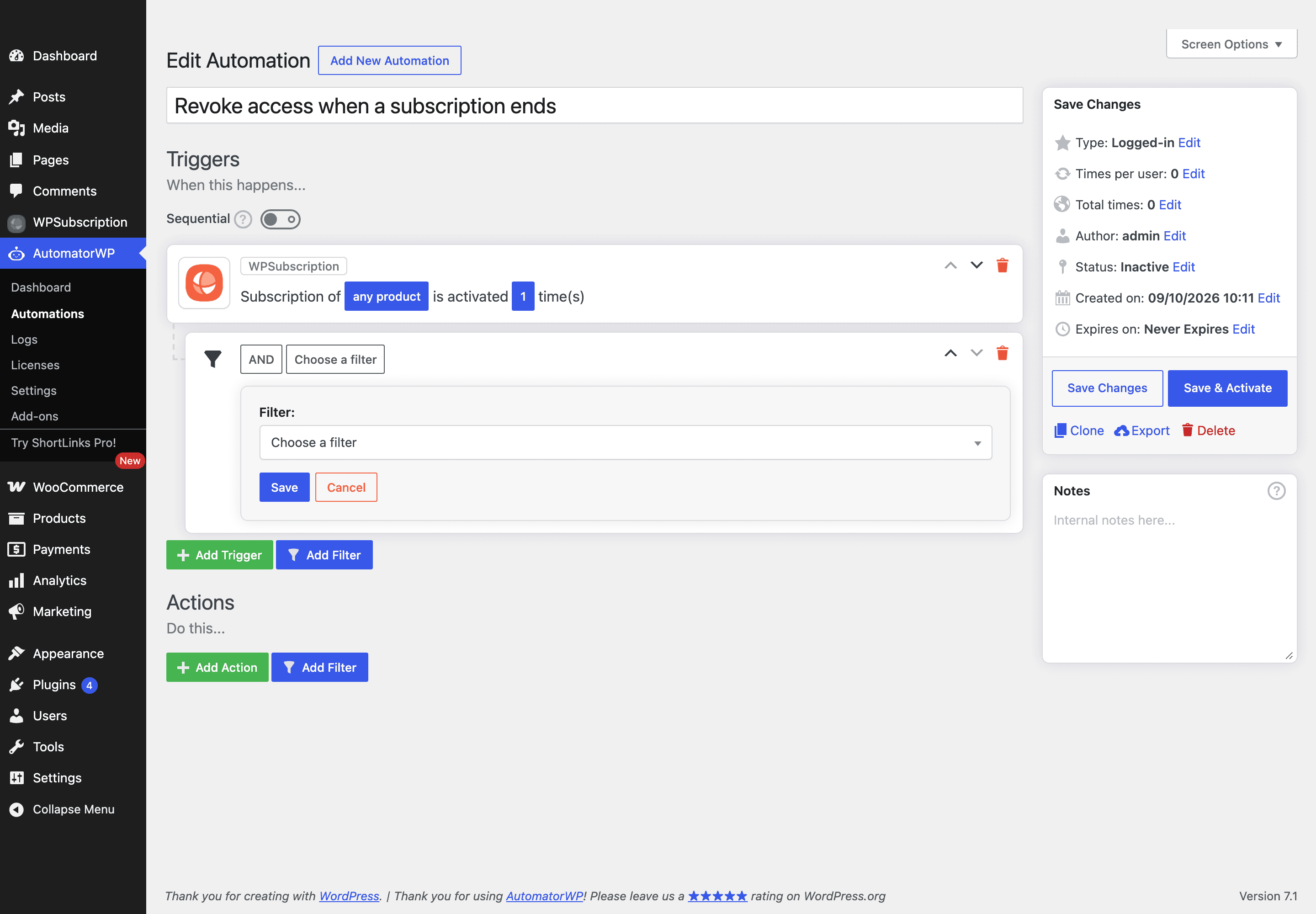
WPSubscription also registers one AutomatorWP filter: User subscription status. A filter sits between the trigger and the actions and stops the automation unless the condition holds.
Click Add Filter under the trigger, then Choose a filter.
Select User subscription status and click Save.
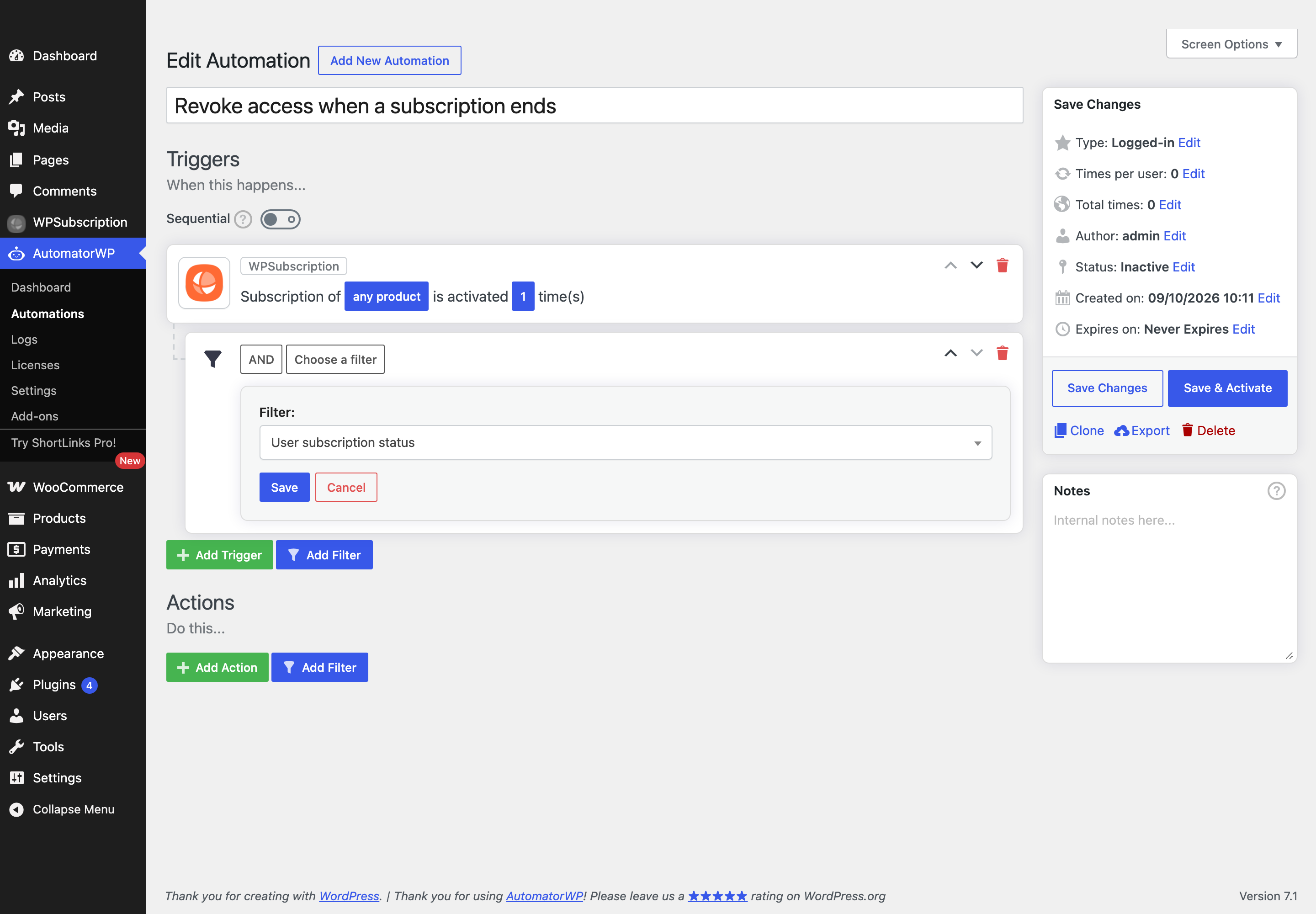
This is what you reach for when the trigger alone is too broad — for example, running an action on a renewal only while the customer still holds another active subscription.
Step 5 — Add the action, then activate
Under Actions, click Add Action and choose what should happen. The actions come from AutomatorWP and its add-ons, not from WPSubscription — anything AutomatorWP can do is available here.
When the automation is complete, click Save & Activate. Until you do, its status stays Inactive and nothing runs.
Important: A new automation is created inactive. Forgetting Save & Activate is the most common reason an automation appears to do nothing.
Checking that it worked
Go to AutomatorWP → Logs. Every completed trigger and action is recorded there with the user it ran for, which is the fastest way to tell a rule that never fired from an action that failed.
Two things worth knowing while testing:
Renewals, grace periods and trial endings run on WP-Cron. They will not fire while you watch a page — the schedule has to come round, or you have to run the cron event manually.
Times per user in the automation sidebar defaults to unlimited. If you only want an automation to run once per customer, set it before activating.
With the trigger, the optional filter and an action in place, the automation runs on its own for every customer whose subscription reaches that state.