
WPSubscription → Cancellation Flow is where everything that happens when a customer cancels is set up: the reasons they pick from, whether they are asked at all, when the cancellation actually takes effect, and the discount you offer to change their mind.
Note: These options used to live under Settings → Customers → Cancellation. In WPSubscription 2.0 they have their own screen. Nothing was renamed and nothing needs re-saving — the same options simply live somewhere better.
Prerequisites
WPSubscription 2.0 or later.
WPSubscription Pro for the retention offer and for changing the cancellation timing. The survey and the reason list work in the free plugin.
The screen
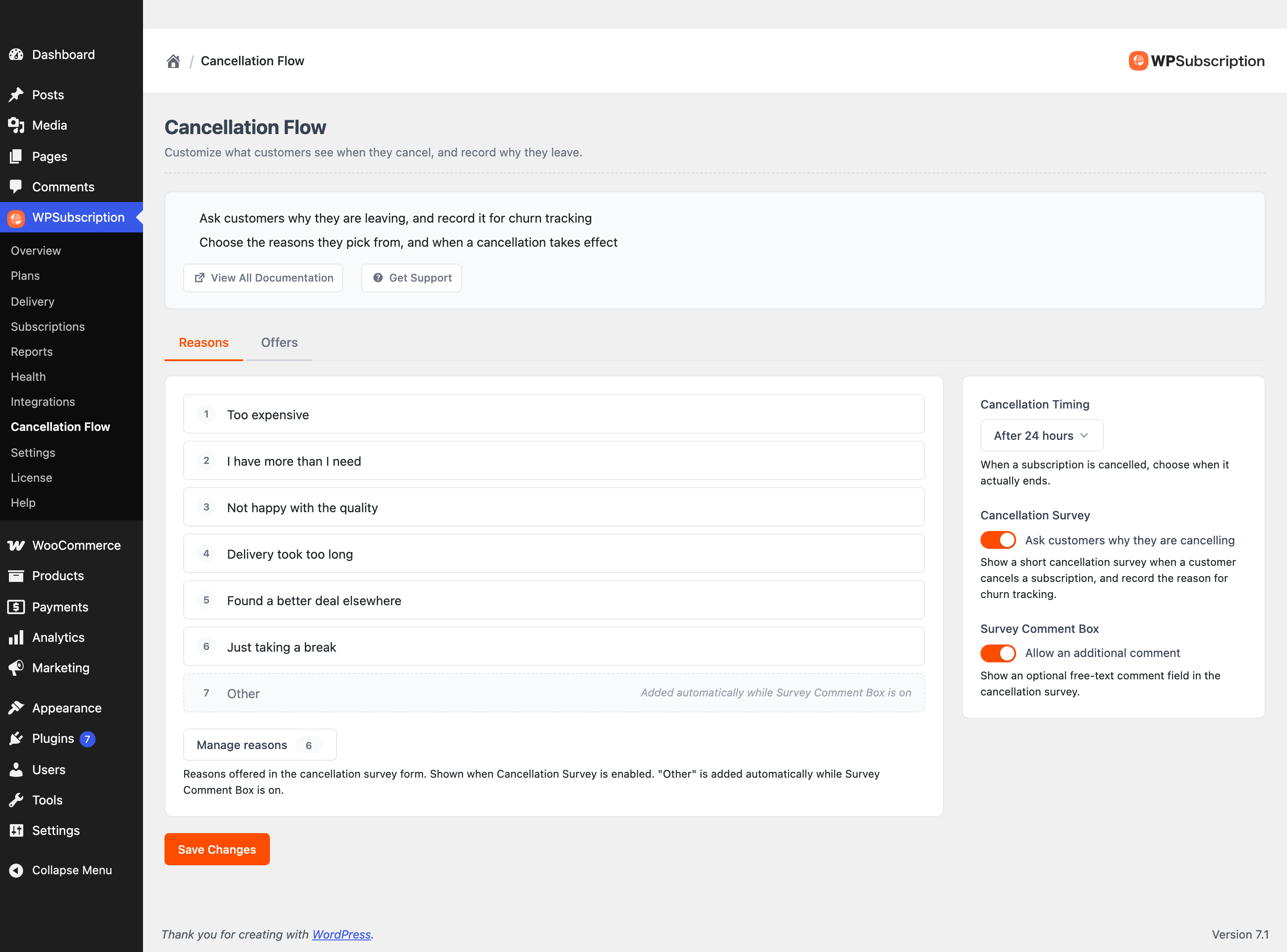
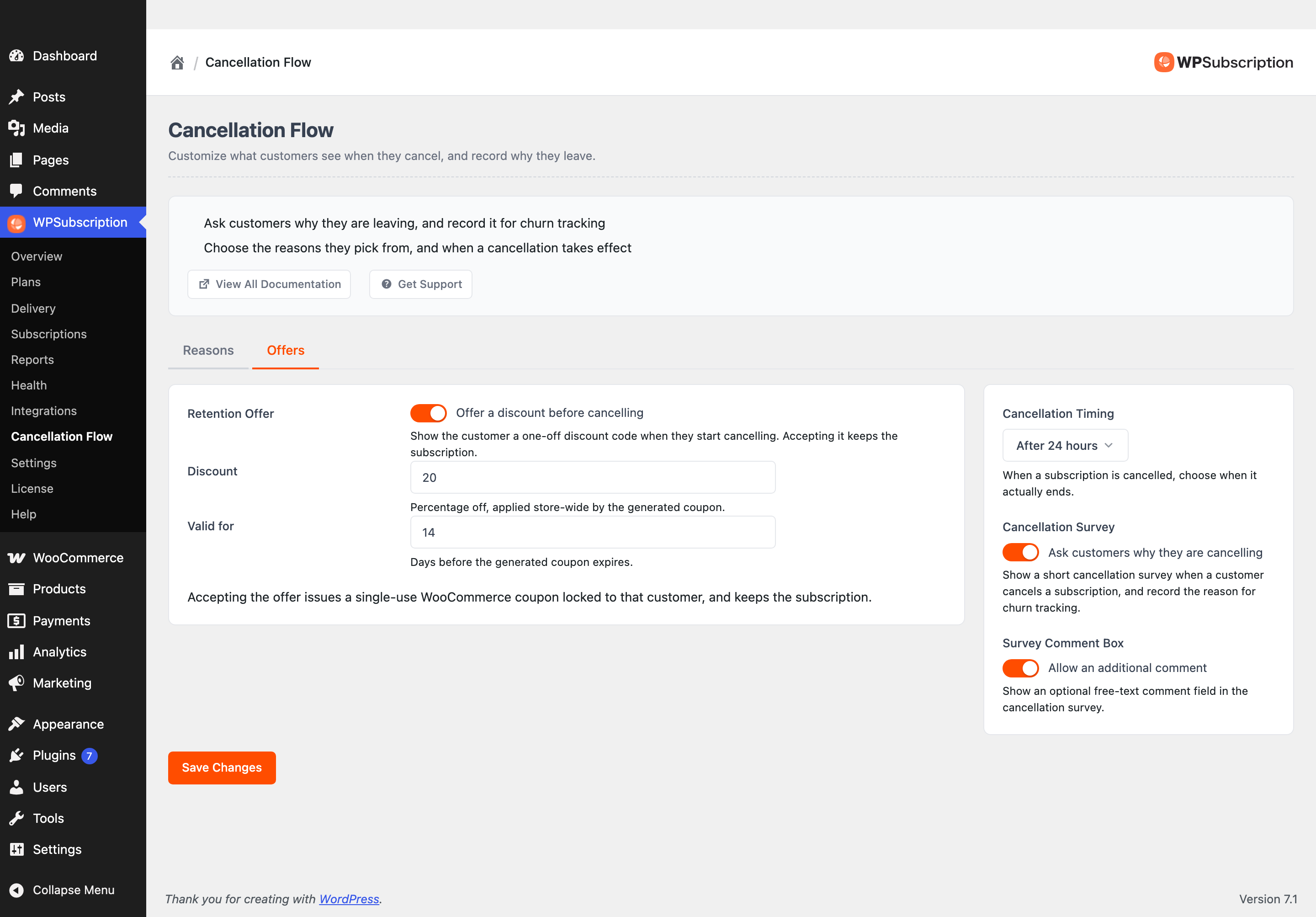
Two tabs — Reasons and Offers — and a panel beside them that belongs to both. One Save Changes button saves the lot.
Step 1 — Decide whether to ask at all
The panel on the right holds the three options that govern the whole flow.
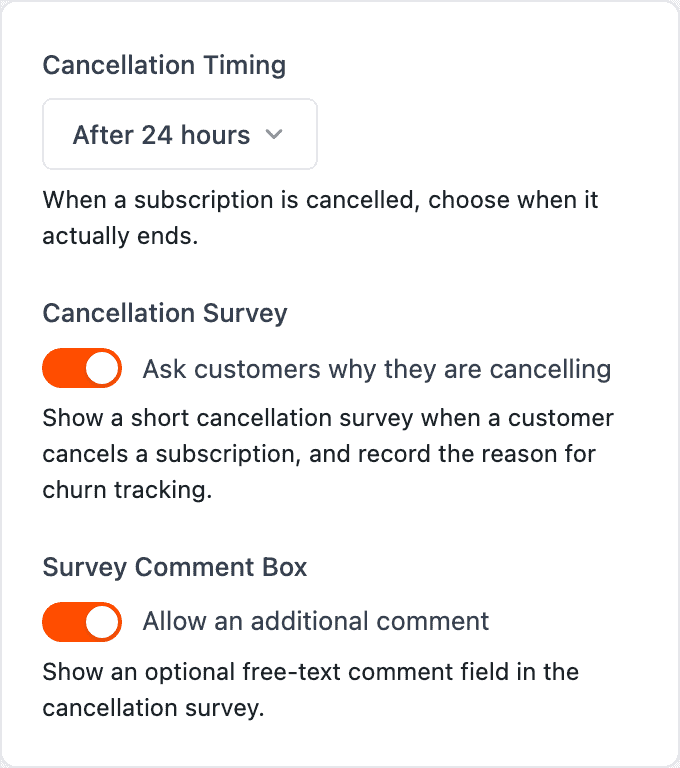
Cancellation Survey
Turn it on and a customer who cancels is shown a short form asking why, and the answer is recorded against the subscription for churn tracking. Turn it off and cancelling is a single click with nothing in between.
Survey Comment Box
Adds an optional free-text box under the reasons. It also adds an Other option to the reason list automatically — a customer who picks "Other" has somewhere to explain, which is the only reason "Other" is worth offering. Turn the comment box off and "Other" disappears with it.
Cancellation Timing (Pro)
When a cancellation actually ends the subscription:
Setting | What happens |
|---|---|
Immediately | Access stops the moment they confirm. |
After 24 hours | The subscription ends a day later. This is the default, and it is what the free plugin always does. |
At end of billing period | The subscription runs to the next renewal date and then stops. They keep what they have already paid for. |
Note: "At end of billing period" is the kinder setting and usually the right one for a paid-in-advance subscription — the customer has already paid for the period they are in. "Immediately" is for stores where access itself is the cost.
Step 2 — Choose the reasons
The Reasons tab shows the list exactly as the customer will see it, in order.
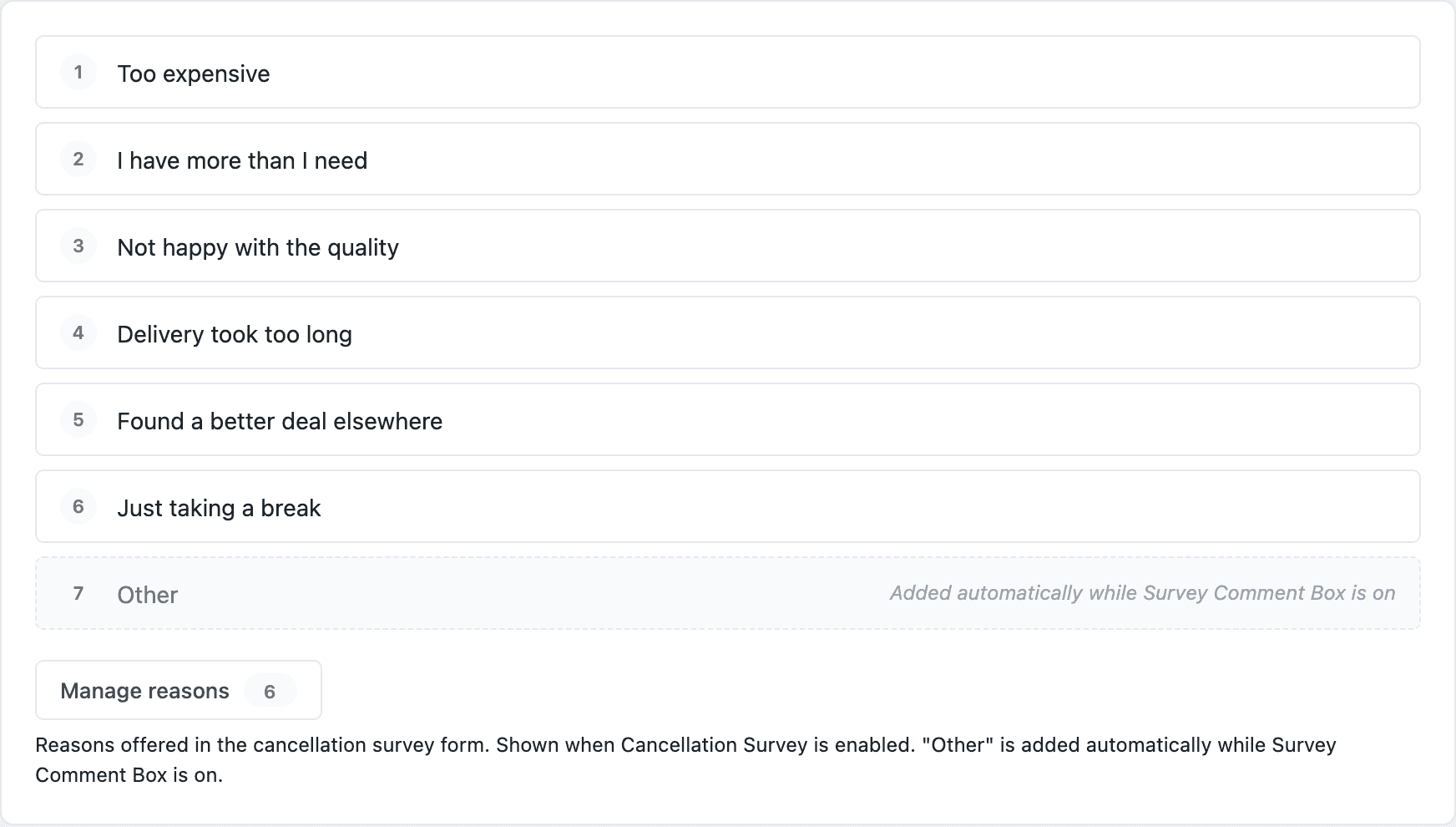
Click Manage reasons to edit them. Add a reason, rename one, reorder them, or remove one you never want to see again.
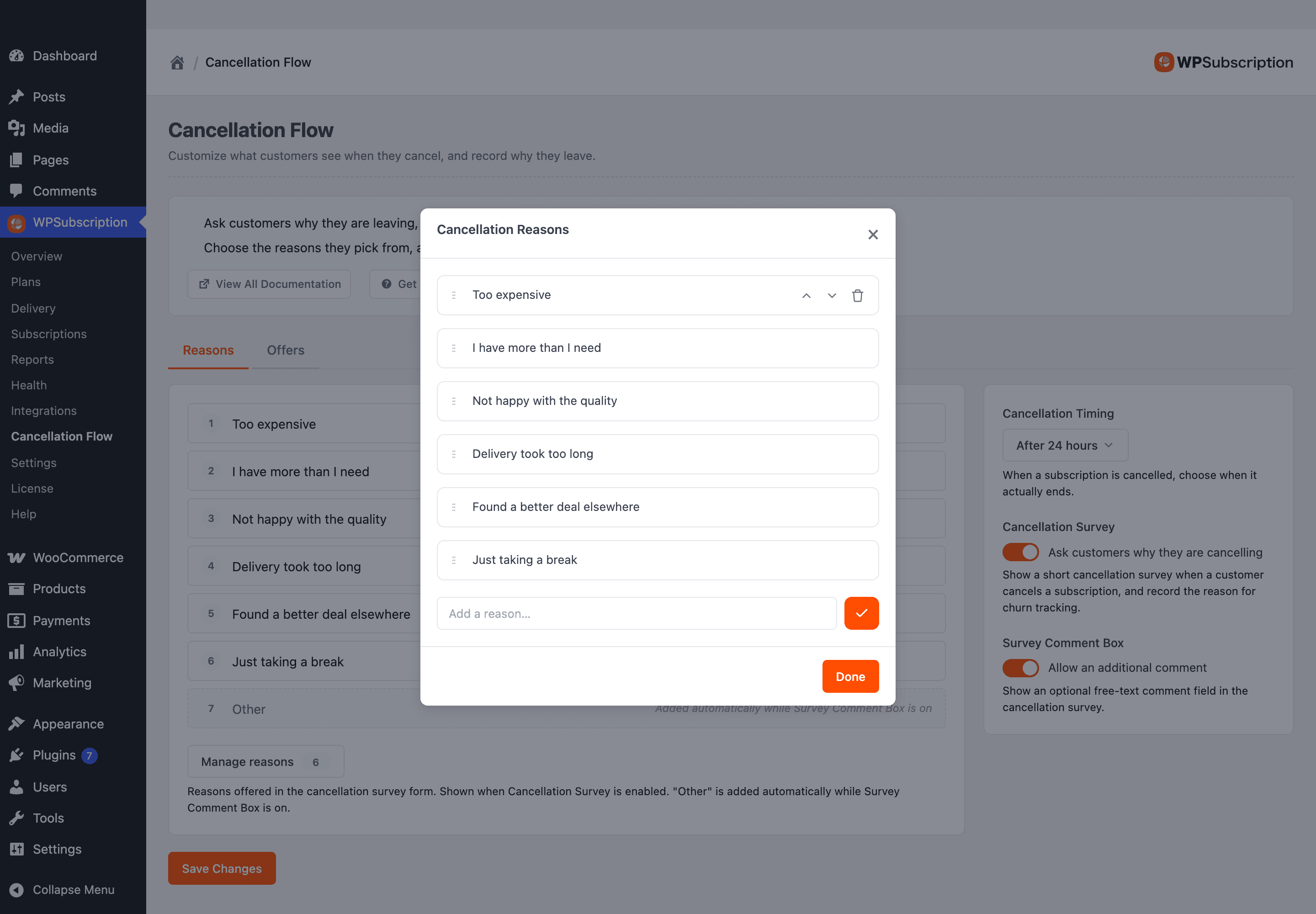
The list updates behind the editor as soon as you close it, so you can check the result before saving. Nothing is stored until you click Save Changes.
Note: Editing the reason list used to need Pro. Since 2.0.0 it is part of the free plugin. Until you add a reason of your own, customers are offered WPSubscription's defaults — so the survey is never empty, even on a store that has never opened this screen.
Write reasons you could act on. "Too expensive" and "I have more than I need" point at different fixes — a price change and a delivery-frequency change. "Not satisfied" points at nothing.
You cannot add a reason called "Other" of your own; the comment box already contributes one, and two would be confusing.
Step 3 — Offer a discount before they go (Pro)
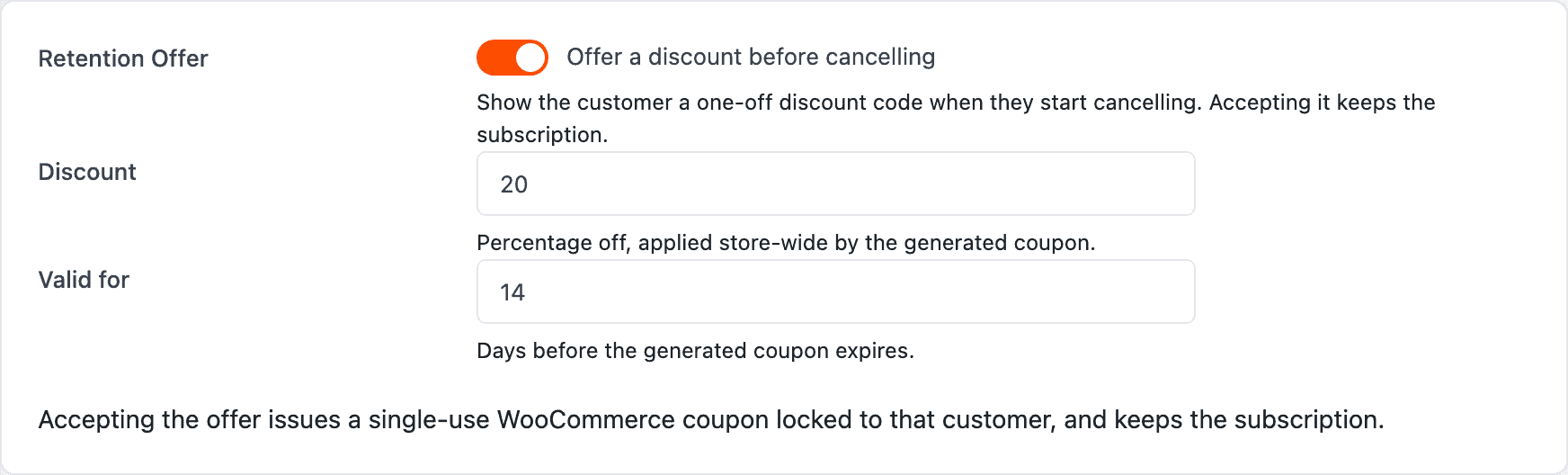
The Offers tab holds the retention offer — a discount shown at the moment the customer starts cancelling.
Field | What it does |
|---|---|
Retention Offer | Shows the offer when a customer starts cancelling. Off by default. |
Discount | Percentage off, applied store-wide by the coupon that gets generated. |
Valid for | Days before that coupon expires. |
Accepting the offer issues a single-use WooCommerce coupon locked to that customer and keeps the subscription running. It is a real coupon in Marketing → Coupons, so it behaves like any other at checkout — and because it is locked to one customer and single-use, it cannot leak to a coupon site.
Warning: The discount applies store-wide, to the customer's next order. It is not a permanent reduction in the subscription price — the subscription keeps renewing at its own price once the coupon is spent or expired. If you want a permanently cheaper price, change the plan's offer price instead; see Plan products and pricing.
What the customer sees
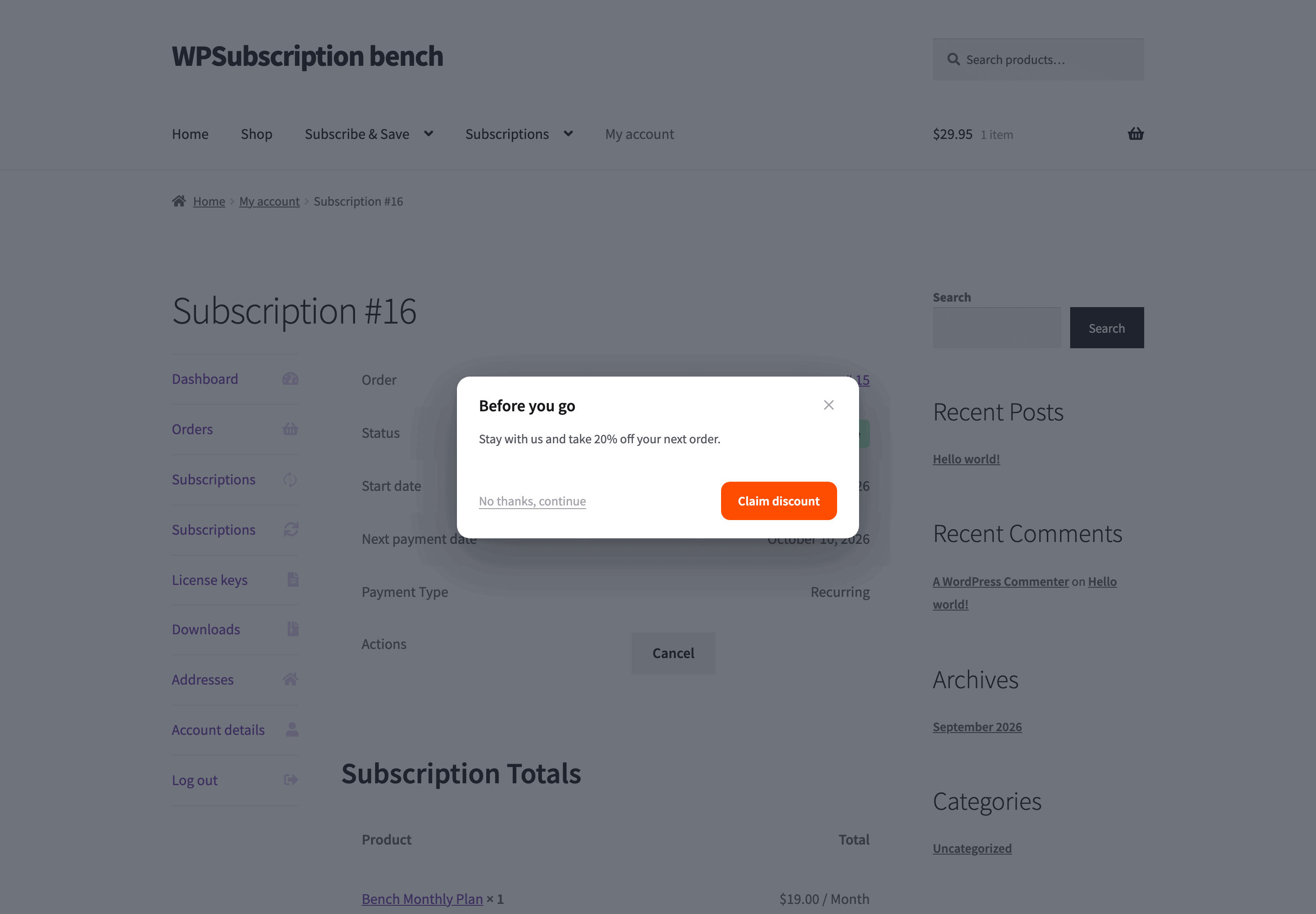
The whole flow is one dialog on their subscription in My Account, opened by the Cancel button.
With a retention offer switched on, that is the first thing they meet:
If they decline — or if no offer is configured — they get the survey:
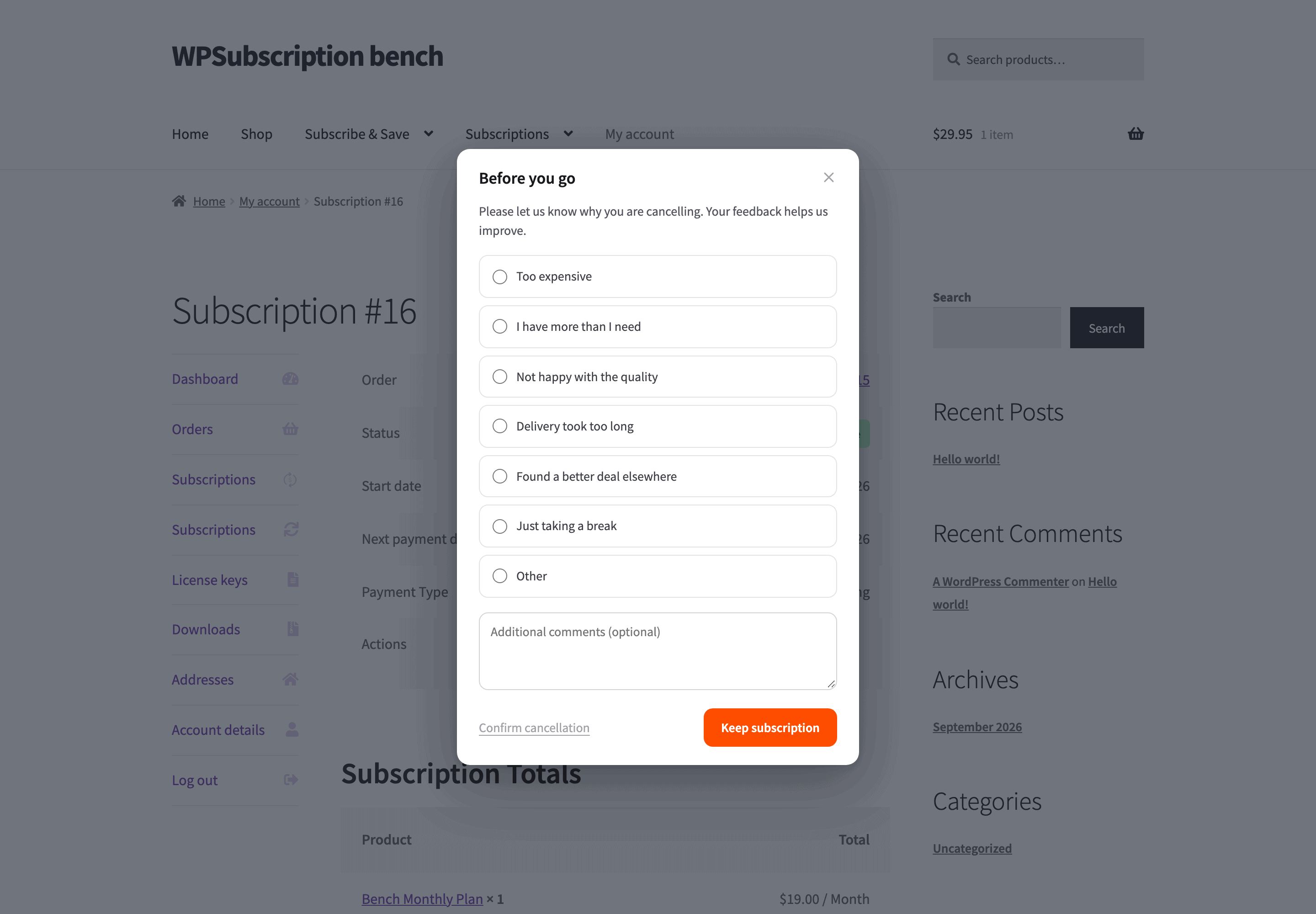
Keep subscription backs out; Confirm cancellation records the reason and cancels according to your timing setting. Nothing is cancelled until they press it.
Reading the answers
The reason and comment are recorded against the subscription and shown on its detail screen in WPSubscription → Subscriptions, so support can see why someone left without going near a database.
Free and Pro
Feature | Free | Pro |
|---|---|---|
Cancellation survey | ✓ | ✓ |
Optional comment box | ✓ | ✓ |
Edit the reason list | ✓ | ✓ |
Reason recorded on the subscription | ✓ | ✓ |
Cancellation timing | Always 24 hours | ✓ Choose |
Retention offer | ✗ | ✓ |
What to do next
Subscription recovery — winning back the ones who do leave.
Settings — everything else that governs how subscriptions behave.