
A box is one subscription that ships several products together. The customer pays one price on one subscription line, and each cycle you pack the products inside. Everything about boxes is managed from WPSubscription → Boxes.
Note: Creating and selling boxes needs WPSubscription Pro, version 2.5.0 or later, together with WPSubscription 2.5.0 or later. The free plugin shows the Boxes screen as a preview with sample data, so you can see how it works first.
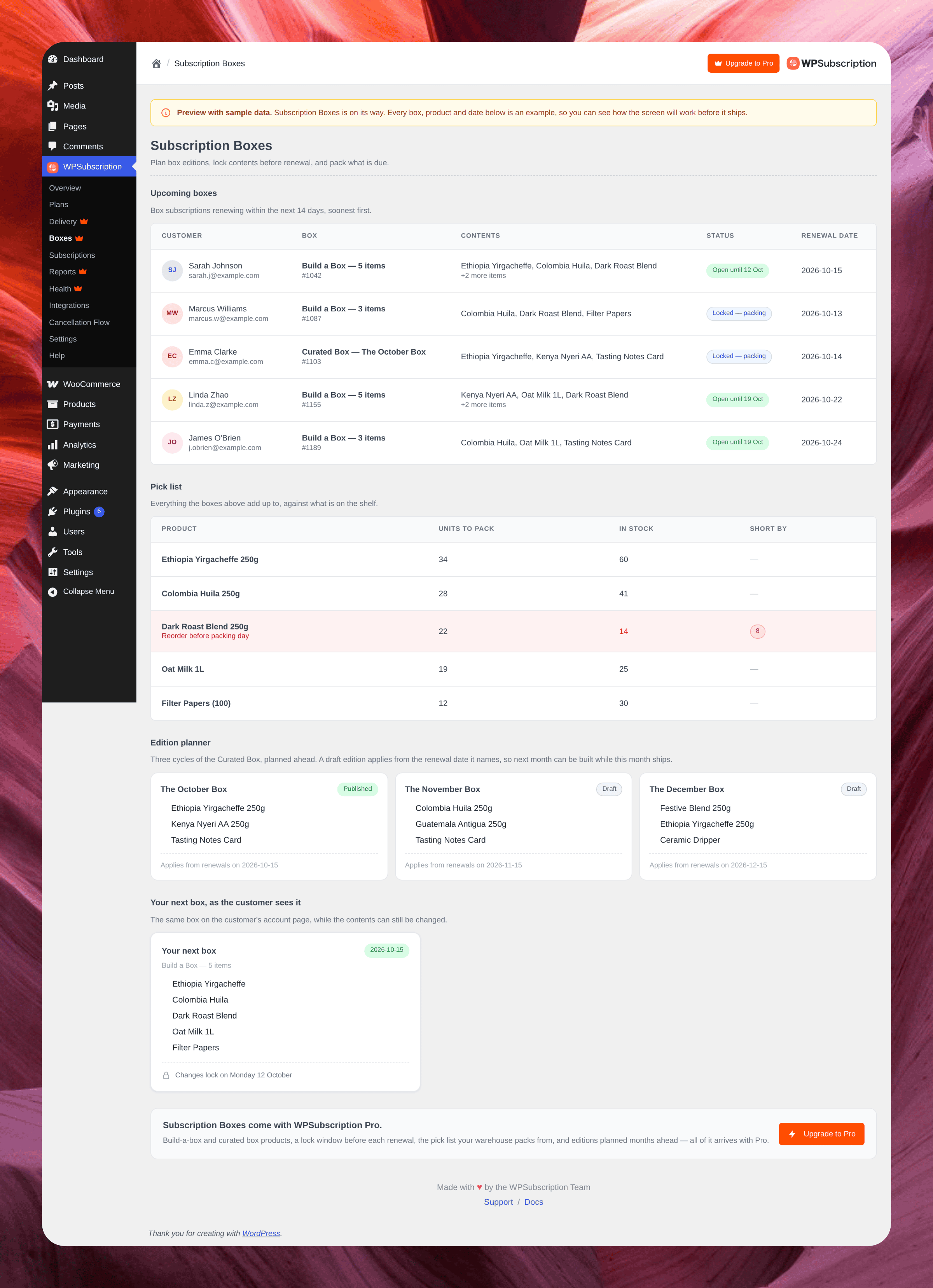
The three kinds of boxes
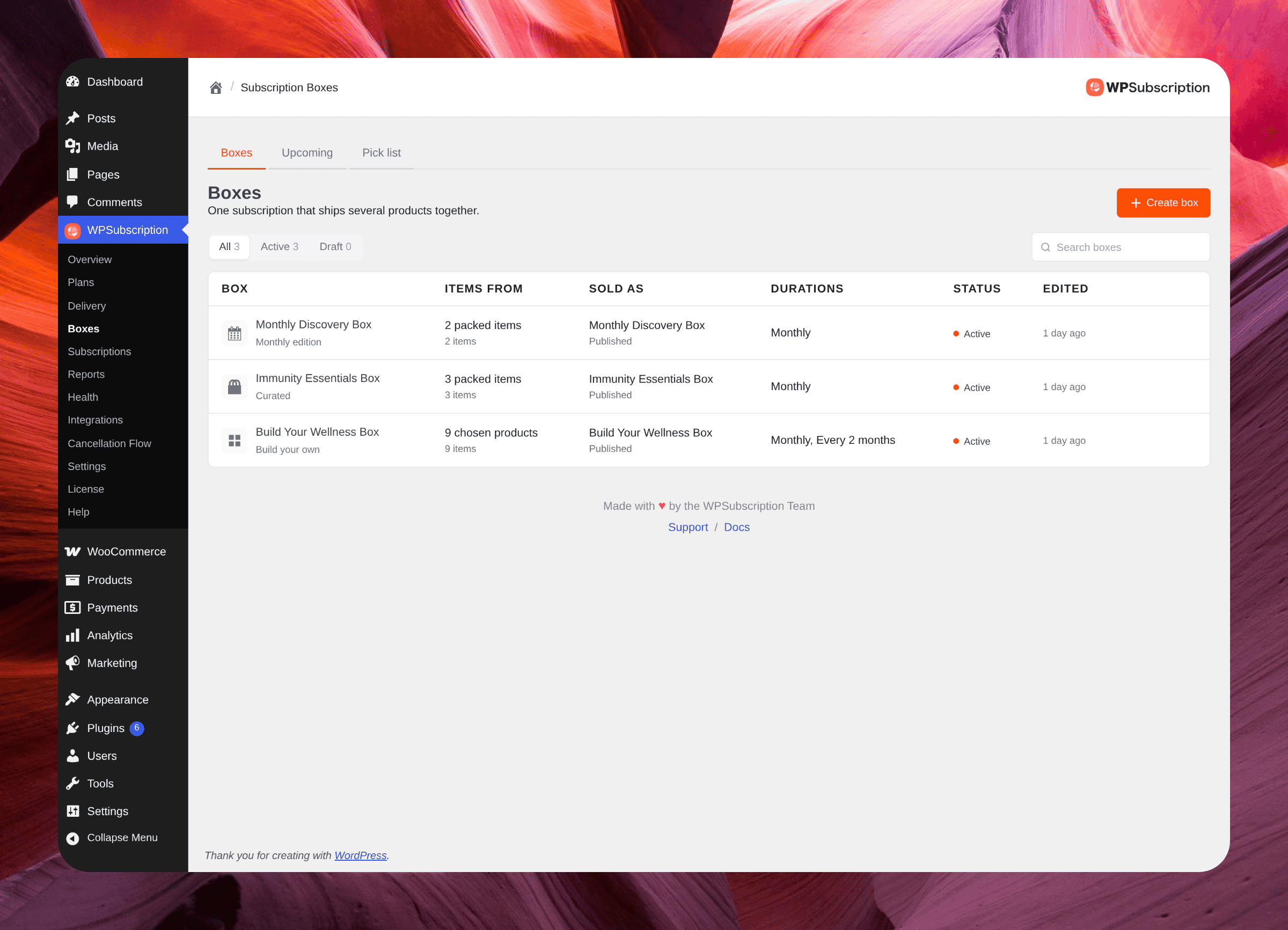
Kind | Who fills it | Good for |
|---|---|---|
Build your own | The customer picks from the items you allow. | Snack, sample and gift boxes where choice is the point. |
Curated | You. Everyone receives the same box. | A set you pack the same way every time. |
Monthly edition | You, month by month. Each month can hold something different. | A club where the surprise is the product. |
Create a box
Go to WPSubscription → Boxes and click Create box. Give it a name, choose how it is filled, and leave Create a product to sell it on. That makes a draft subscription product, linked to the box, so there is something to put on your shop. You can swap it for another product later.
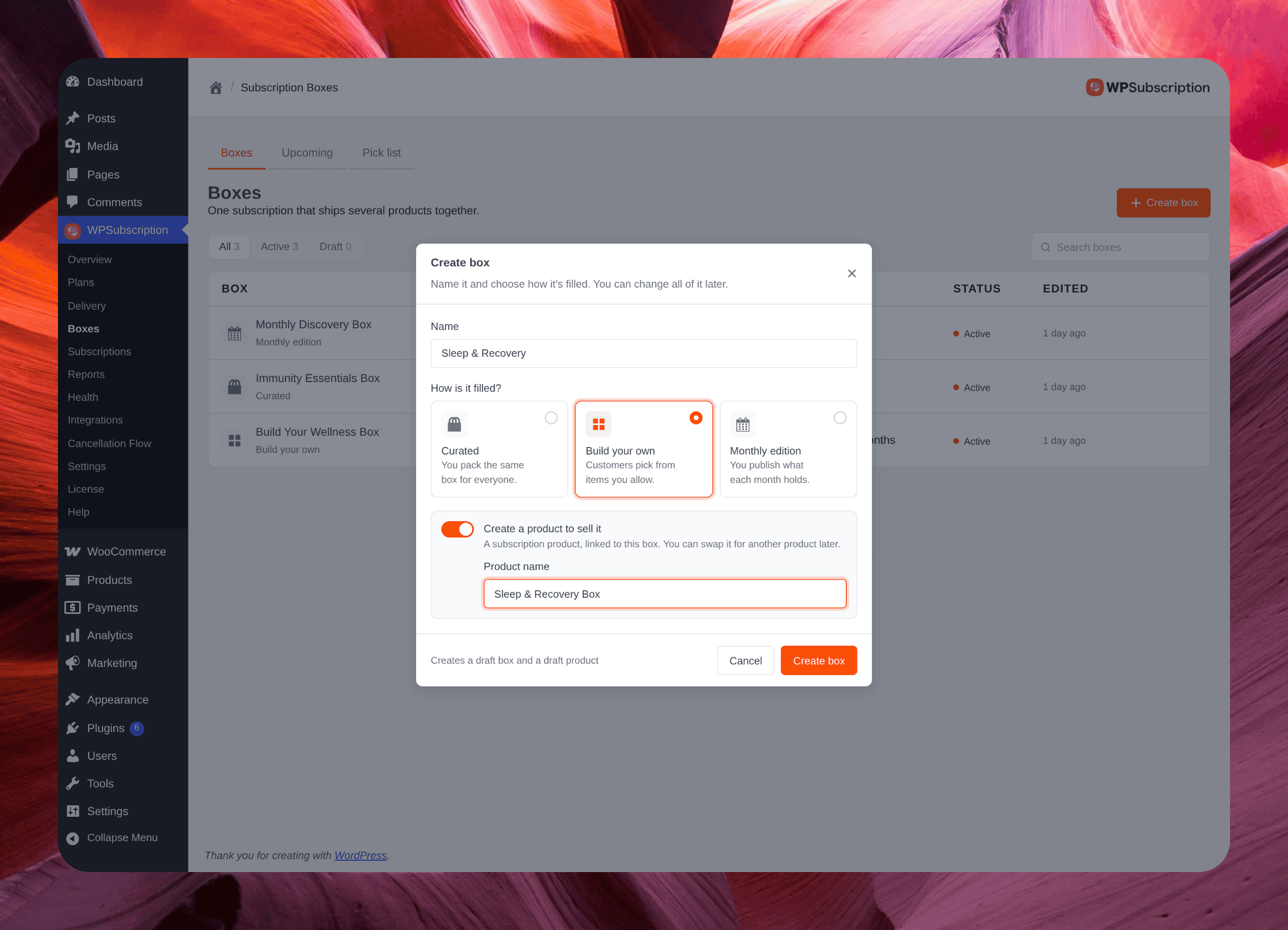
The box opens as a draft, so nothing is on sale yet. Every box lives in one workspace with a few tabs. The tabs a box shows depend on its kind: Editions appears only on a monthly edition box, and Together only on a build-your-own box.
Box items
The Box items tab decides what goes in the box. For a build-your-own box, this is the list customers choose from. For a curated or edition box, it is what you pack.
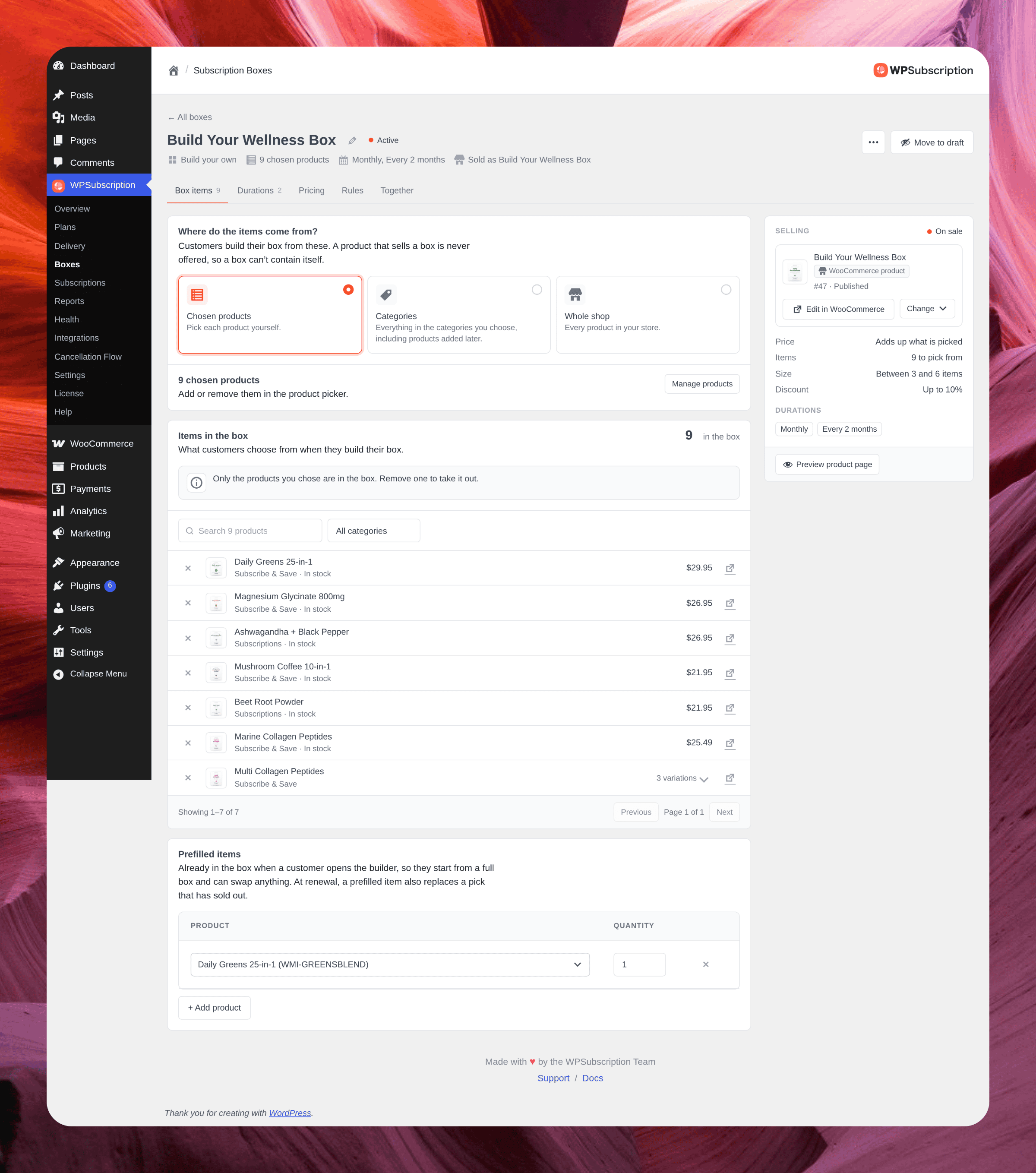
A build-your-own box can take its items from:
Chosen products — you pick each product yourself with Manage products. A variable product is listed as its variations.
Categories — everything in the categories you choose, including products added to them later.
Whole shop — every product in your store.
Durations: how often it ships and bills
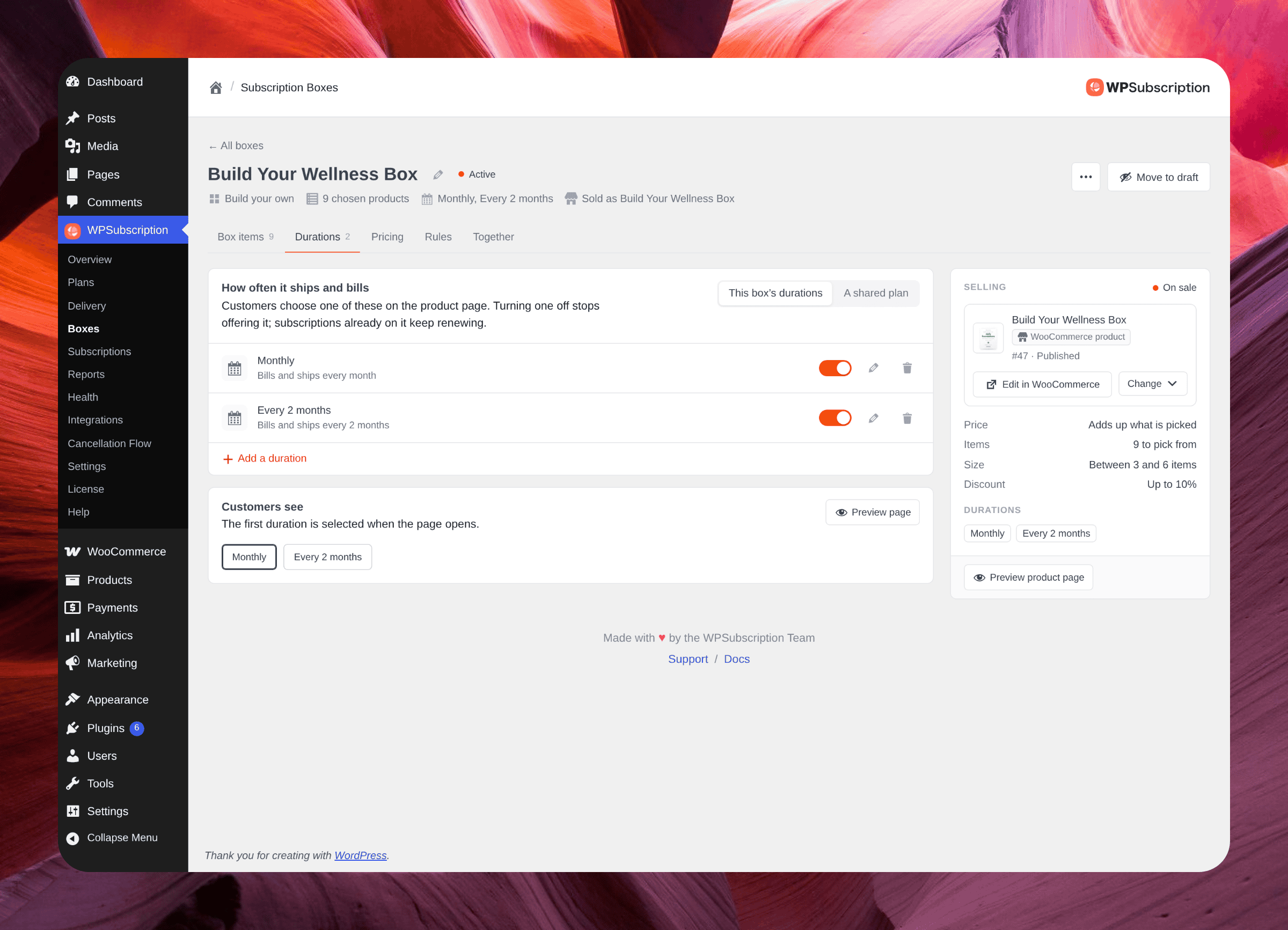
A box sets its own durations on the Durations tab, for example Monthly and Every 2 months. Customers choose one on the product page, and the first is selected when the page opens. Turning a duration off stops offering it; subscriptions already on it keep renewing.
Pricing
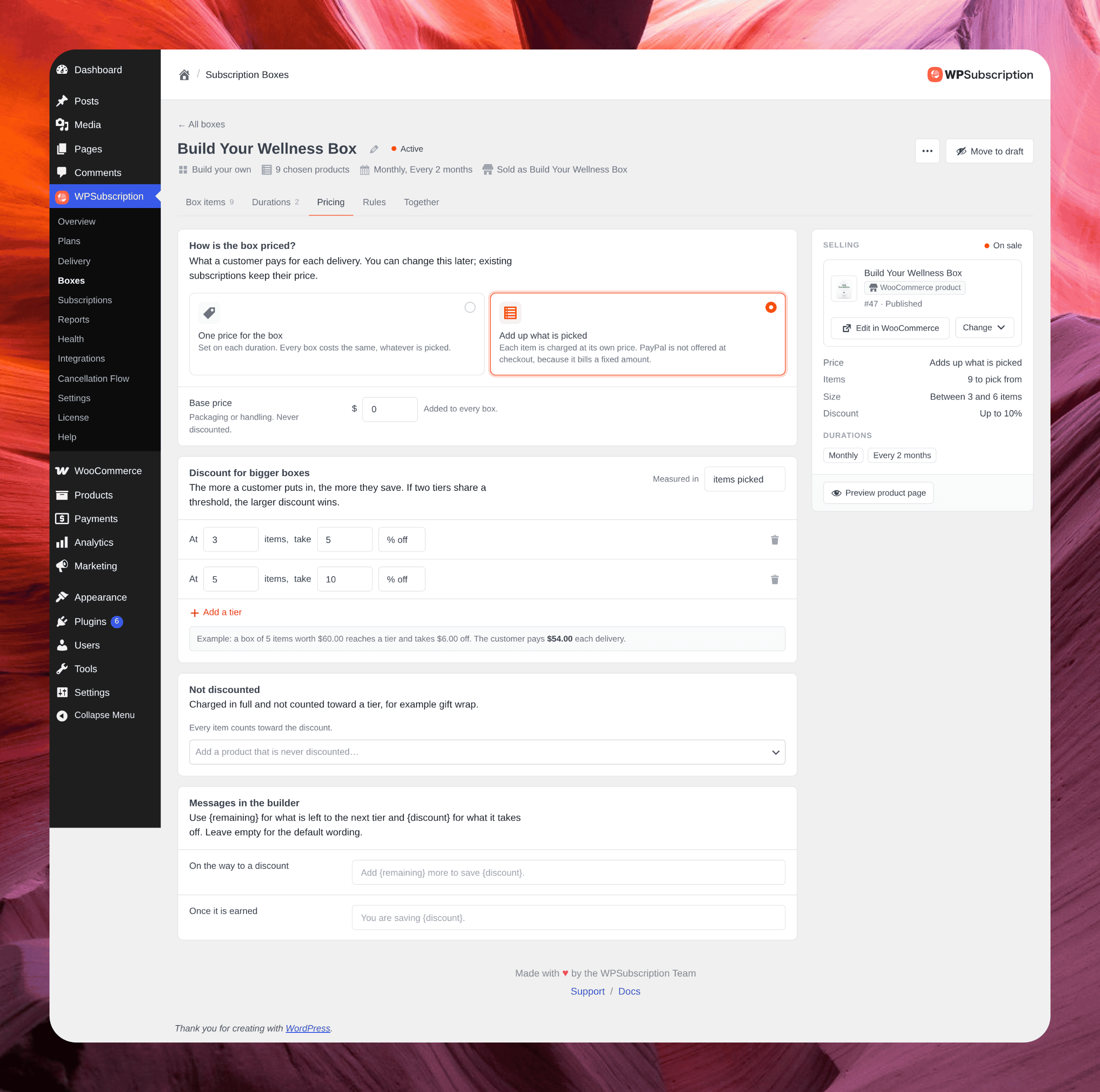
Choose how the box is priced:
One price for the box — set on each duration. Every box costs the same, whatever is picked.
Add up what is picked — each item is charged at its own price. A base price (packaging or handling) is added to every box and never discounted.
When the box adds up what is picked, you can reward bigger boxes with discount tiers. A tier says "at 5 items, take 10% off", or a fixed amount. Tiers are measured either by items picked or by amount spent, one measure per box; if two tiers share a threshold, the larger discount wins. Products listed under Not discounted, such as gift wrap, are charged in full and do not count toward a tier. The two messages in the builder can be reworded; use {remaining} and {discount} in them.
Note: PayPal bills a fixed amount, so it is not offered at checkout for a box whose amount can change: one priced by what is picked, or one holding items that ship only once.
Rules
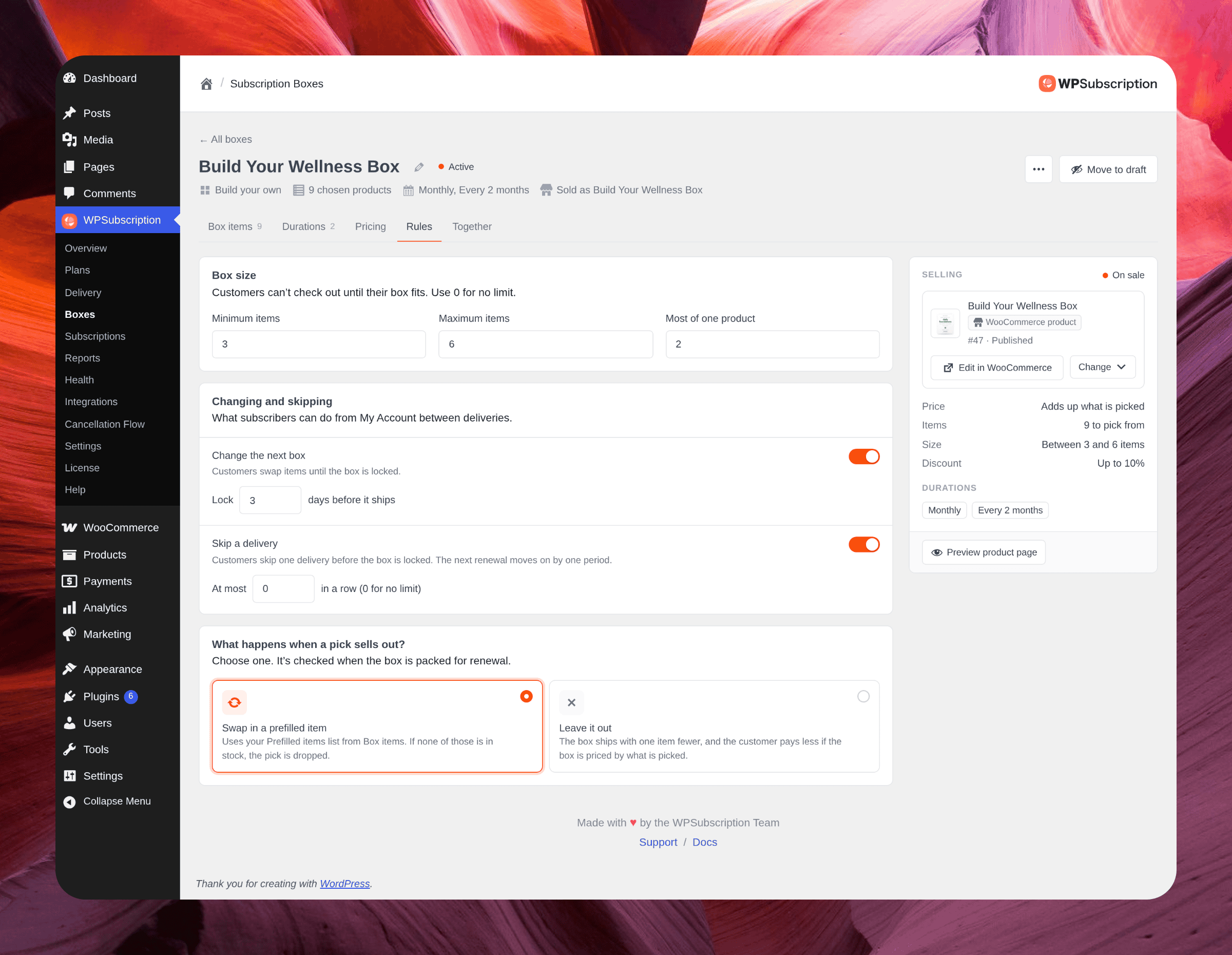
Box size — minimum items, maximum items, and the most of any one product. Customers cannot check out until their box fits. A minimum on its own means "at least N", a maximum of 0 means no limit, and equal numbers mean an exact size.
Change the next box — lets subscribers swap items from My Account until the box locks, a set number of days before it ships.
Skip a delivery — lets subscribers skip, with an optional limit on skips in a row. The next renewal moves on by one period.
When a pick sells out — swap in a prefilled item, or leave it out and ship the box one item short. This is checked when the box is packed for renewal.
Monthly editions
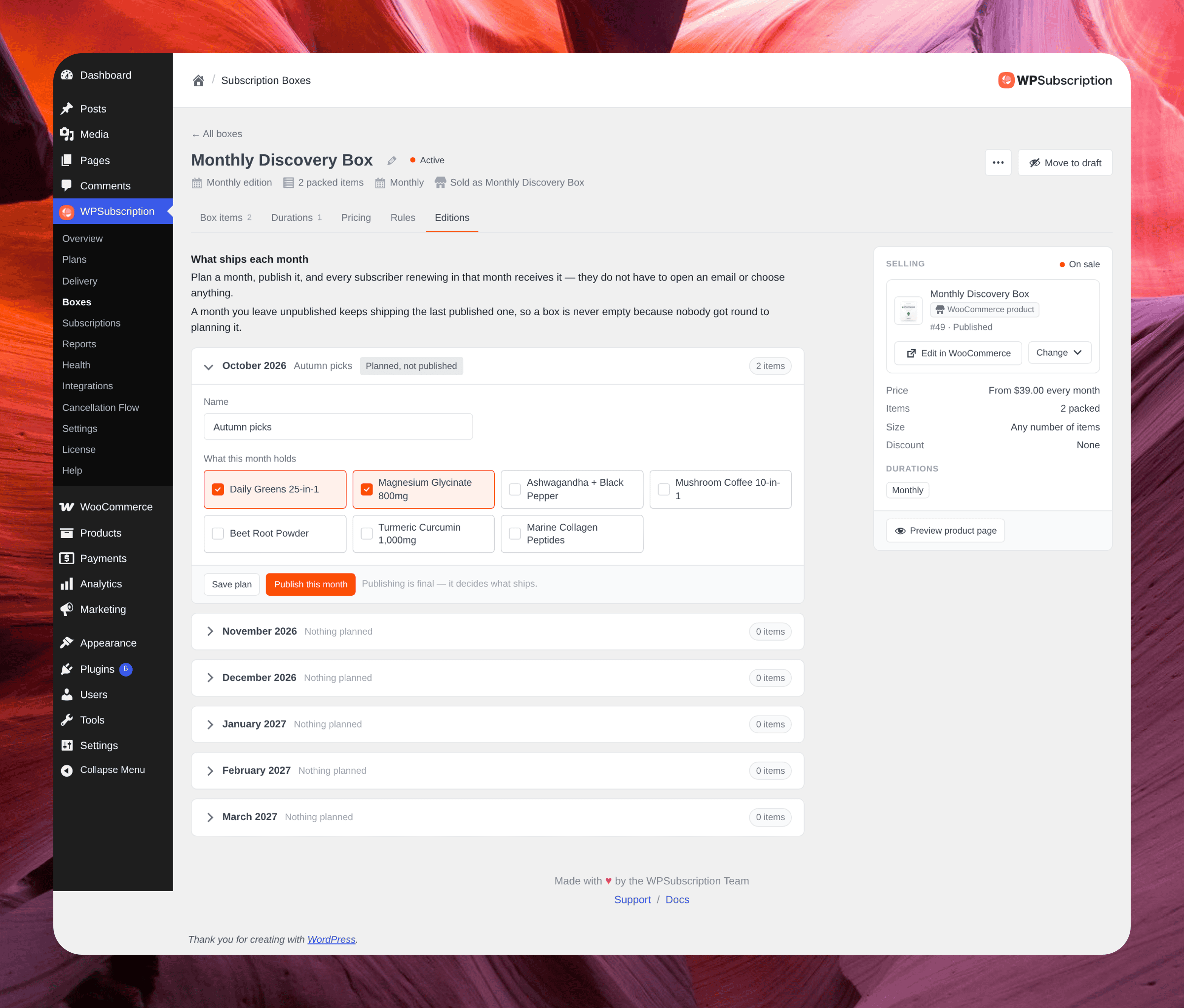
On a monthly edition box, each month is a card that collapses to one line showing its status and how many items it holds. Open a month, optionally name it, tick the products it holds from a grid of chips, and click Save plan; the page returns with that month still open.
Publish this month is final: a published month is locked and decides what ships to every subscriber renewing in it, without them opening an email or choosing anything. A month you leave unpublished keeps shipping the last published edition, so a box is never empty.
Put the box on sale
The Selling panel on the right shows the WooCommerce product that sells the box, with its price, items, size, discount and durations. Use Change to link another product, create a fresh one or unlink. A box sells through exactly one product. Click Publish box to put it on sale; if something is missing, WPSubscription lists what to finish first. Move to draft takes it off sale, and the ⋯ menu duplicates or deletes a box.
Often boxed together
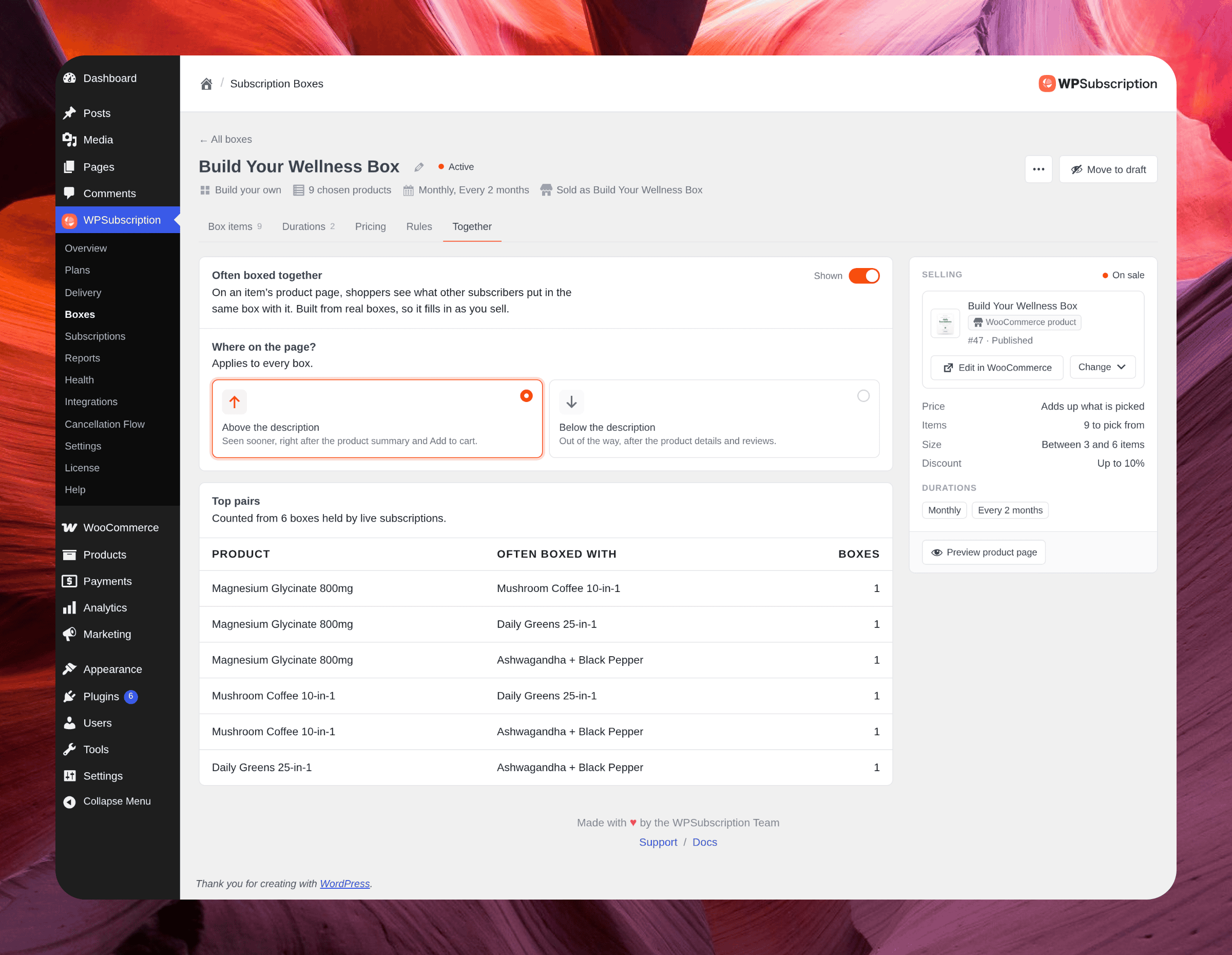
On a build-your-own box, the Together tab turns on the Frequently bought together section on an item's product page, and sets where it sits on the page, above or below the description.
It is built from real boxes, so it fills in as you sell; until then it suggests the box's own picks and pool. See Boxes on your storefront for how shoppers see it.
Packing: Upcoming and Pick list
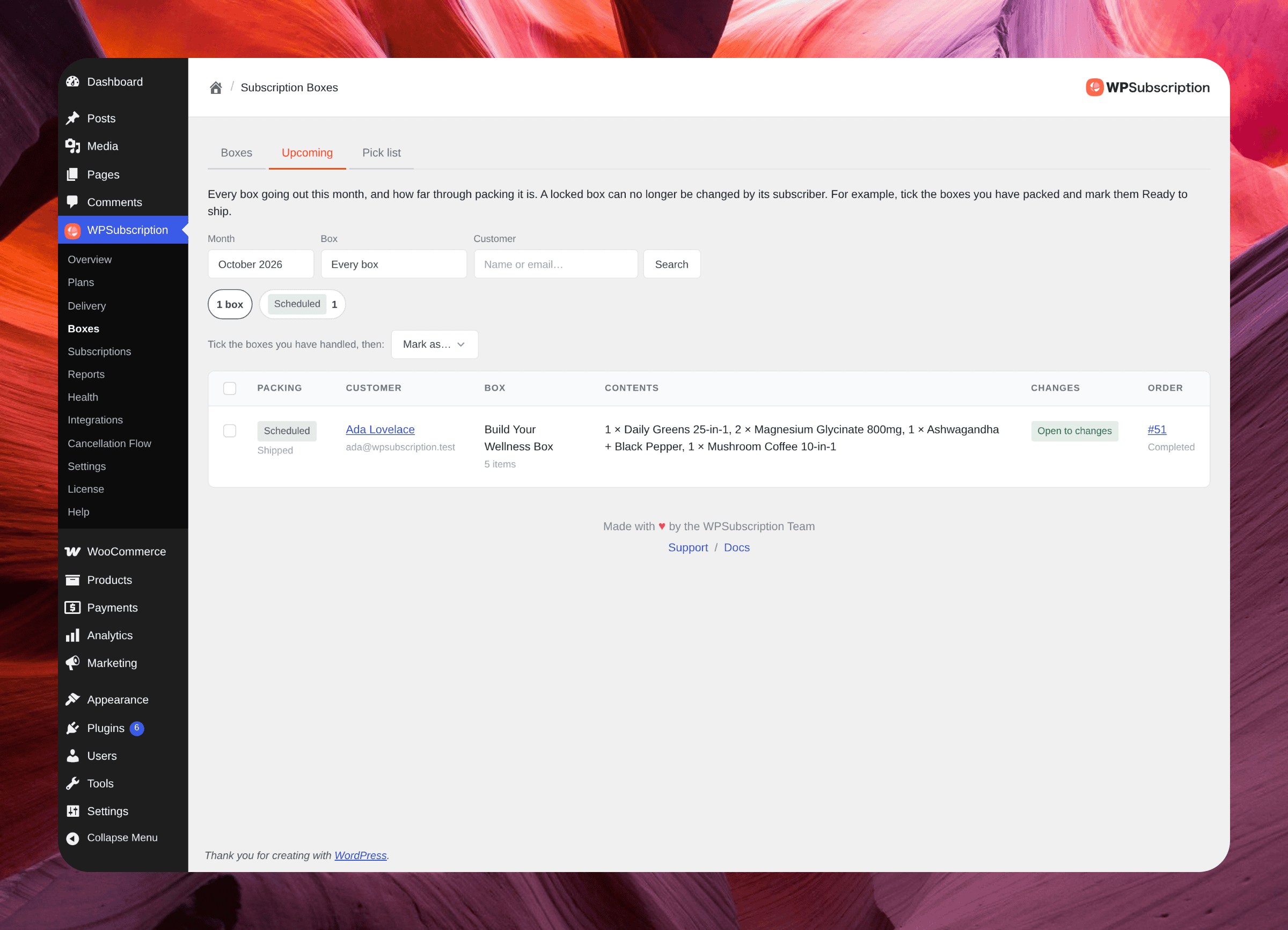
Upcoming lists every box going out in a month, who it is for, what is in it, whether the customer can still change it, and the order behind it. Filter by month, box or customer, tick the boxes you have handled and mark them, for example as Ready to ship.
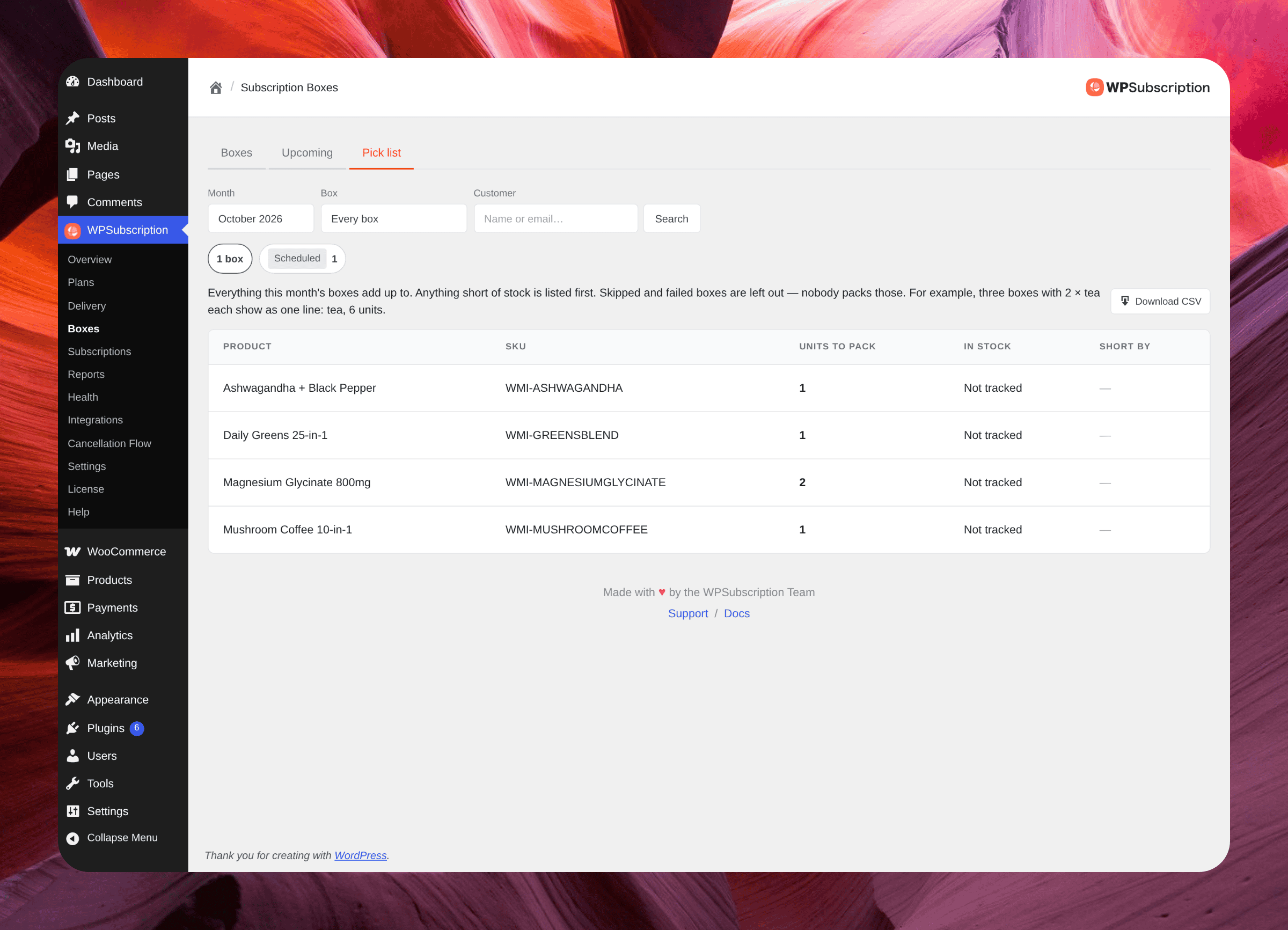
The Pick list adds the month's boxes up into one list of products and quantities to pack, with stock beside it and anything short of stock listed first. Skipped and failed boxes are left out. Download CSV exports it. A box bought once only appears once its order is paid.
What to do next
Boxes on your storefront — what customers see and can do.
Plans — the durations a shared plan gives a box.