
Once a box is on sale, its product page is where customers fill it. This article follows a customer from the product page to My Account. To set boxes up first, see Subscription Boxes: Set Up Your First Box.
Note: Subscription boxes need WPSubscription Pro 2.5.0 or later with WPSubscription 2.5.0 or later.
The box product page
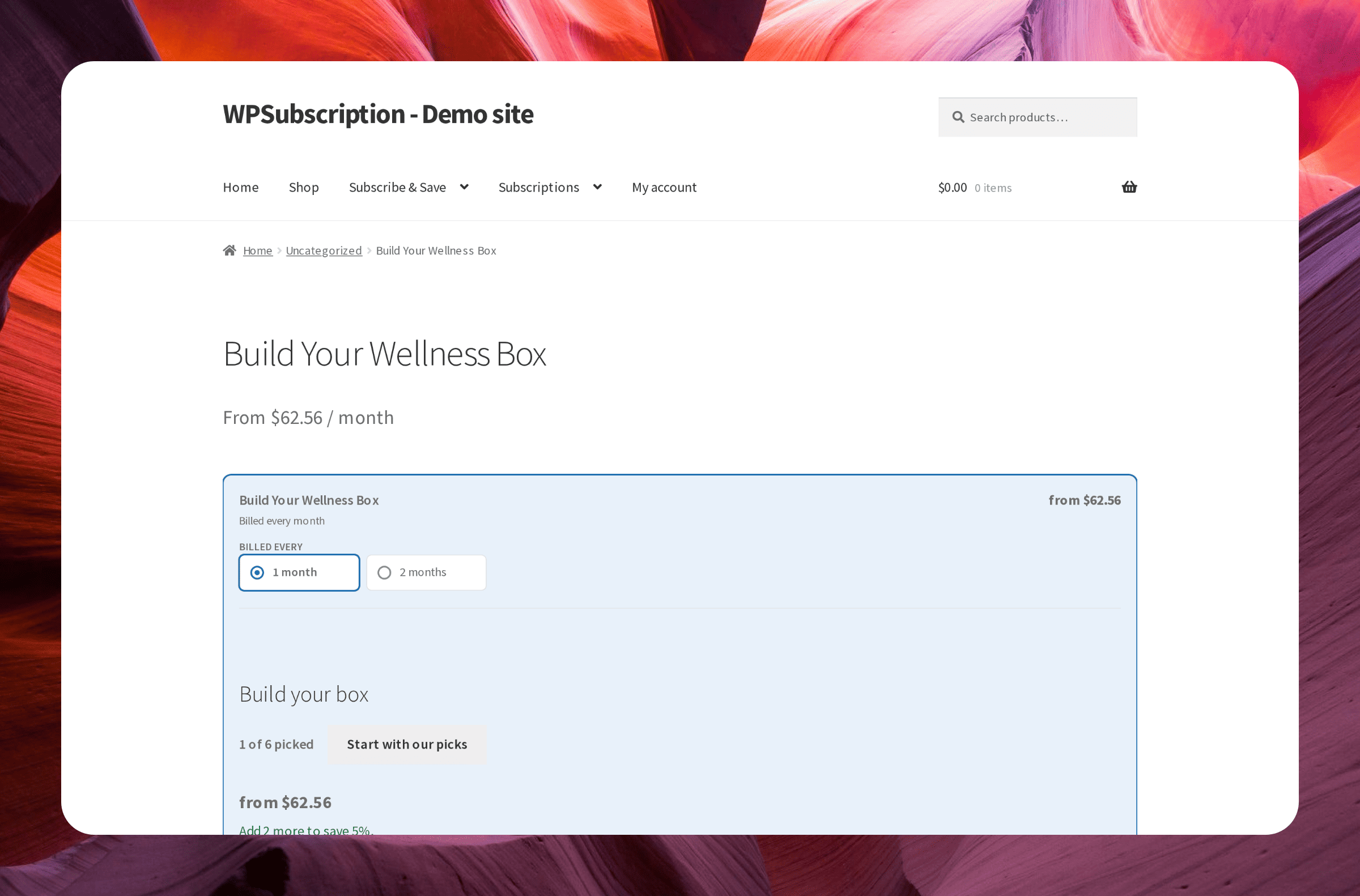
A build-your-own box has a full-width product page. The customer chooses how often it ships, then picks items with the plus and minus buttons. A progress bar and a tray at the bottom of the screen show how many items are picked, the running price and how close they are to the next discount. Start with our picks fills the box with your prefilled items.
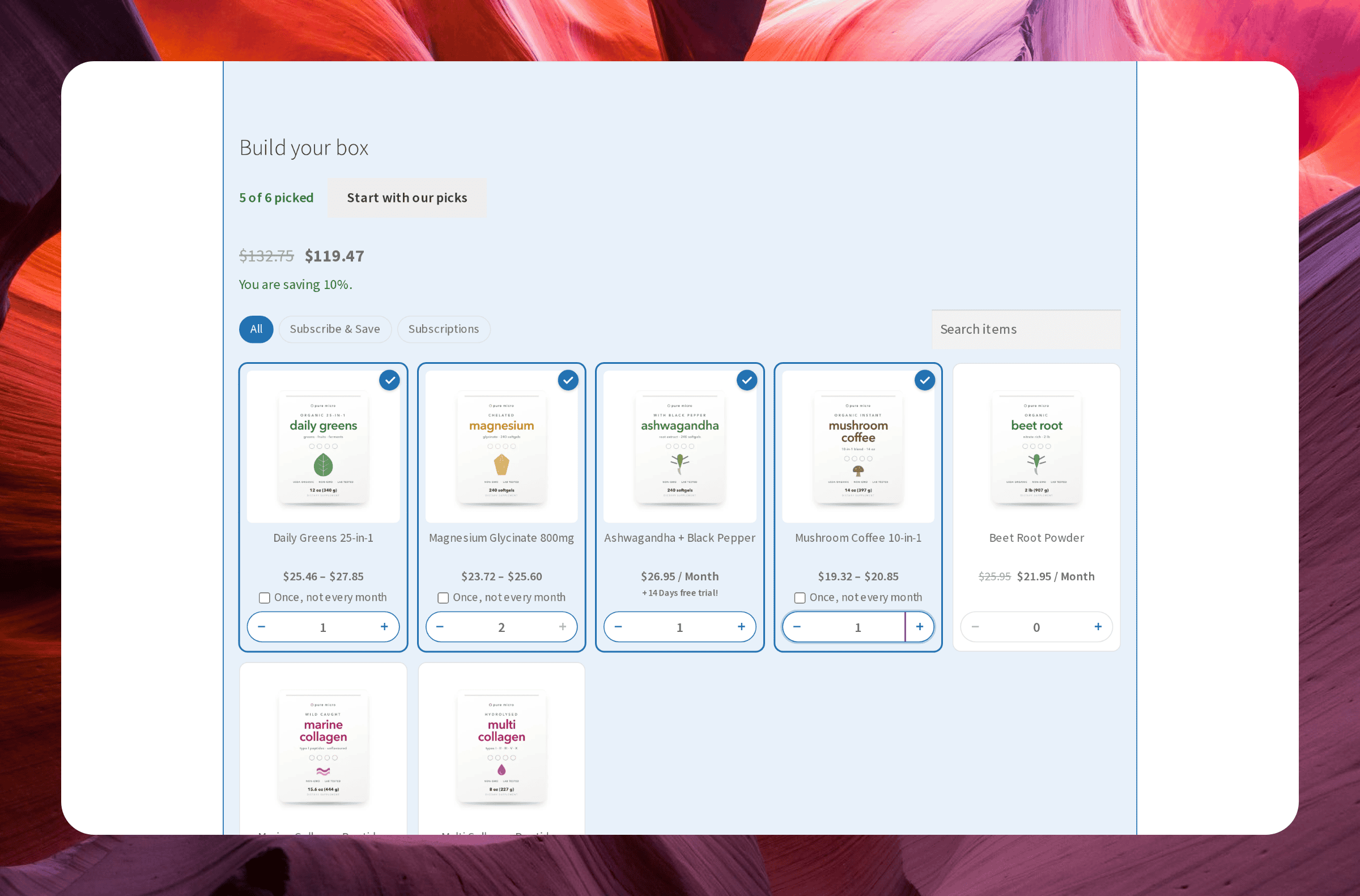
On a box priced by what is picked, each card shows the item's price and the total updates as the customer goes.
The box rules apply as they pick: the minimum, the maximum and the most of one product. The customer cannot add the box to the cart until it fits.
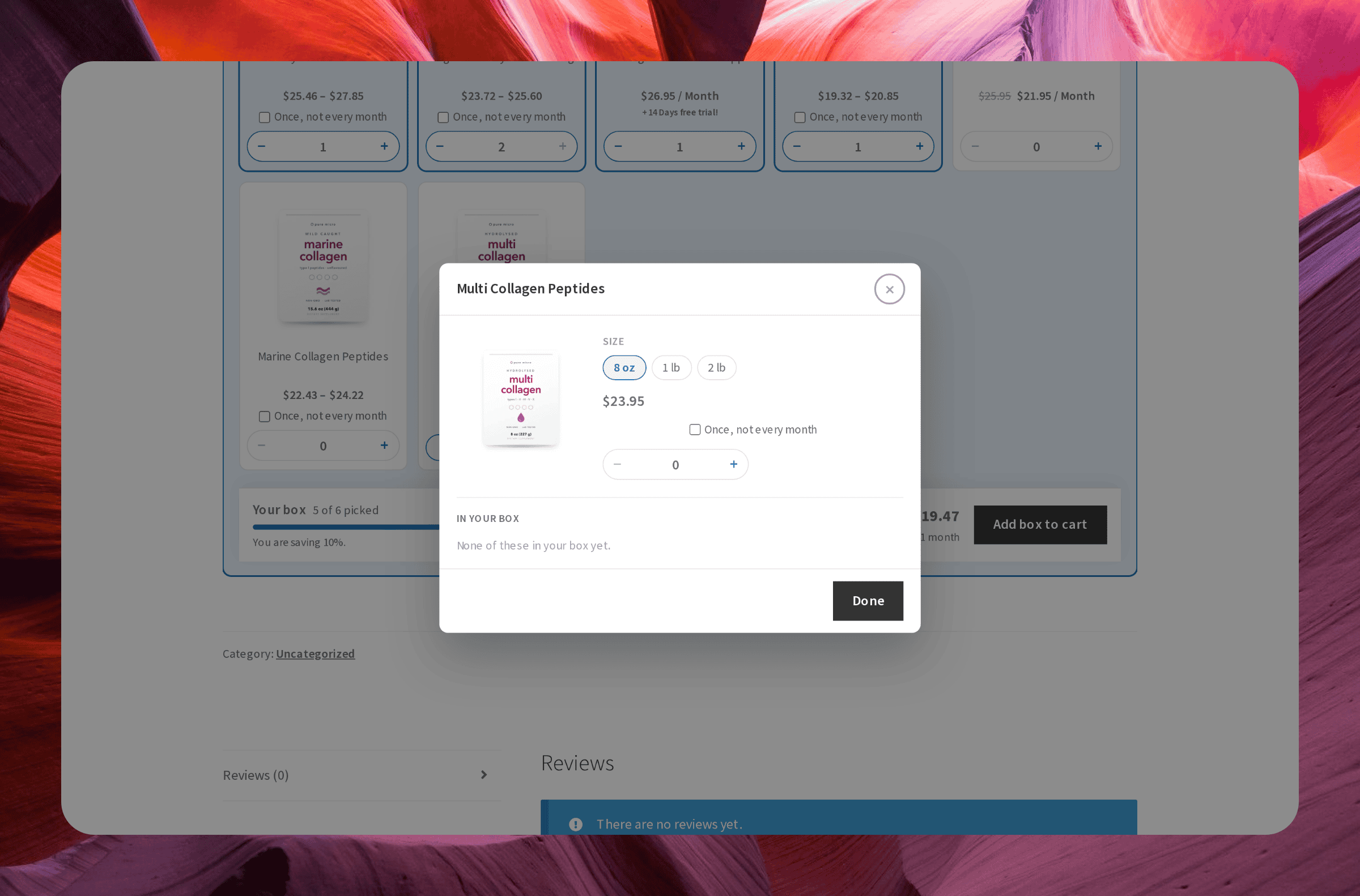
A variable product shows a Choose options button that opens a small window to choose its variation.
Where an item is also sold as a one-time purchase, the card offers Once, not every box. A once item ships in the first box only, and is charged with that first box as a separate fee, taxed like any product.
A box can also be bought once, as a one-off, when you offer it that way. It is packed once.
A monthly edition box has no builder: its page shows What is in this box and tells the customer the contents change each cycle and that they will be emailed before it ships.
In the cart
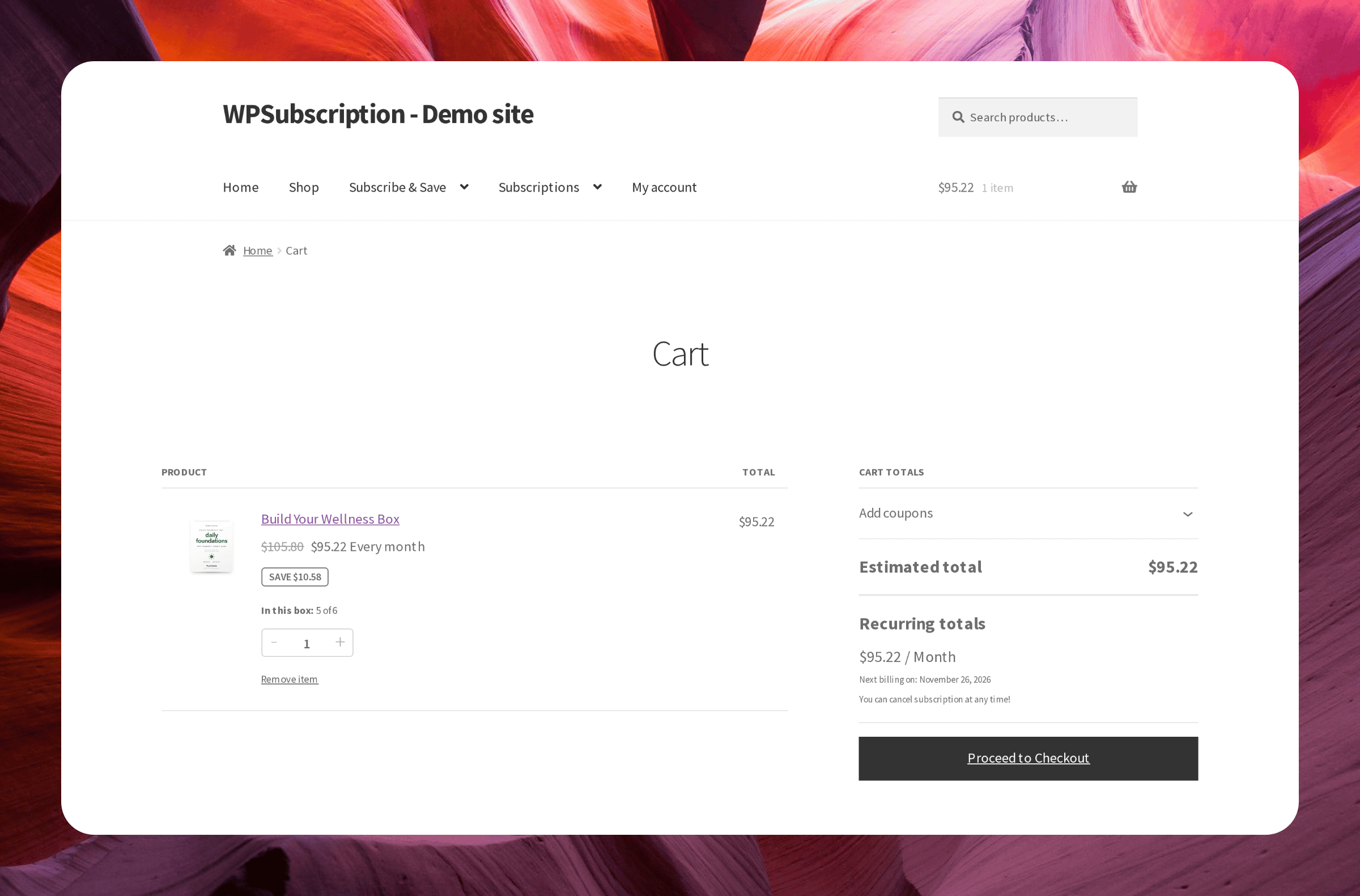
The cart line shows the box price, the saving and how many items are in it. What is inside is listed in the cart, on orders and in emails, with pictures on order screens and in emails.
Adding an item to a box from its own page
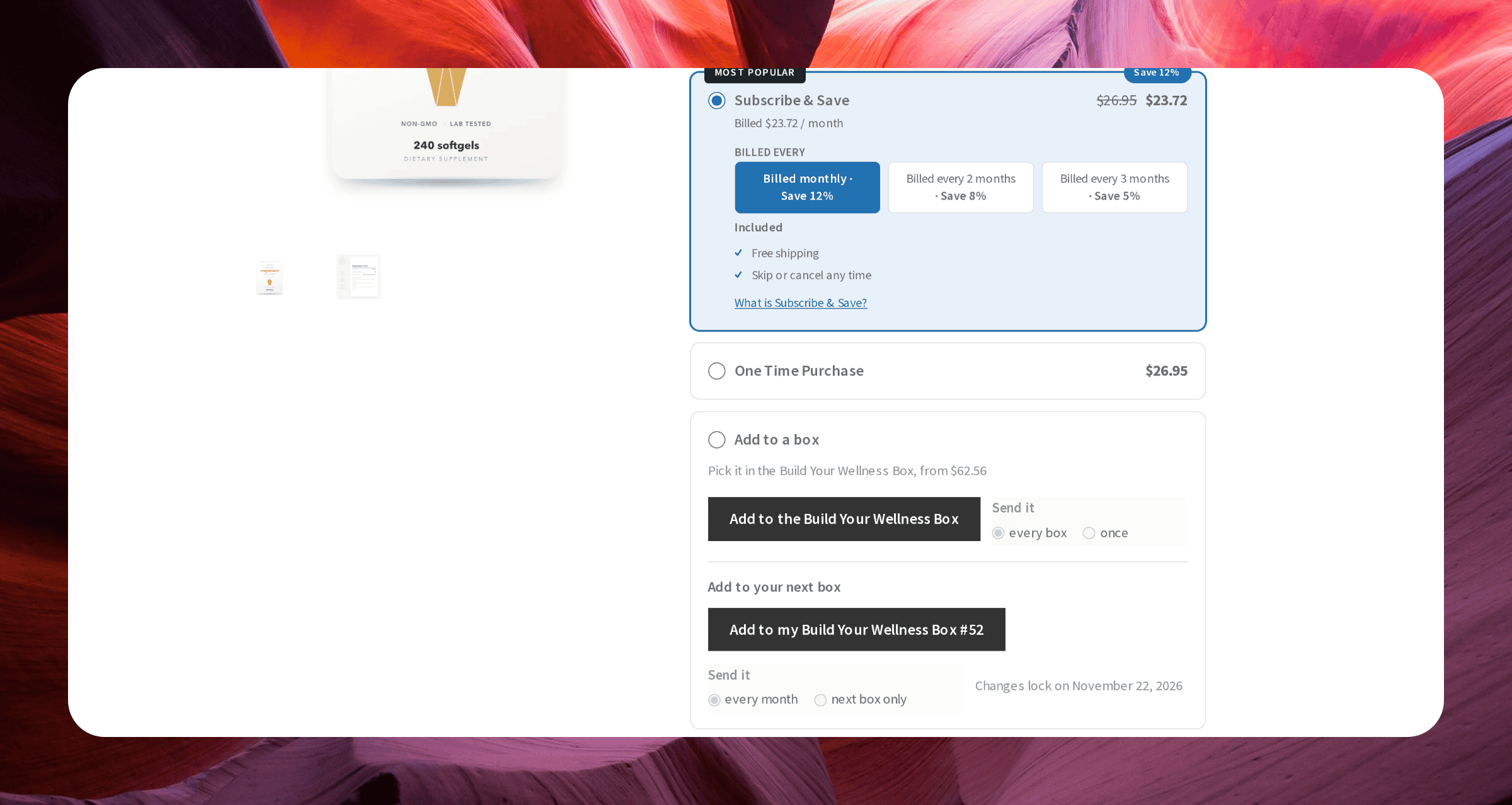
An item that a box can hold offers to go into it from its own page. Add to a box puts the item in the box already in the customer's cart, asking before it replaces anything when the box is full, or starts the box if there is none. A subscriber sees Add to your next box, which adds the item to the box they already receive. They can send it every cycle, or next box only as an extra for one delivery.
Frequently bought together
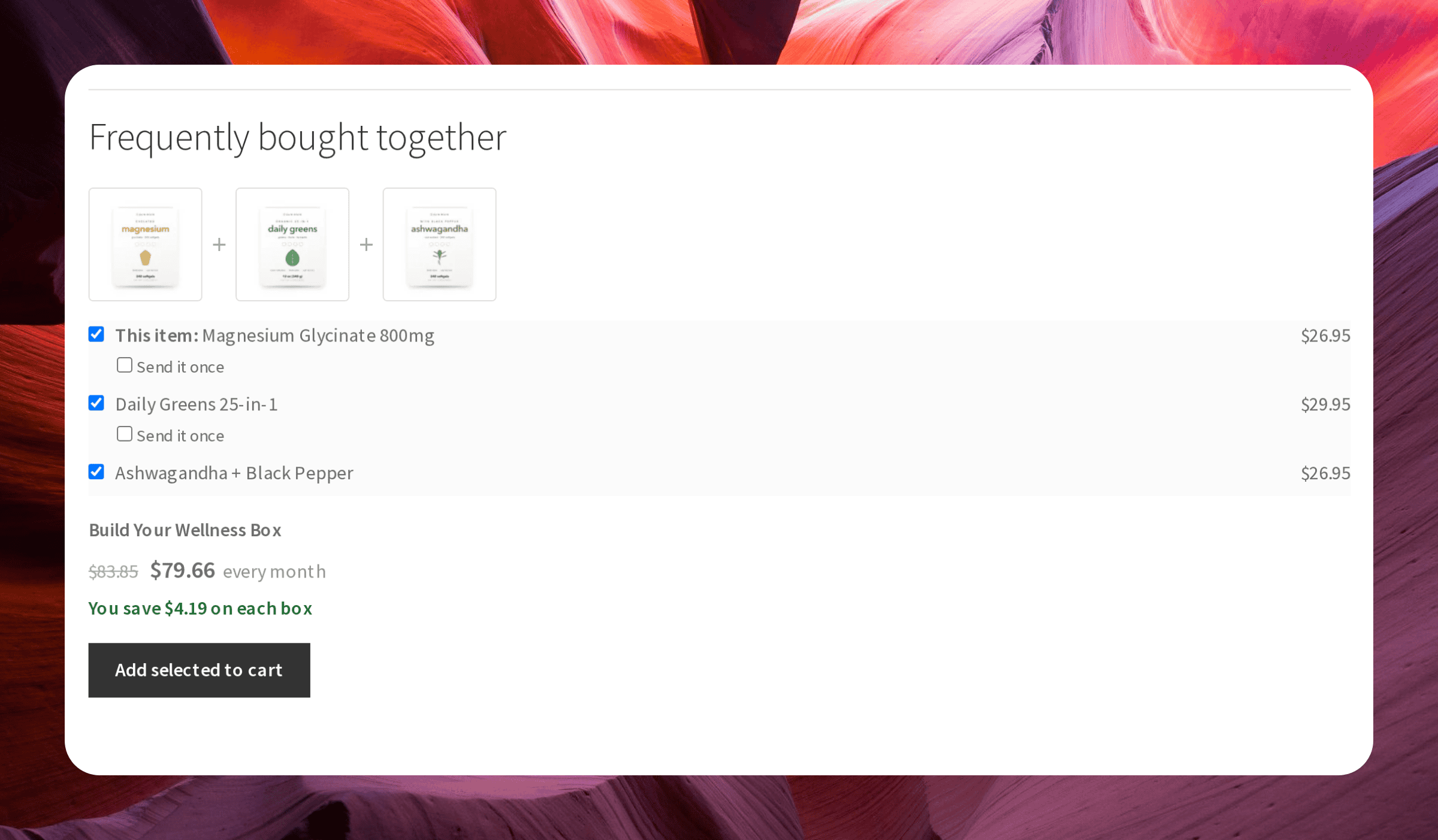
On an item's page, Frequently bought together shows what other subscribers put in the same box, with the box price and what the combination saves. Add selected to cart fills the box in the cart, or starts one. The section is built from real boxes, so it fills in as you sell. Switch it on or off per box on the box's Together tab. Where it sits on the page, above or below the product tabs, is set in Settings → Product page. The [subscrpt_box_together] shortcode places it anywhere.
My Account
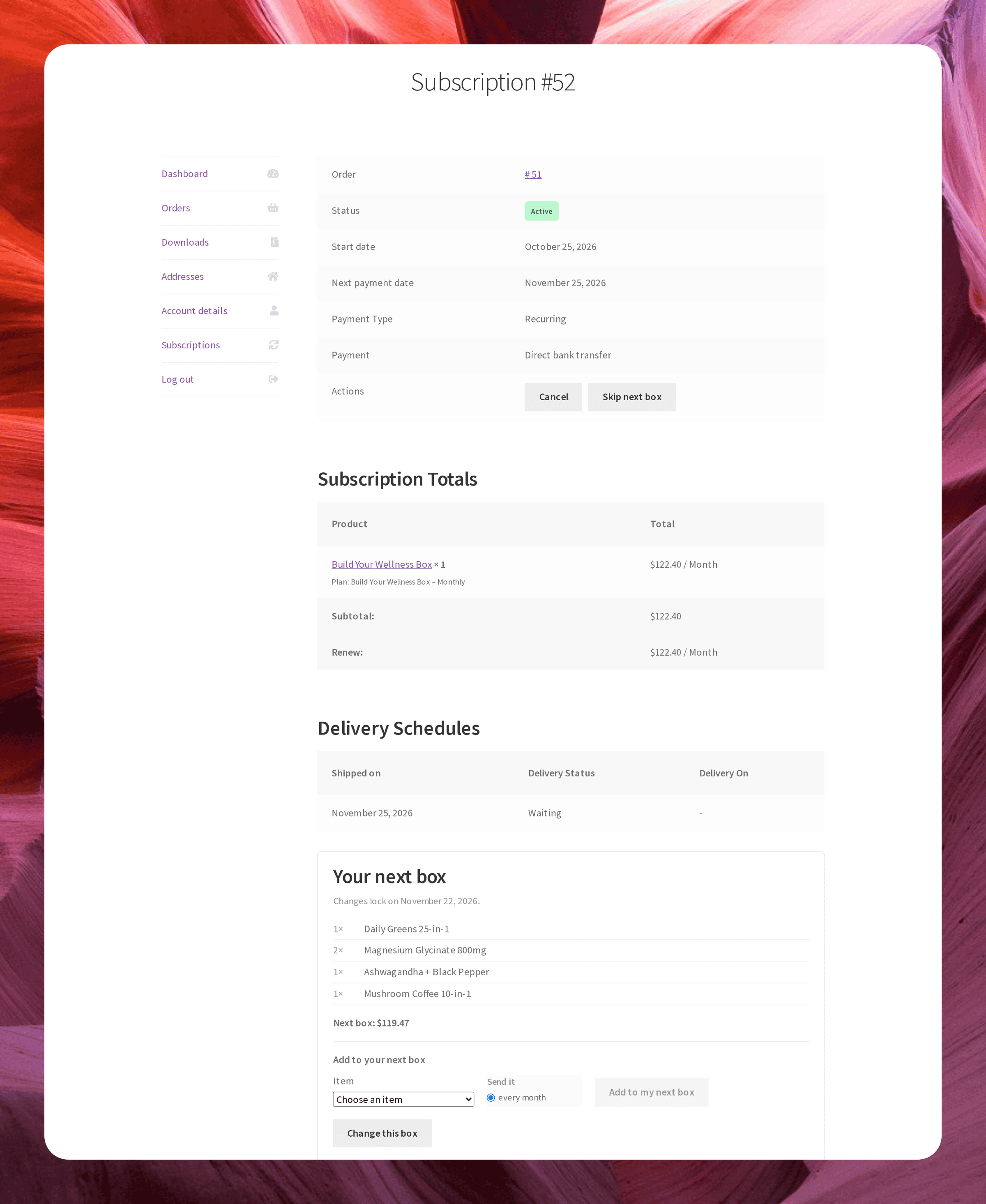
Subscribers see Your next box on their subscription page, with the lock date after which it can no longer change. Depending on your rules they can Change this box, Skip next box and add to their next box. Once the box is being packed, the page says so and the contents are fixed. They also get an email before each box ships with what is in it and what it will charge.
What to do next
Purchase option layouts — how the delivery choices on the page look.