
One-Time and Recurring Together
Most shoppers will subscribe if you let them, and some never will. WPSubscription lets you offer both on the same product page: a subscription with your best price, and a plain one-off purchase beside it.
Note: This is a built-in feature as of WPSubscription 2.0 — a single Allow one-time purchase toggle. Earlier versions needed a workaround: a variable product with a "Purchase Type" attribute and a variation for each. You do not need that any more. If you built one that way it still works, but the toggle is simpler and gives the customer a clearer choice.
Prerequisites
- A product connected to a plan. One-time purchase is an option alongside a subscription, not instead of one.
- A price on the product under General — that is what the one-off costs.
How the two prices work
The product carries two independent sets of prices, and that separation is the whole point.
| Comes from | Charged | |
|---|---|---|
| Subscription price | The plan connection — a regular and offer price per duration. | Every billing cycle. |
| One-time price | The product's own WooCommerce regular and sale price. | Once. |
Because they are separate, you can undercut the one-off with the subscription and let the gap do the selling — which is exactly what the Save 14% badge on the product page is measuring.
Step 1 — Turn it on
Edit the product, open Product data → Subscription, click Edit prices, and switch on Allow one-time purchase.
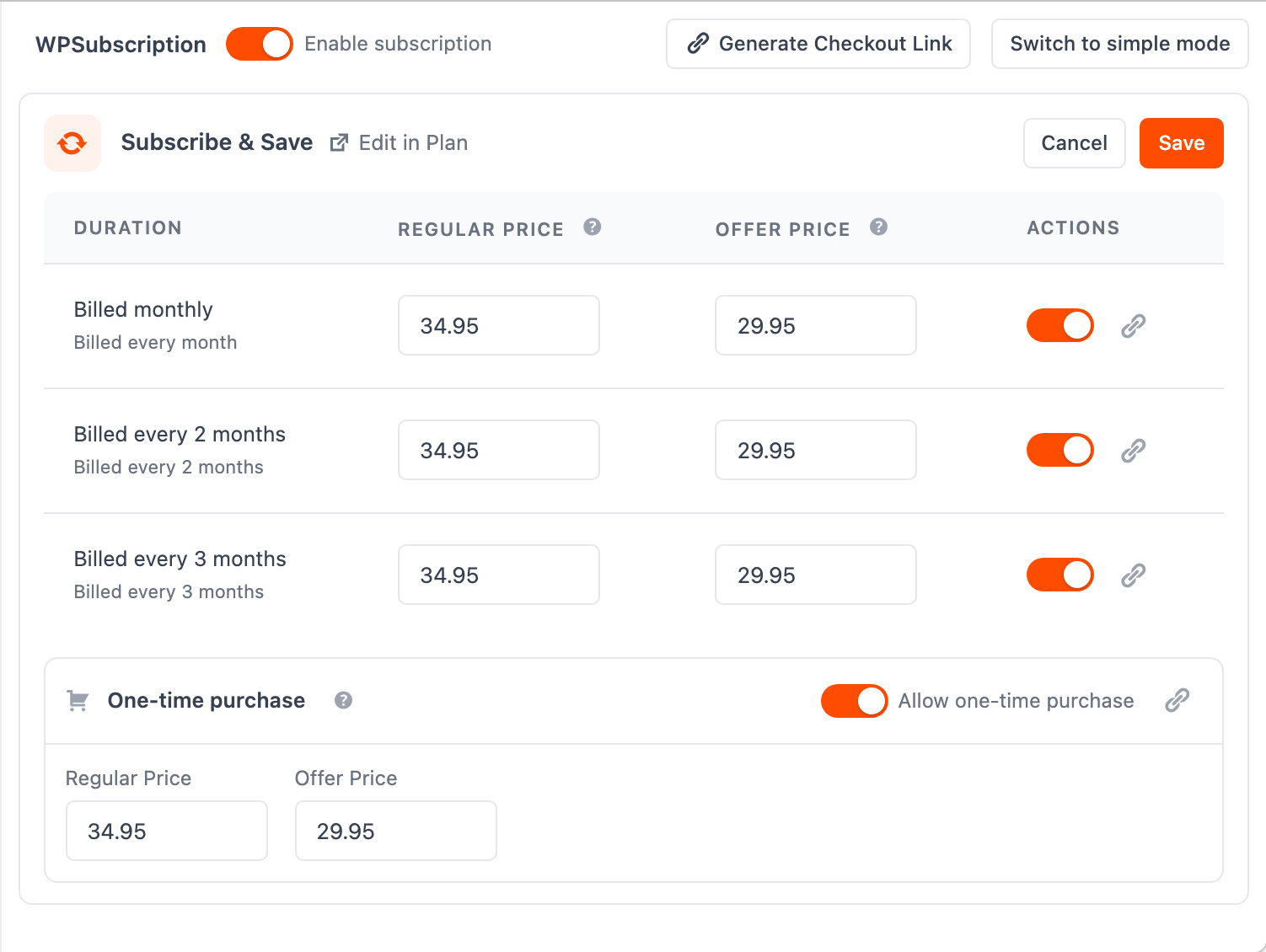
The same switch is on the plan's Products tab, if you are working through a catalogue rather than one product.

Step 2 — Price the one-off
Set Regular Price and, if you want, Offer Price on the one-time row. These are the product's WooCommerce regular and sale prices — edit them here and you edit the product; edit the product and they change here.
Price the one-off at your normal price and the subscription below it. A customer who does the arithmetic should conclude that subscribing is obviously better, which is the only reliable way to sell a subscription.
Note: One-time purchase is set per product — and on a variable product, per variation. Turning it on for the 150-count does not turn it on for the 300-count.
What the customer sees
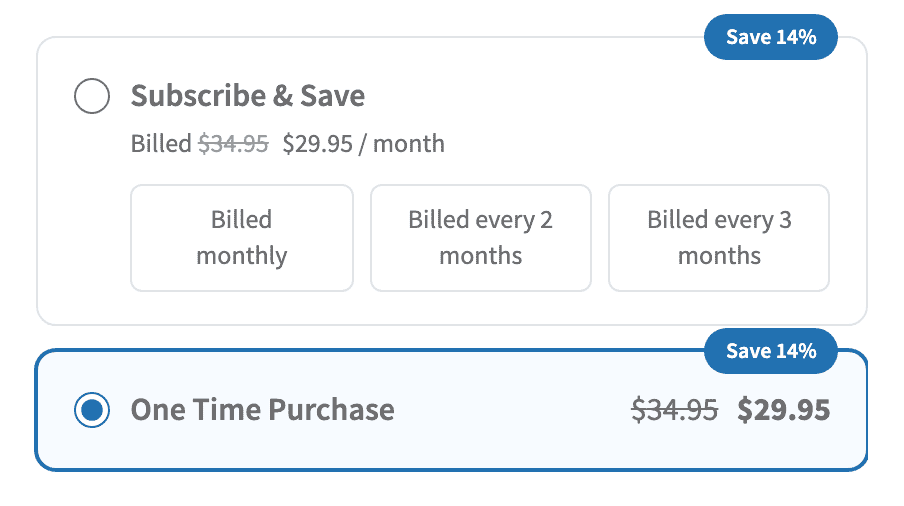
Two cards on the product page: the plan, then One Time Purchase.
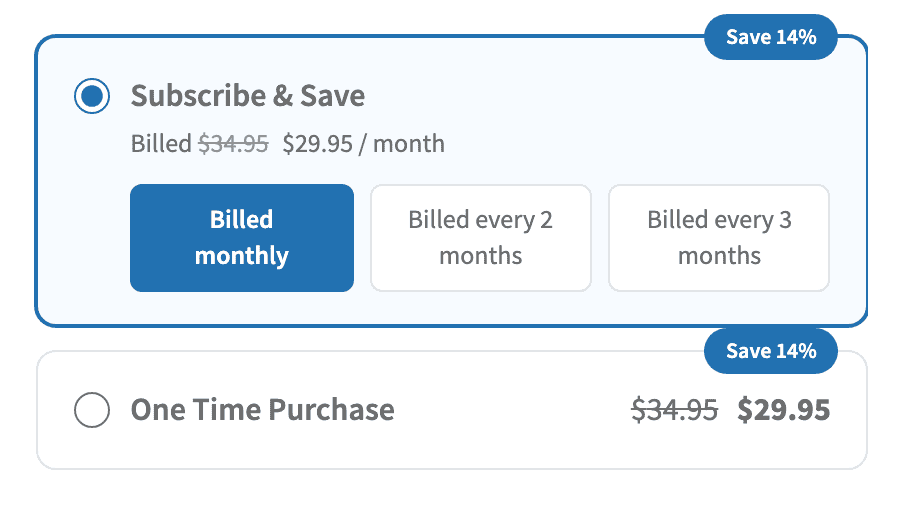
The order is deliberate. The subscription is selected by default, so a customer who reads nothing and clicks Add to cart subscribes. Choosing one-time is a deliberate act.
What lands in the cart
A one-time purchase is an ordinary WooCommerce line. No billing period, no Recurring totals block, no next payment date, and no subscription is created at checkout.
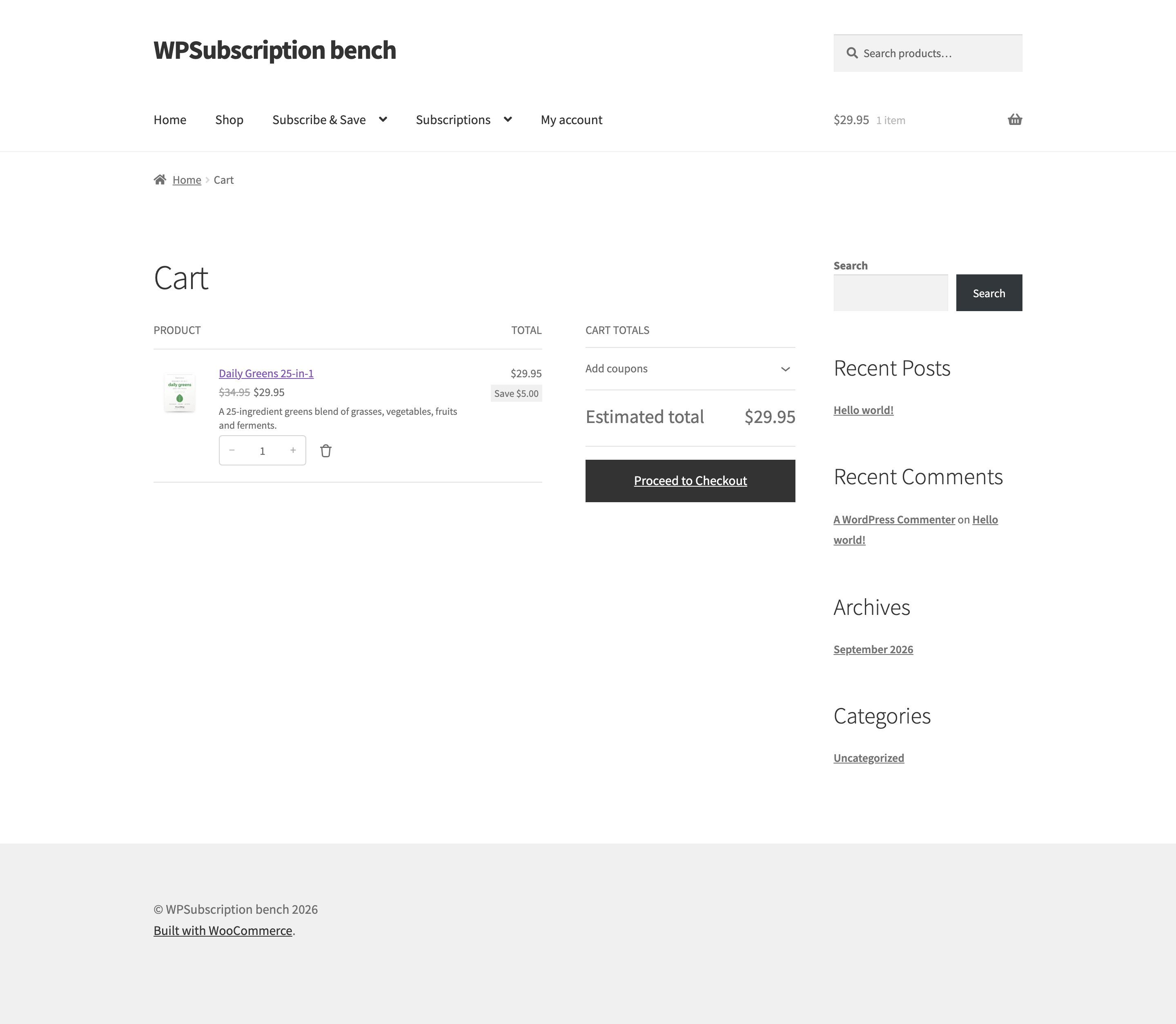
The customer can come back and subscribe later; nothing about buying once prevents it.
Direct links to either
Both options get their own checkout link, so a campaign can point at exactly one. On the Subscription tab the One-time chip has the same copy icon as every duration, and the Generate Checkout Link dialog lists One-time purchase alongside them.
A one-time link is simply a link with no plan on it:
https://example.com/checkout-link/?products=1421:1                      → one-time
https://example.com/checkout-link/?products=1421:1&subscrpt_plan_id=27 → subscriptionWhen to use it
- Consumables — someone trying a supplement for the first time will buy one tub. Subscribe & Save is for the second.
- Plugins and themes — buy the version you have, or subscribe for updates and support.
- Courses and content — one course, or a membership.
- Gifts — nobody wants to sign up for a recurring charge on someone else's behalf.
Troubleshooting
| Symptom | Check |
|---|---|
| No One Time Purchase card | The toggle is on for this product — and on a variable product, for the chosen variation. |
| The one-time price is empty or wrong | It is the product's WooCommerce regular and sale price. Check the General tab. |
| A one-off created a subscription | The subscription card was selected when Add to cart was pressed — the subscription is the default. |
| No subscription options at all | The product is not on a plan. One-time purchase is an addition to a plan, not a substitute. |
What to do next
- Plan products and pricing — setting the subscription side of the pair.
- How plans look on the product page — the discount badge and how it is worked out.