
Variable Subscription Products
A variable subscription product sells tiers on one product page: 1 site / 3 sites / 10 sites, 150 softgels / 300 softgels, Basic / Pro / Agency. Each variation carries its own subscription price, and can be on its own durations.
Note: Variable subscription products require WPSubscription Pro. The free plugin sells simple products as subscriptions — see Simple subscription products.
Prerequisites
- WooCommerce, WPSubscription 2.0 and WPSubscription Pro, all active.
- A plan with at least one duration.
Step 1 — Create the product and its attribute
Go to Products → Add New, fill in the name and description, and set Product data to Variable product.
Open the Attributes tab and add the attribute the variations differ by — Size, Site License, Tier. Enter its values, tick Used for variations, and click Save attributes.
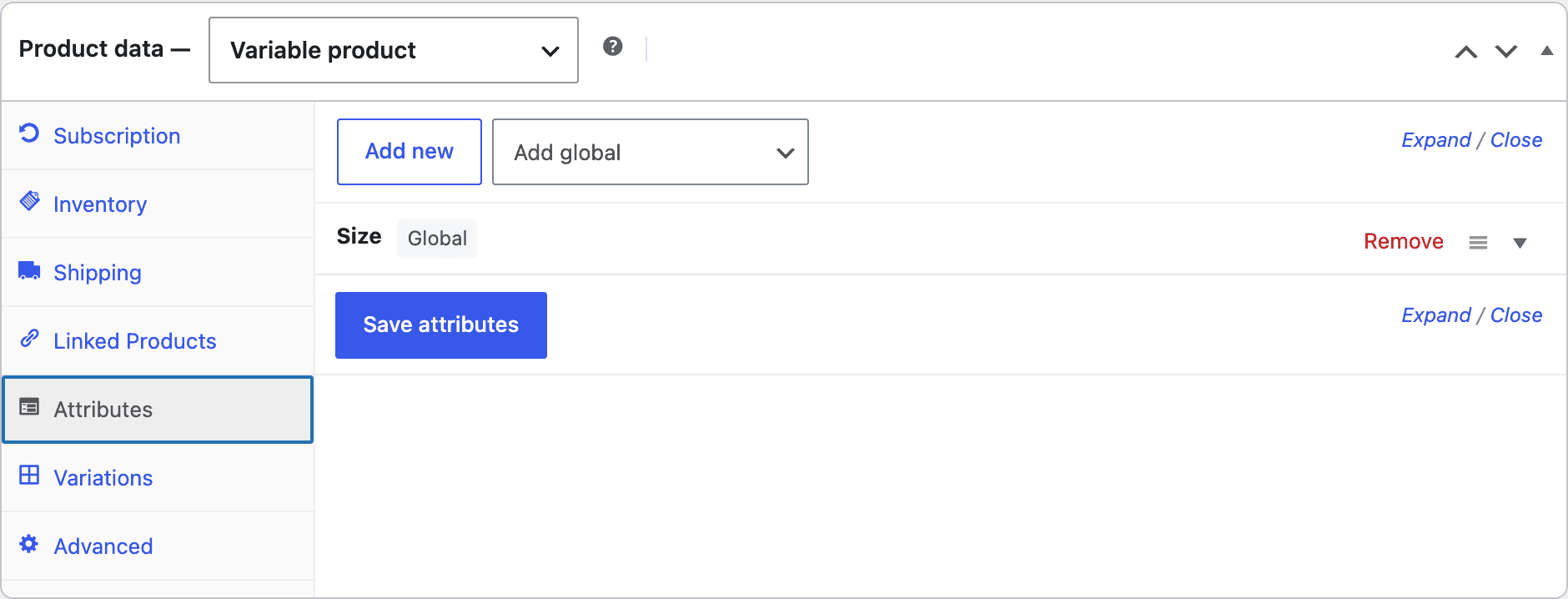
Step 2 — Create the variations
Open the Variations tab and click Generate variations, or add them one at a time. This is ordinary WooCommerce — WPSubscription does not change it.
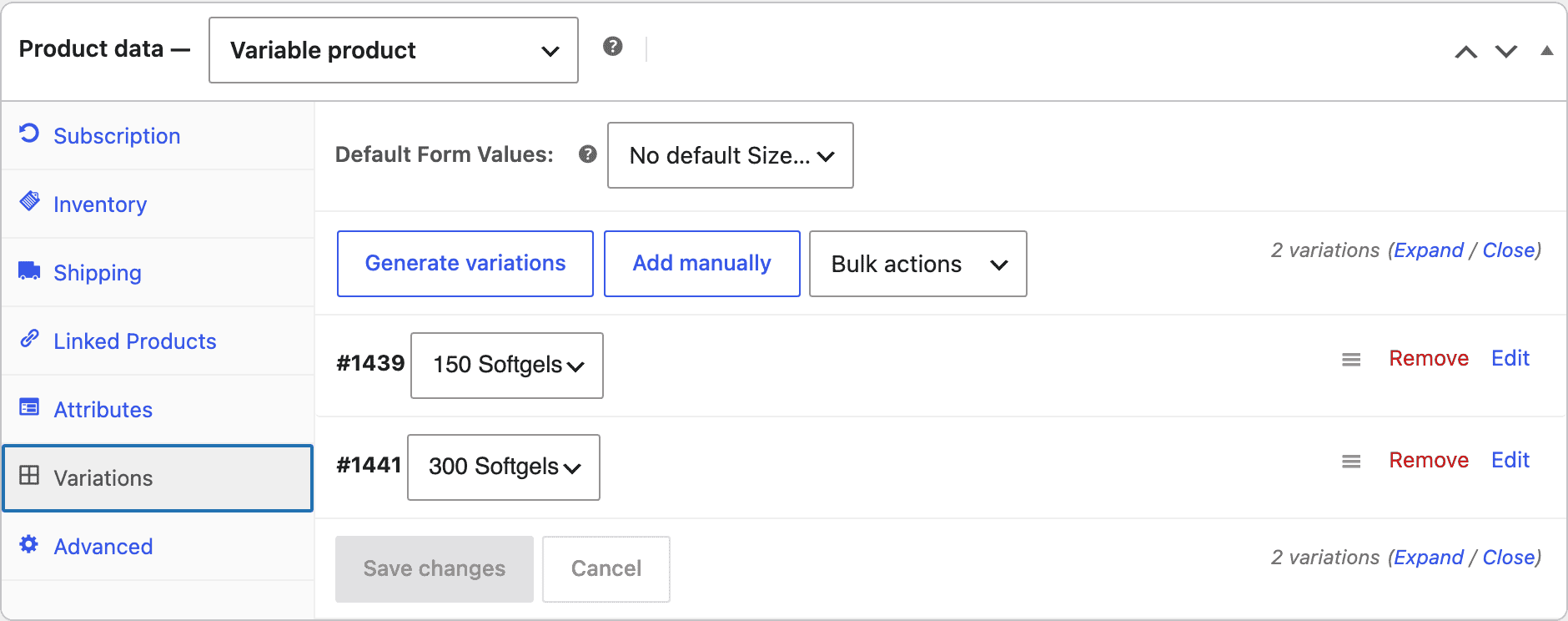
Note: You do not have to give a variation a price here. A variation on a plan takes its price from the plan connection, and WPSubscription keeps it visible and purchasable even when its WooCommerce price is empty. Setting one is still worth it — it becomes the one-time price if you offer one.
Step 3 — Connect the plan
Open the Subscription tab. On a variable product it shows one card per variation.
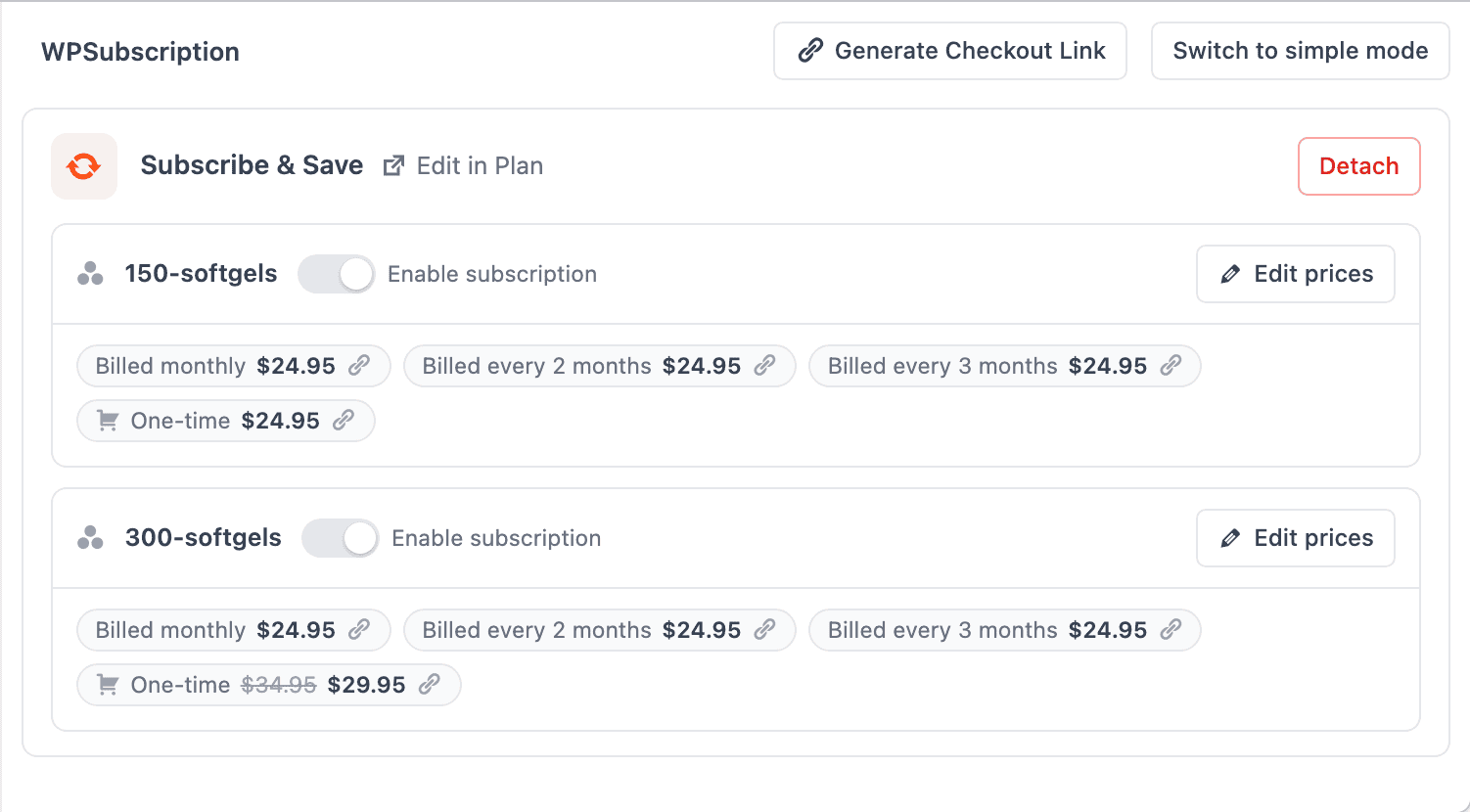
Connect the plan once, at the top, and every variation starts from the same prices. Each card has its own Enable subscription toggle, so a product can mix subscription variations with ordinary ones.
Step 4 — Price each variation
Click Edit prices on a variation's card and set its Regular Price and Offer Price per duration. This is where the tiers actually become tiers.
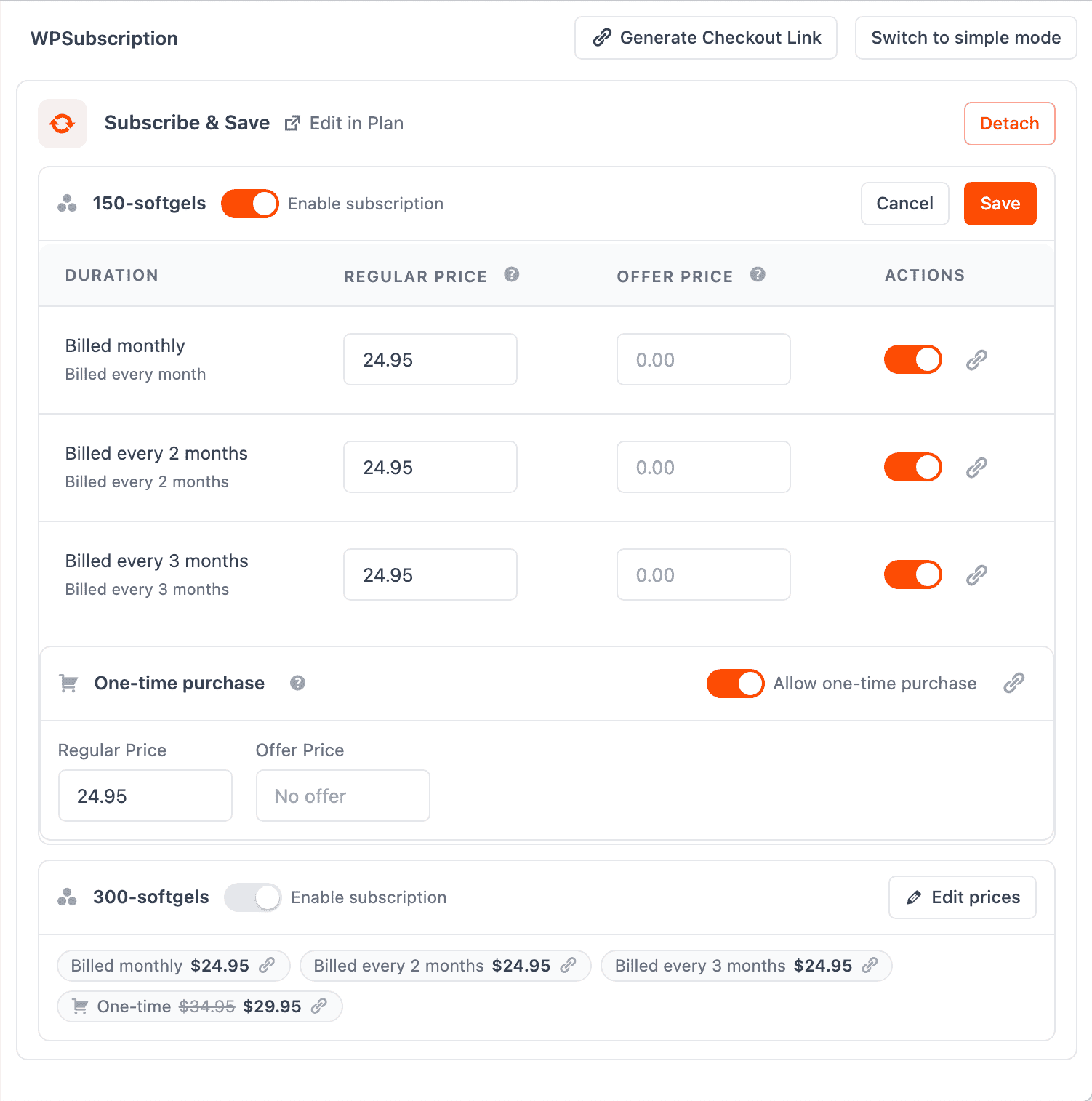
The per-duration toggle works here too, so the 300-count can offer a quarterly option the 150-count does not.
Click Save, then Update the product.
What the customer sees
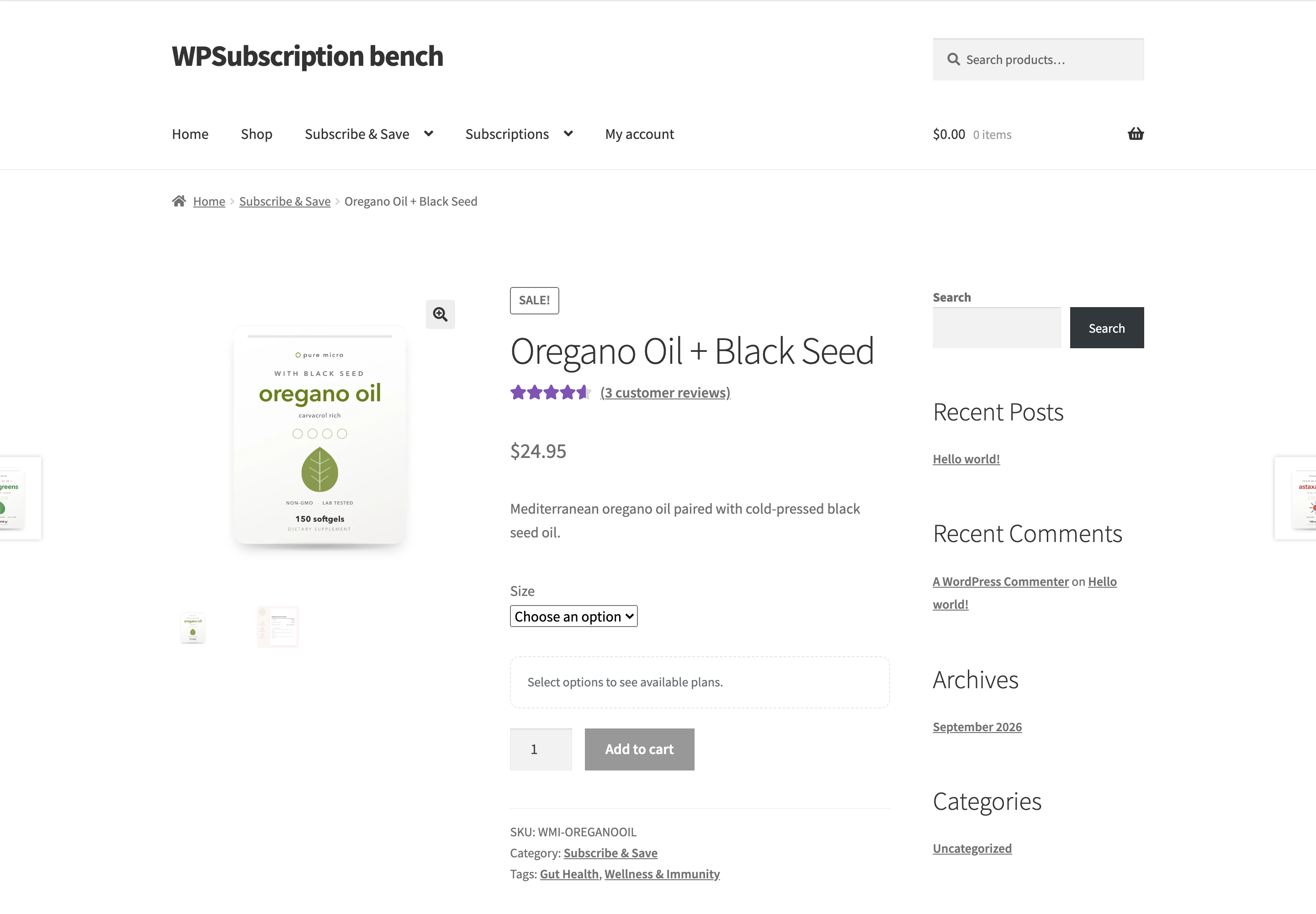
Plans can differ per variation, so the selector waits for the variation to be chosen.
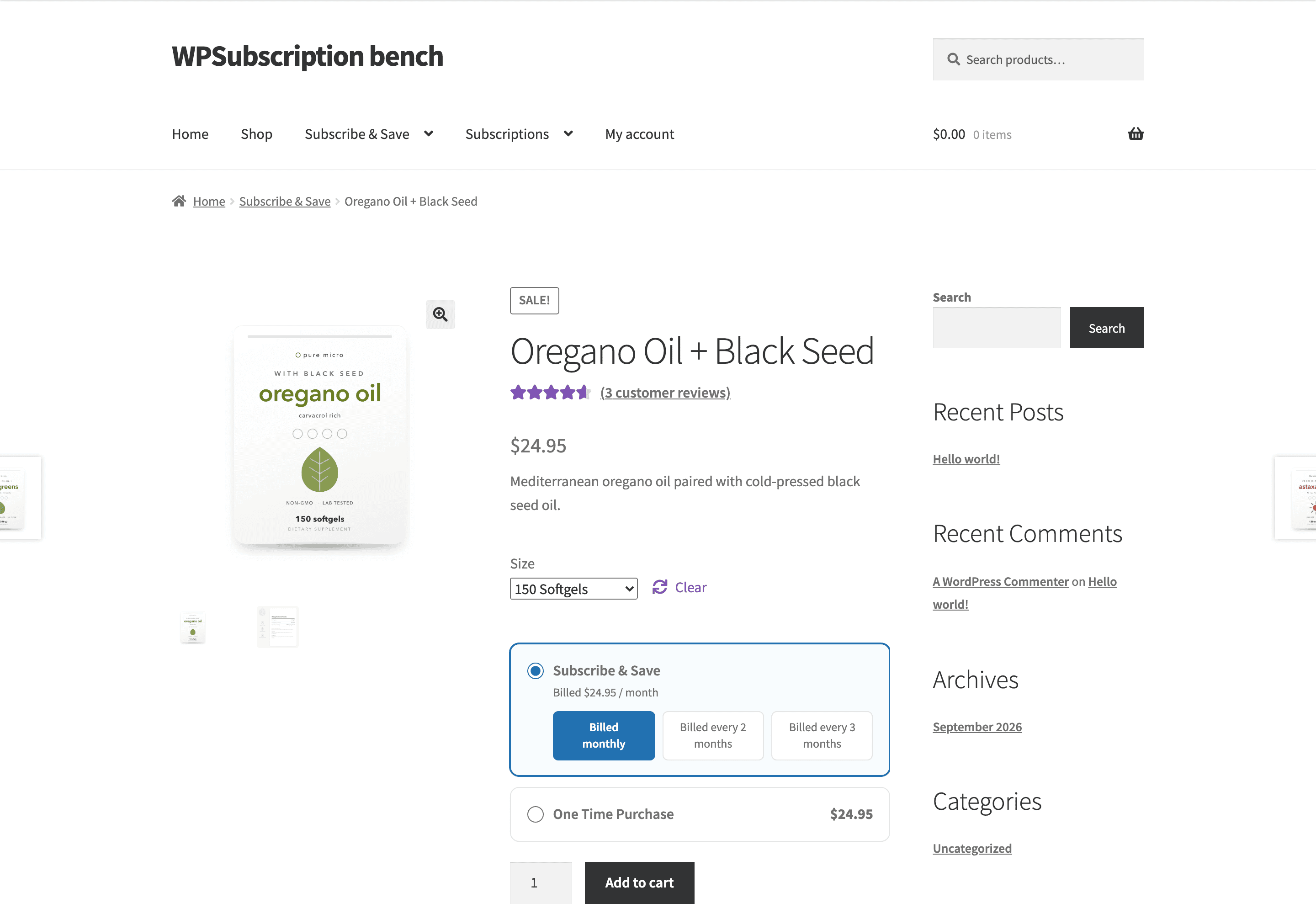
In the catalogue the product shows a price range across every variation and every duration, because a listing has no room to ask which the shopper wants.
Troubleshooting
| Symptom | Check |
|---|---|
| No plan cards on the Subscription tab | WPSubscription Pro is active. Variable products are a Pro feature. |
| A variation is missing from the dropdown | It needs either a WooCommerce price or a plan connection. With neither, WooCommerce hides it. |
| "Select options to see available plans" never goes away | The chosen variation is not on the plan, or its Enable subscription toggle is off. |
| A checkout link will not target a variation | It uses an Any … attribute, which cannot be resolved to one variation. Use an add-to-cart link instead — see Direct checkout links. |
What to do next
- Plan products and pricing — the same prices, from the plan side.
- One-time and recurring together — per variation.
- How plans look on the product page.