
The purchase options on a product page, where a customer chooses a plan and shipping frequency, now come in seven layouts. You choose the layout and colours once for the store; a product can use its own layout, and each plan can carry a ribbon, a list of benefits, and a "learn more" link.
The purchase options are the same with or without Pro. Variable products with plans, and Subscribe & Save and instalment plans, need Pro.
Settings → Product page
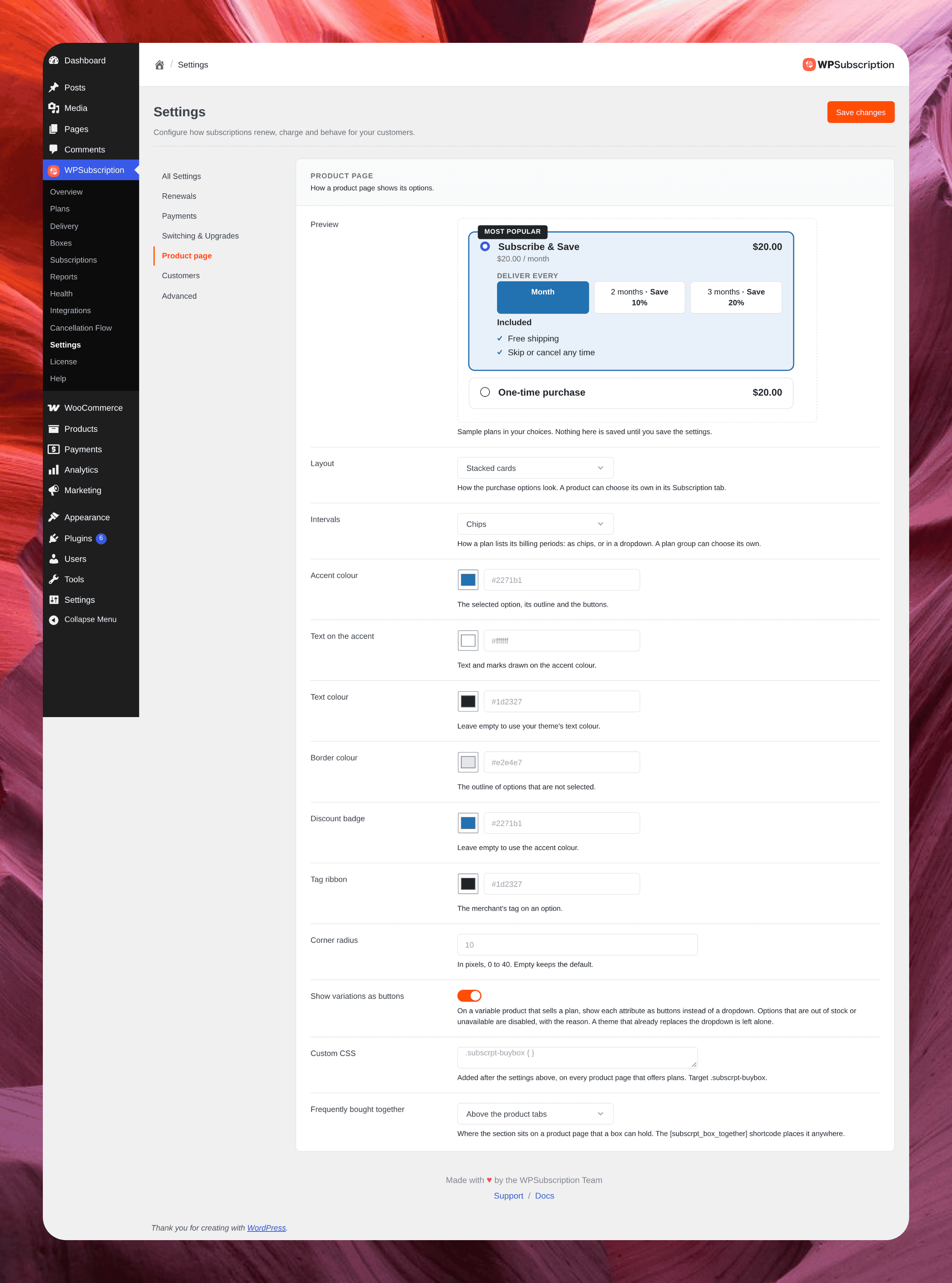
Go to WPSubscription → Settings → Product page. The preview at the top uses sample plans and updates as you change a setting.
Setting | What it does |
|---|---|
Layout | One of the seven layouts below. |
Intervals | Show a plan's billing periods as chips, or in a dropdown. A plan can choose its own. |
Colours | Accent, text on the accent, text, border, discount badge and tag ribbon. Leave one empty to use the default or your theme's colour. |
Corner radius | 0 to 40 pixels. |
Show variations as buttons | On a variable product that sells a plan, shows each attribute as buttons instead of a dropdown. Options that are out of stock are disabled, with the reason. |
Custom CSS (Pro) | Your own CSS, added after the settings above on every product page that offers plans. Target |
The seven layouts
Layout | How it looks |
|---|---|
Stacked cards (default) | One card per option, one above the other. |
Classic radio list | A plain list of radio buttons. |
Dropdown | One select for the option and one for the interval. |
Accordion | Options fold open one at a time. |
Grid of tiles | Options side by side as tiles. |
Grid, savings first | Tiles that lead with what the customer saves. |
Button row | Options as a row of buttons. |
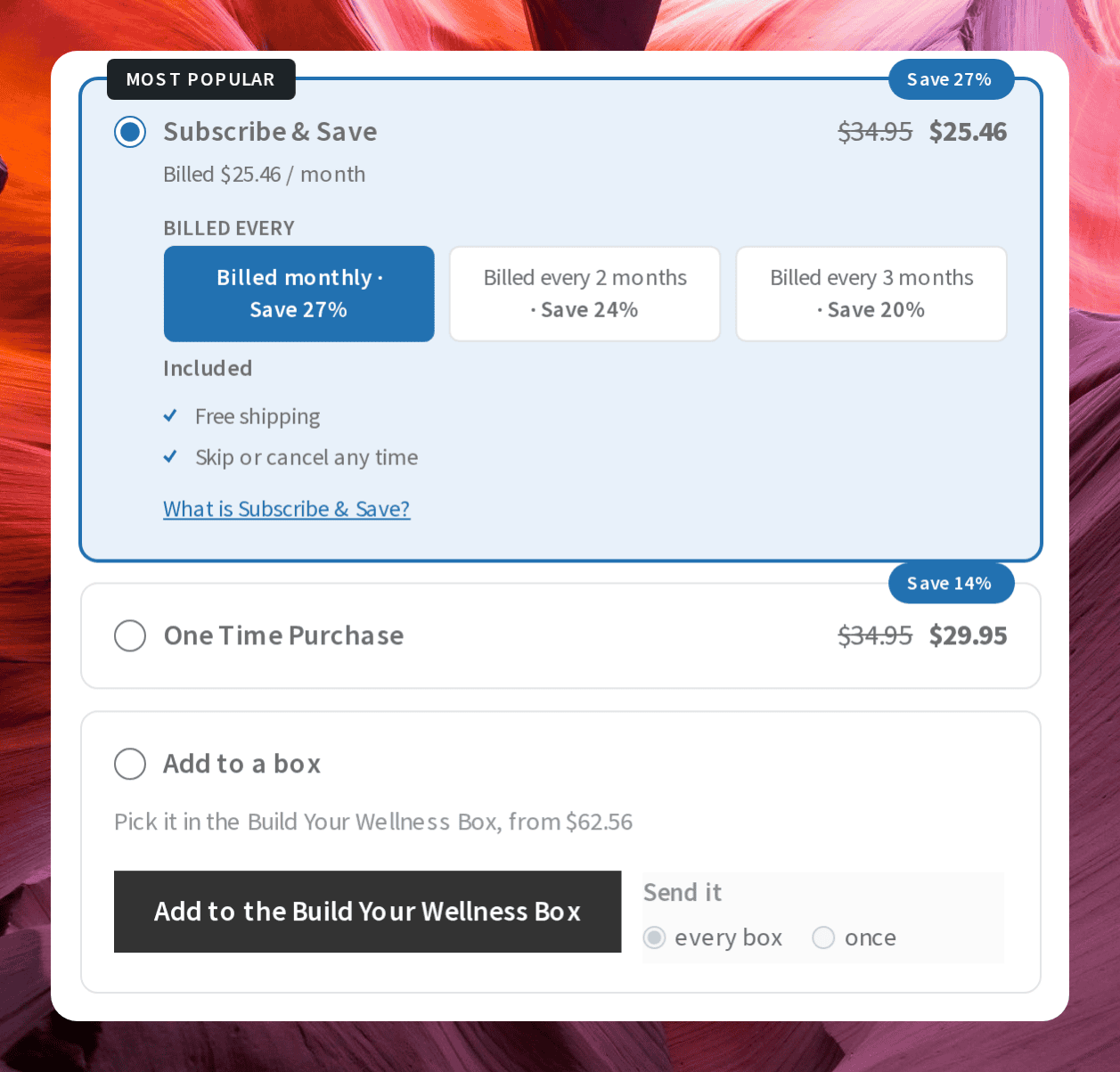
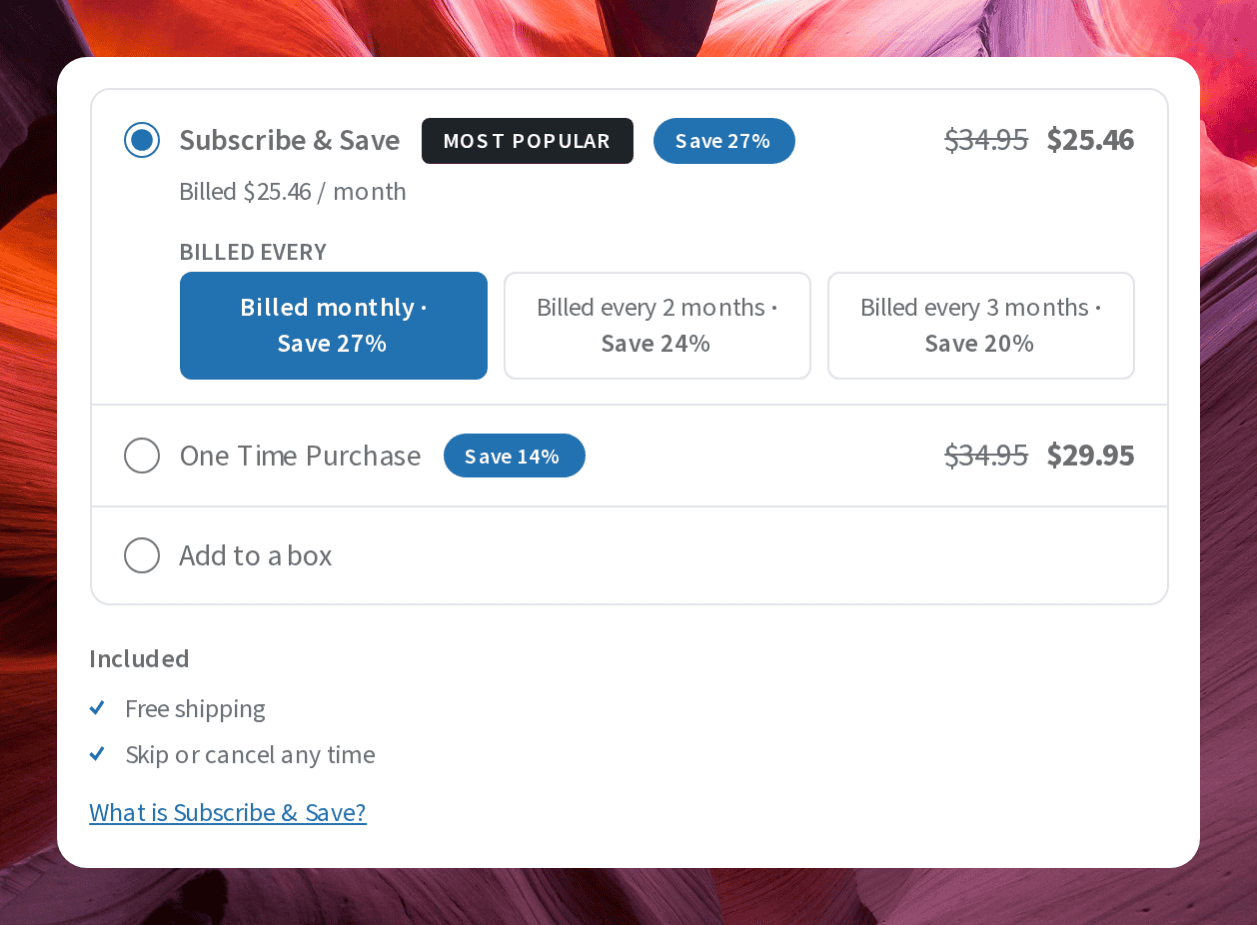
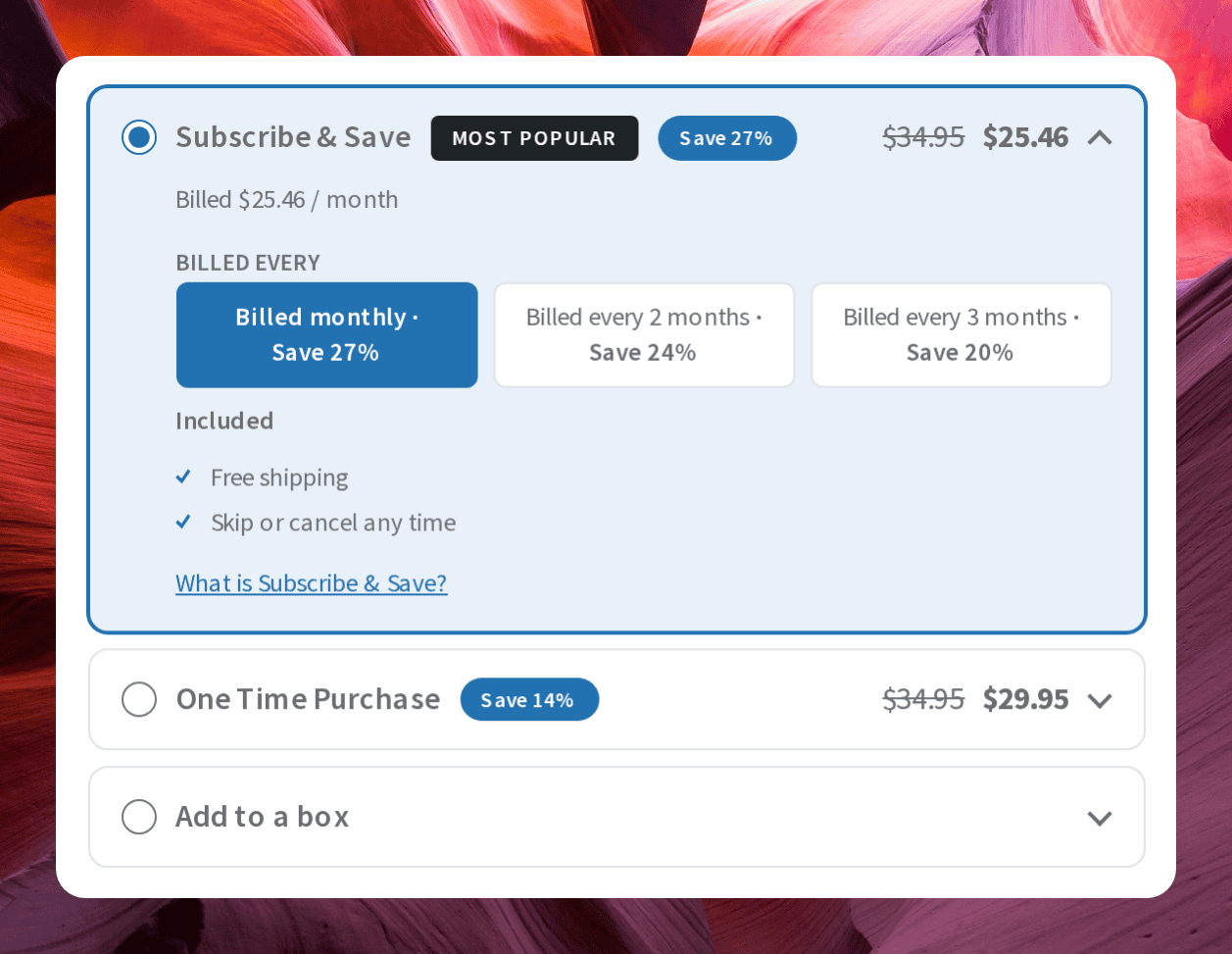
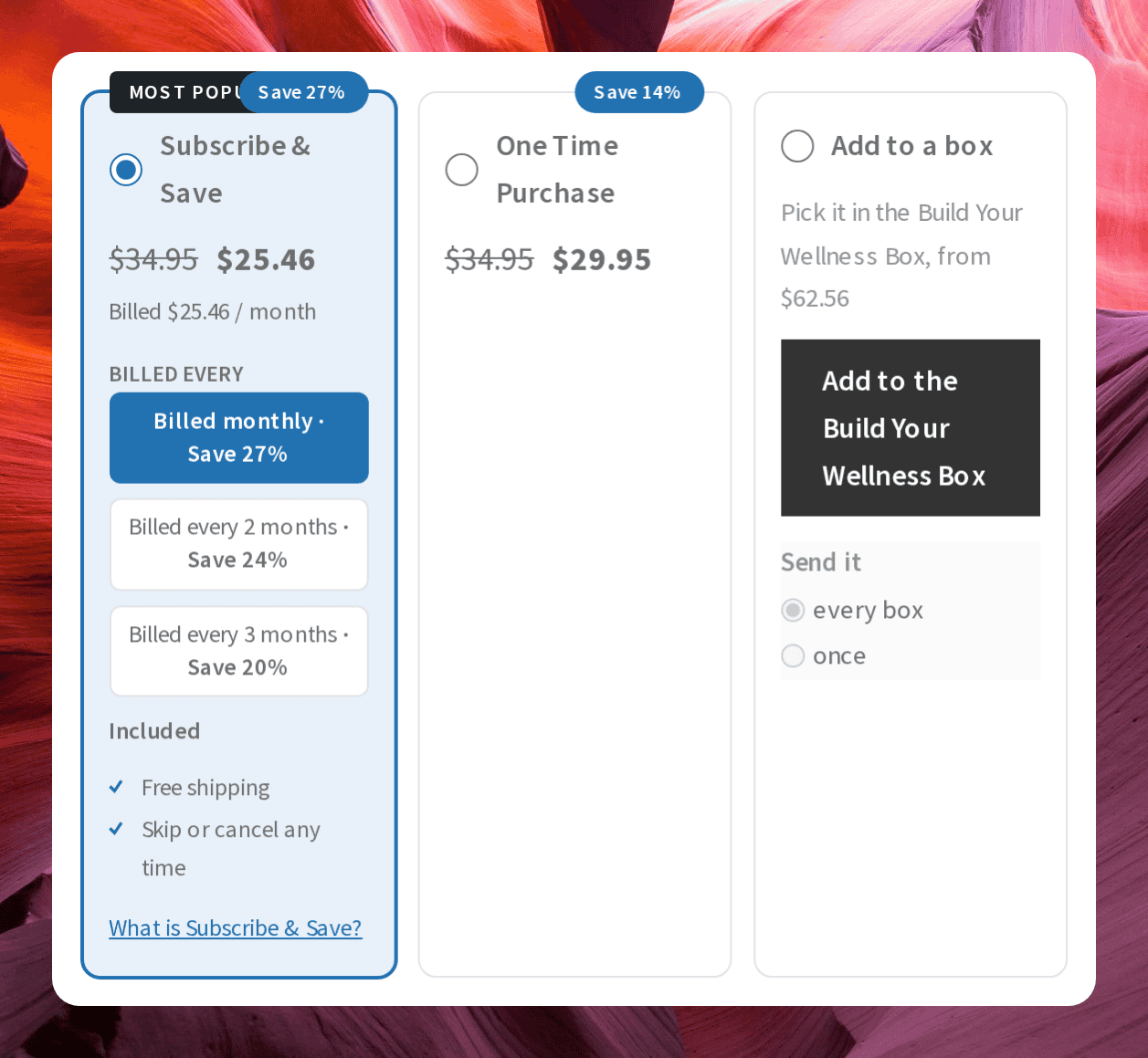
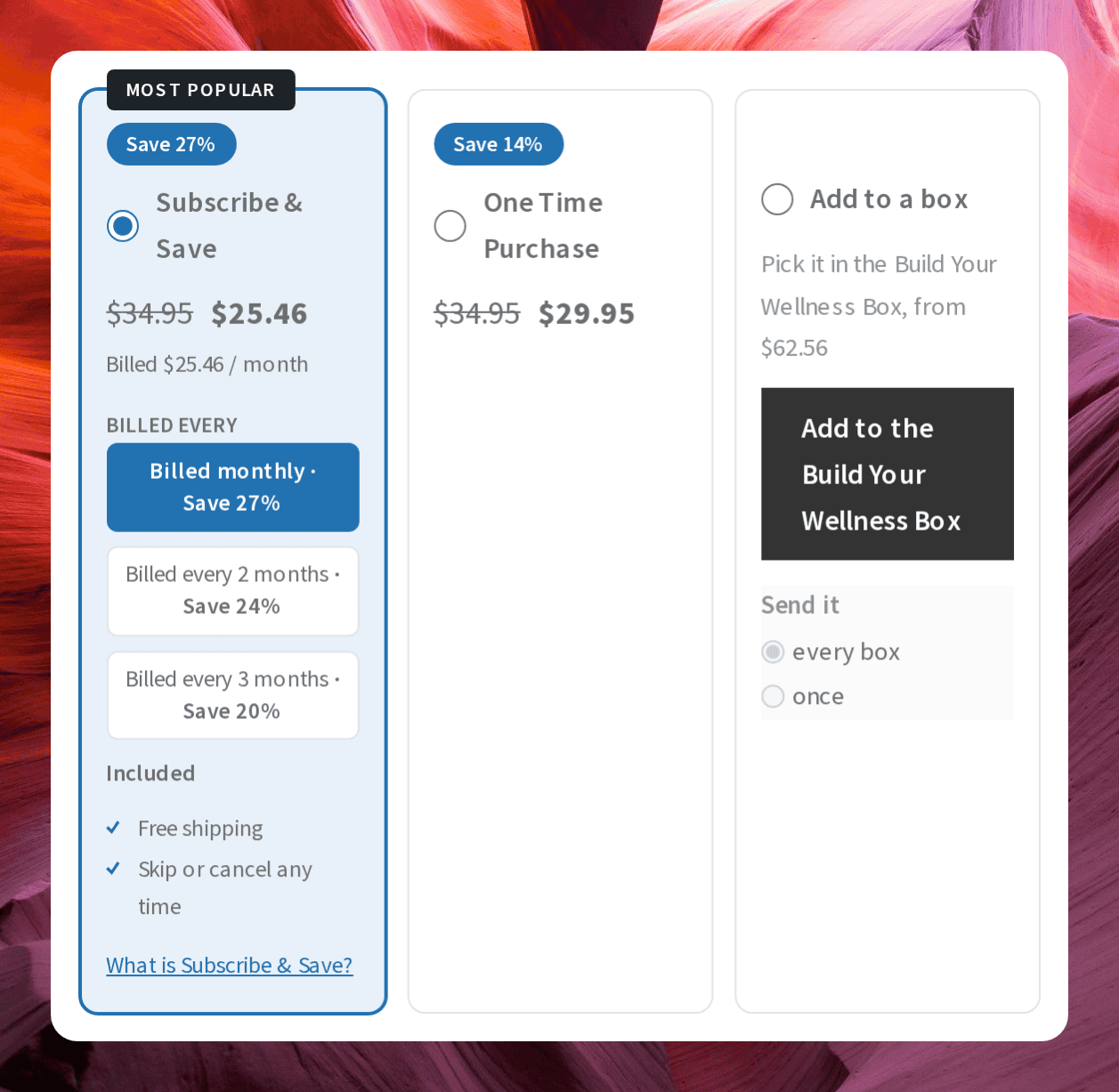
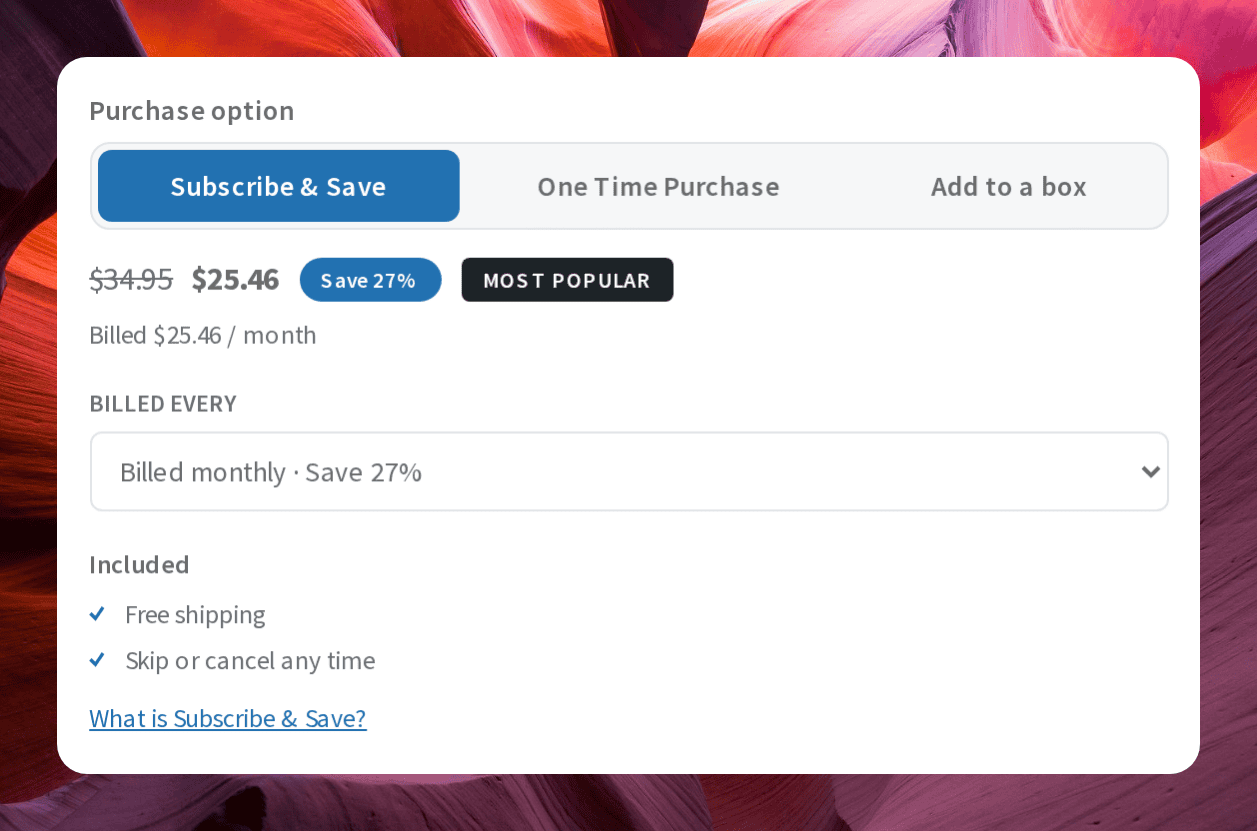
Keyboard users can move between options and between intervals with the arrow keys, and the focus is always visible. Instalment options read "Pay every", and each interval shows its own price, regular price, saving and badge, which follows the interval the customer selects.
Note: Each layout is a template you can override in your theme, at your-theme/subscription/product/plan-selector/<layout>.php.A layout for one product
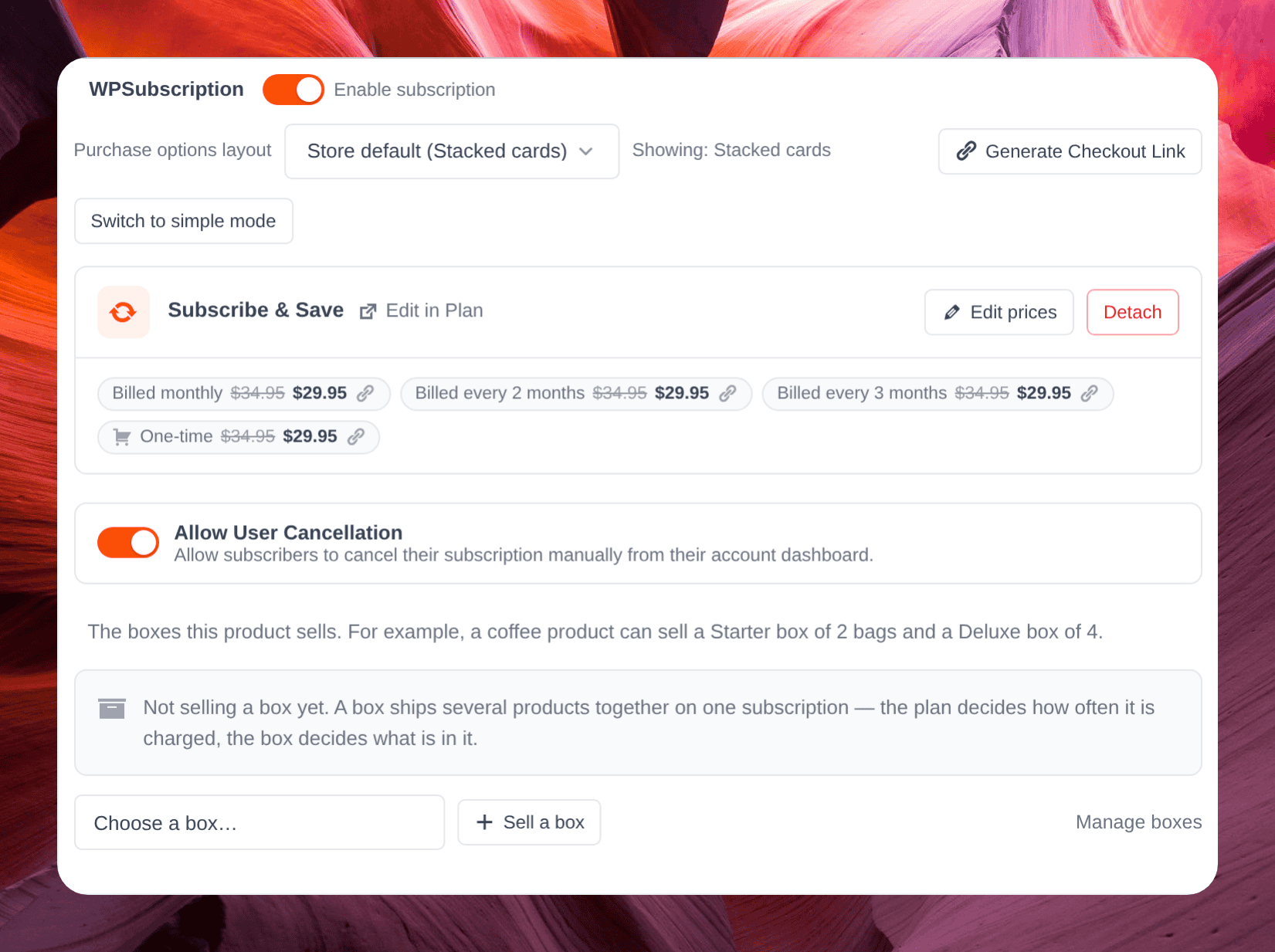
Open a product, go to its Subscription tab and use Purchase options layout. Store default follows the setting above; any other choice applies to this product only.
Make a plan stand out
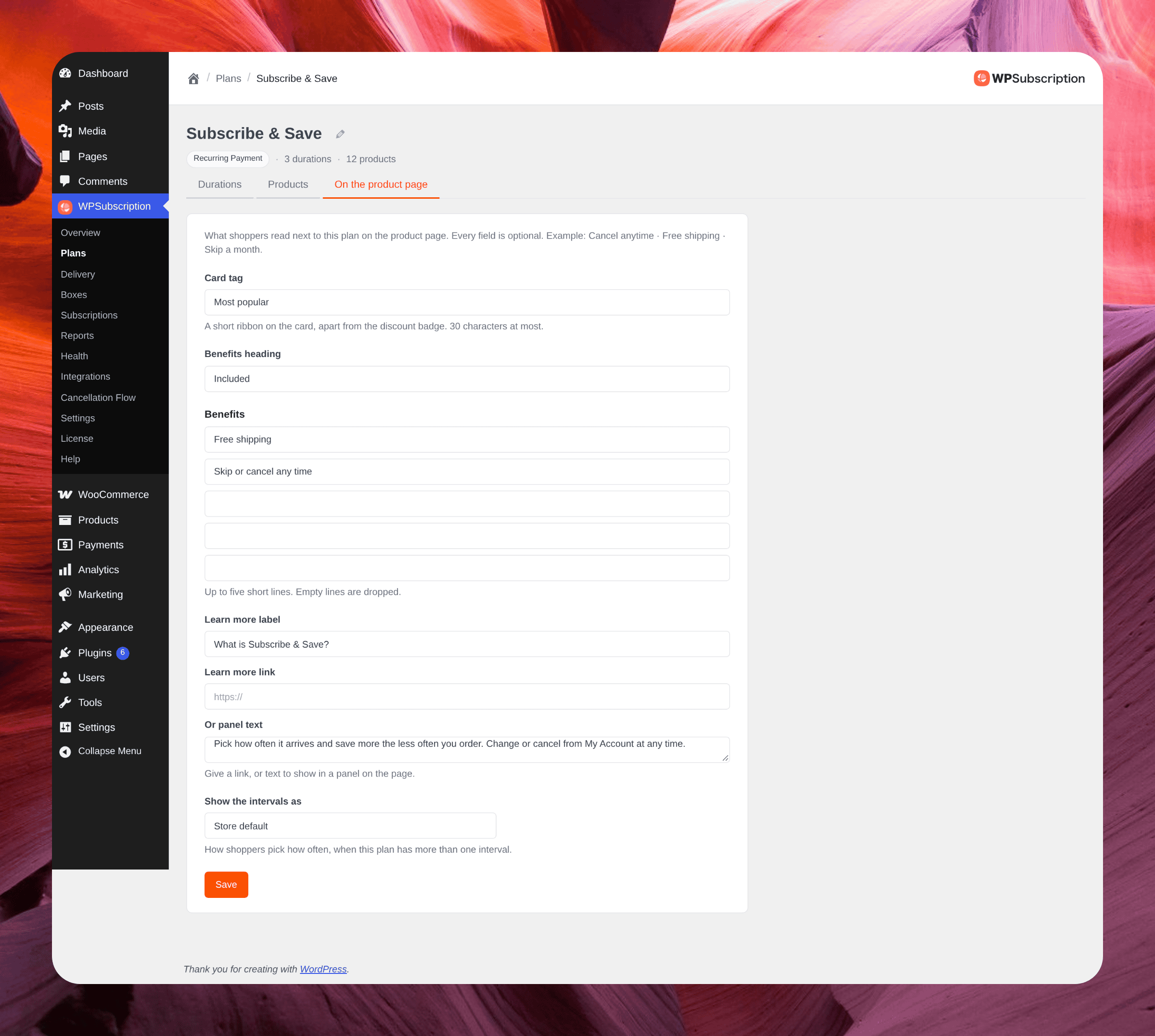
Open a plan in WPSubscription → Plans and go to its On the product page tab. Every field is optional.
Card tag — a short ribbon such as "Most popular", up to 30 characters, separate from the discount badge.
Benefits — a heading and up to five short lines, such as "Free shipping".
Learn more — a label with either a link (an http or https address, or a path on your site) or text to show in a panel on the page.
Show the intervals as — chips or a dropdown for this plan, or the store default.
One option, no radio
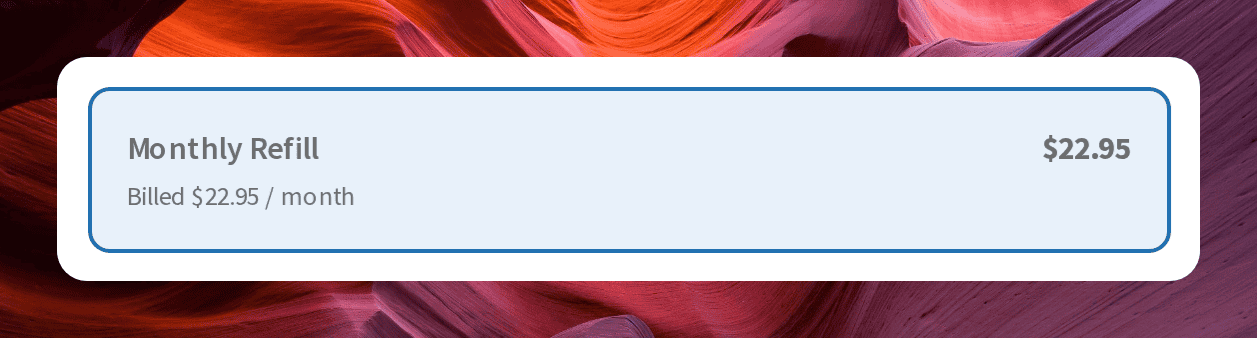
When a product has only one purchase option, the radio button and the indent that lined content up past it are gone, so the card reads as a plain statement of the plan. With two or more options nothing changes.