
A direct checkout link carries the product and the plan duration. Follow one and the item is already in the cart on the right schedule — no product page, no choosing. That is what makes plans worth advertising: an email that says "$29.95 a month" can link to exactly that price.
WPSubscription gives you two ways to get one: a copy icon on every price, for when you want one link quickly, and a dialog with a live preview, for when you want to choose the shape of the link.
Prerequisites
A product connected to a plan. The link tools do not appear on a product that is on no plan.
Pretty permalinks. The checkout link uses WooCommerce's
/checkout-link/endpoint.
The fast way — copy one price's link
Edit the product and open Product data → Subscription. Every duration is a chip, and every chip has a chain icon.

Click the chain icon and the checkout link for that exact price is copied to your clipboard. The icon flashes a tick to confirm. Paste it into an email, an ad, a button — anywhere.
On a variable product each variation has its own row of chips, so the copied link carries that variation as well as the duration.
The full way — Generate Checkout Link
The toolbar at the top of the Subscription tab has a Generate Checkout Link button.

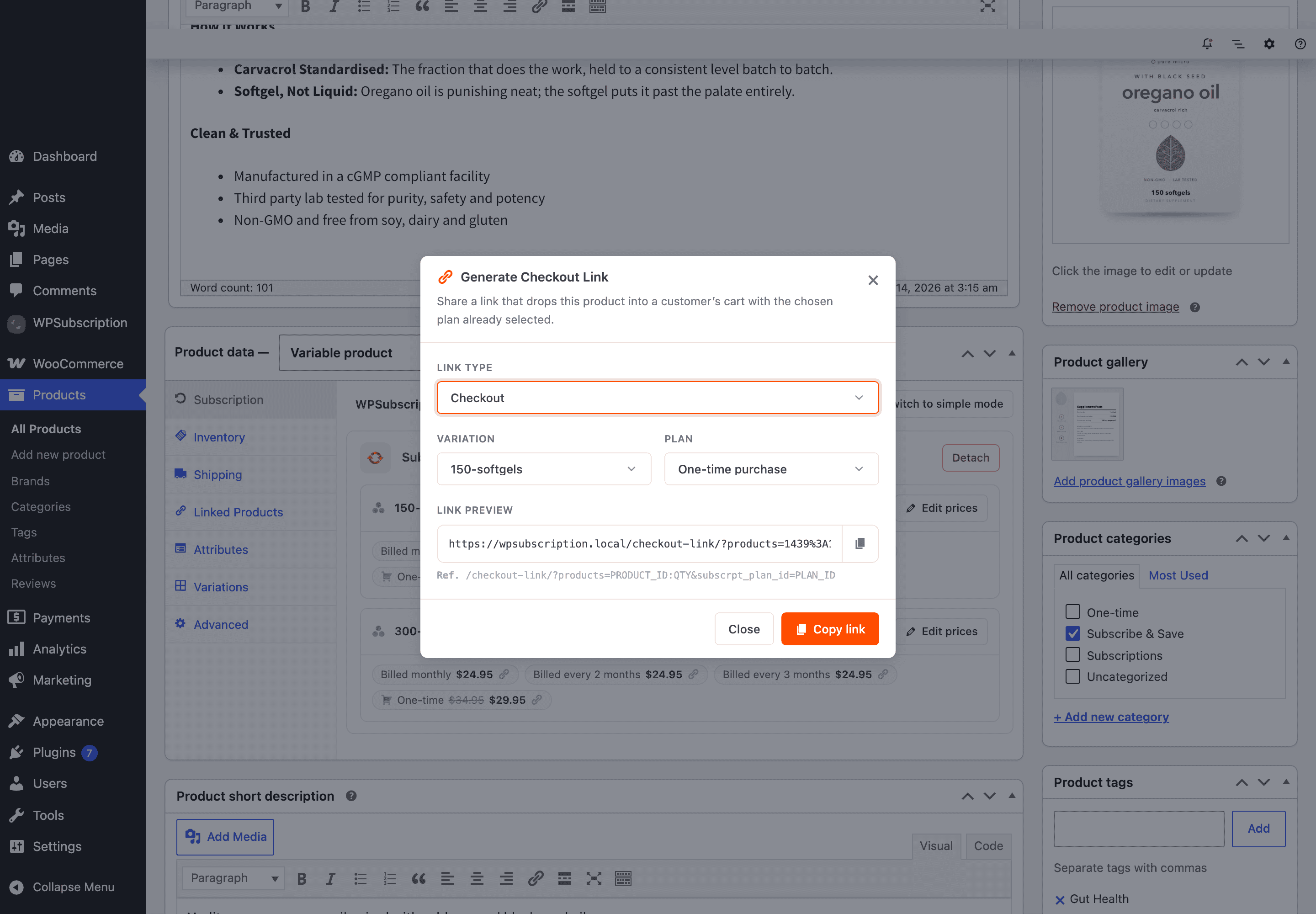
It opens a dialog that builds the link as you choose.
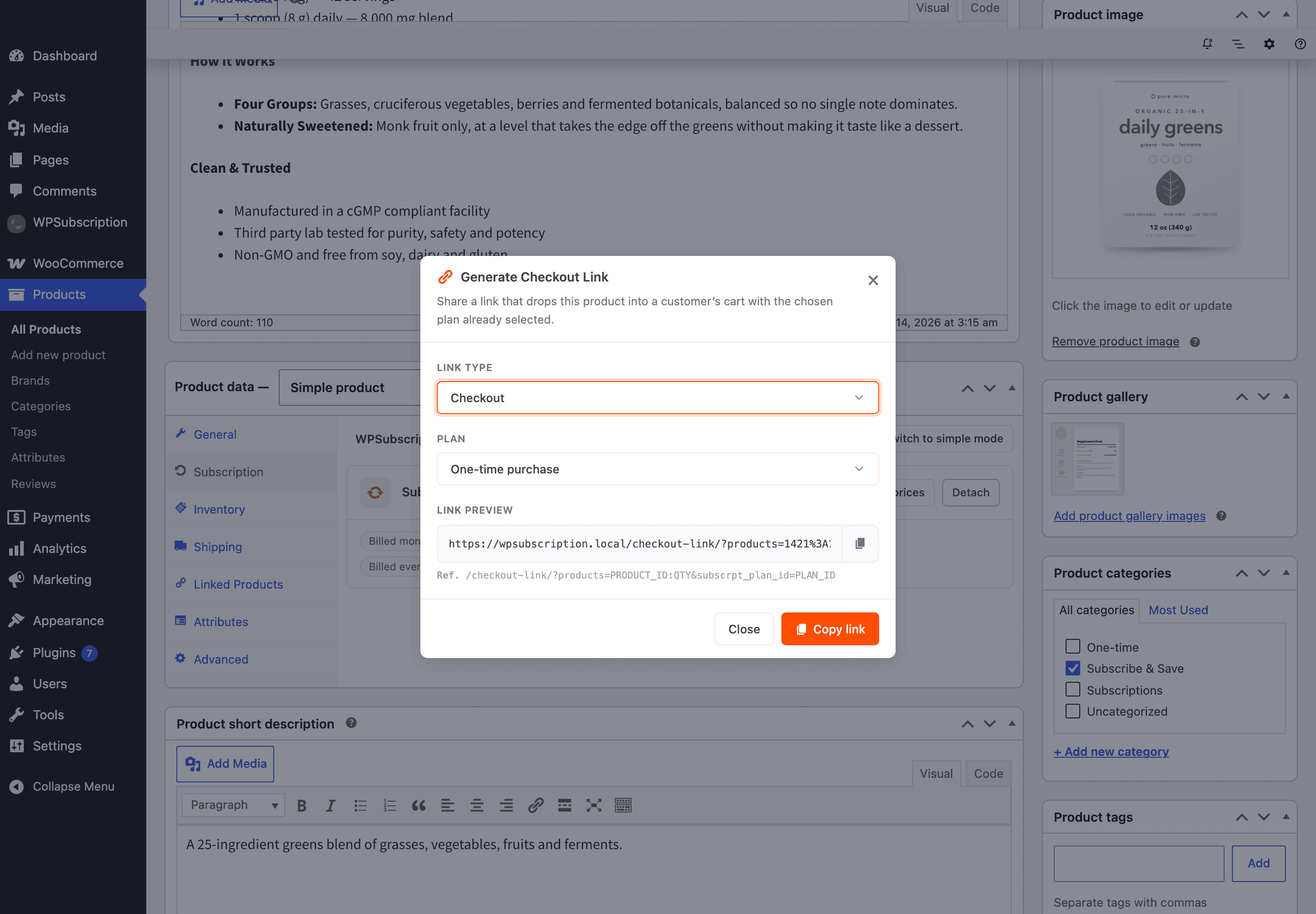
Link type
Type | What happens | Shape |
|---|---|---|
Checkout | The customer lands on the checkout page with the item already in the cart. |
|
Add to cart | The item is added to the cart and the customer stays on the site to keep shopping. |
|
Use Checkout for a campaign aimed at one product, and Add to cart when the customer is likely to buy more than one thing.
Plan
Every duration the product offers is listed, prefixed by its plan name — and, when the product allows it, One-time purchase above a divider.
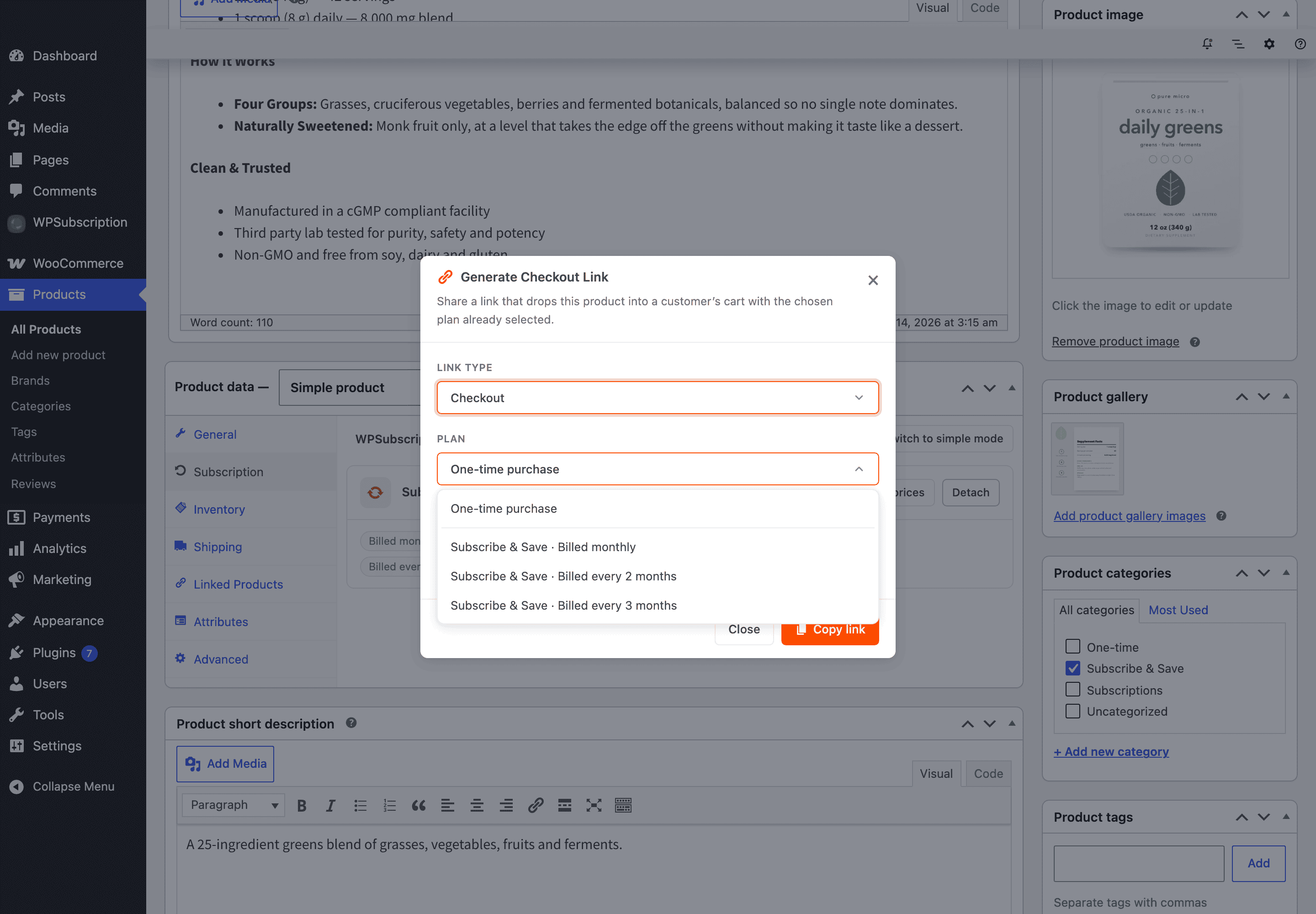
Choosing One-time purchase builds a link with no subscrpt_plan_id on it, which is what tells the storefront to add the product as an ordinary one-off purchase.
Link preview
The preview rewrites itself as you change the fields, so you can see the link you are about to send.
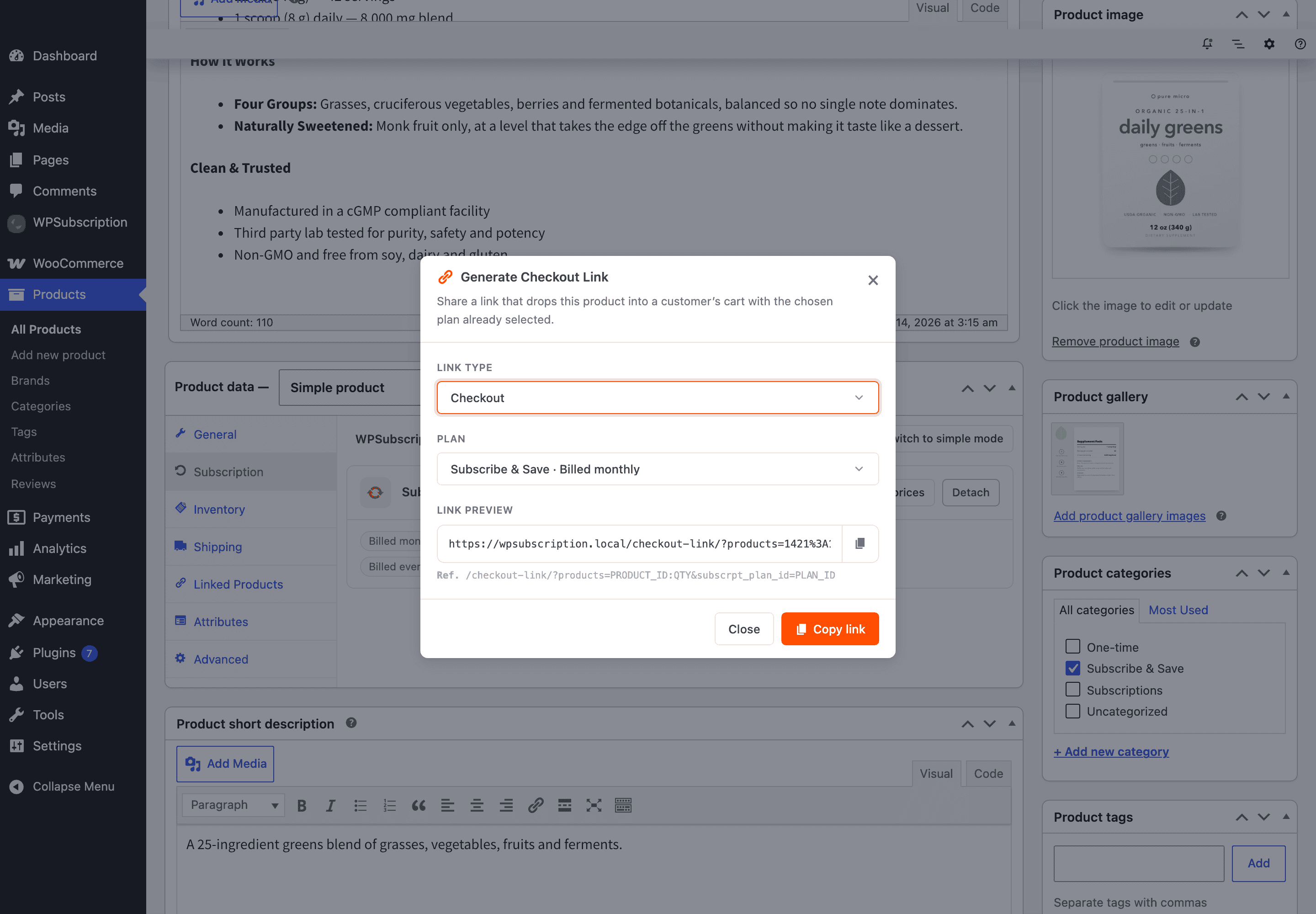
Switch the link type and the preview changes shape.
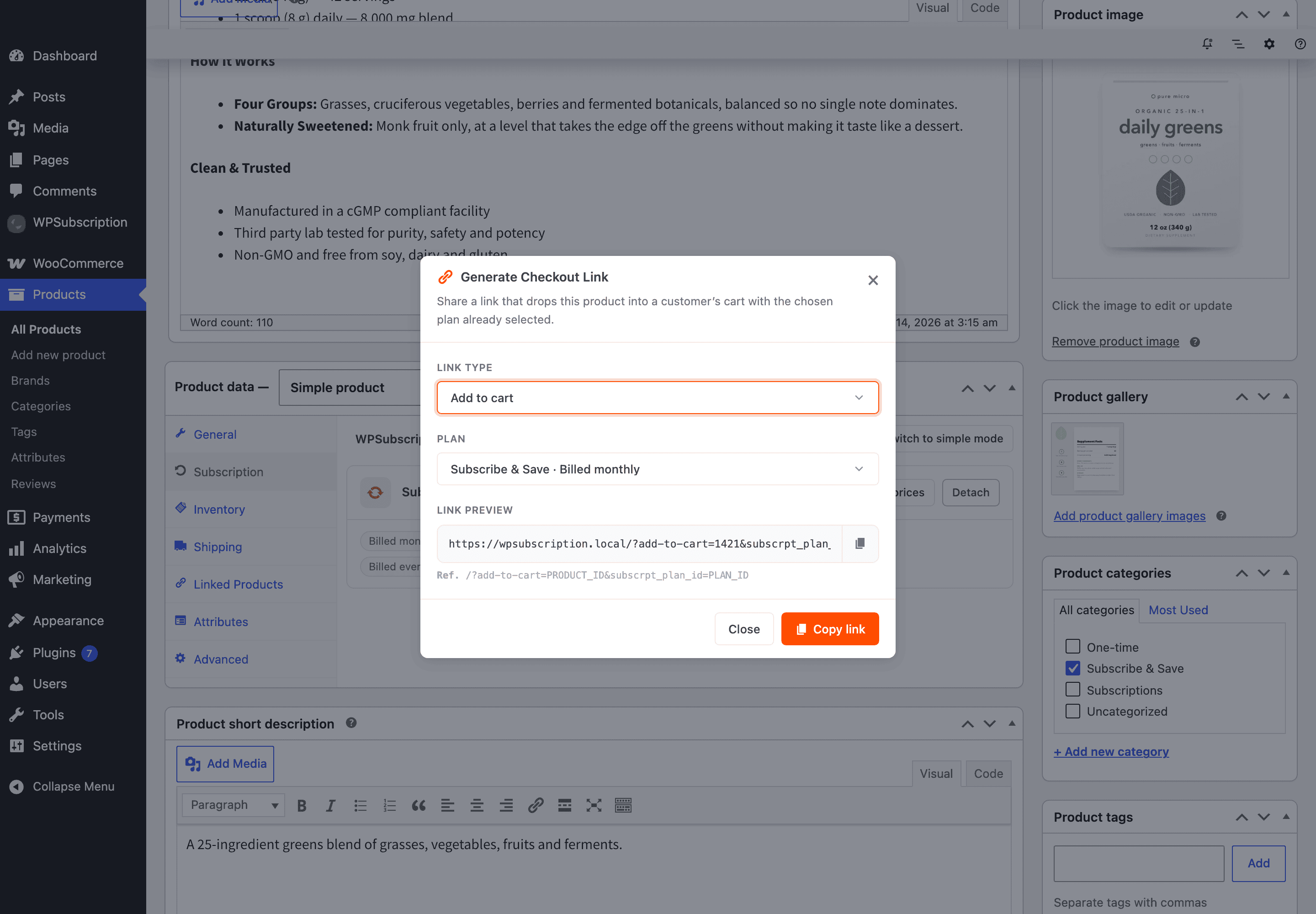
Click Copy link — or the small copy button inside the preview field — and you are done.
Variable products
On a variable product the dialog gains a Variation field. Pick the variation first; the Plan list then shows that variation's durations, because variations can be on different prices.
Warning: A variation built on an Any … attribute cannot be targeted by a Checkout link — there is no single variation for the endpoint to resolve. The dialog warns you and tells you to use Add to cart instead, which carries the attribute values in the URL and works.
What the customer sees
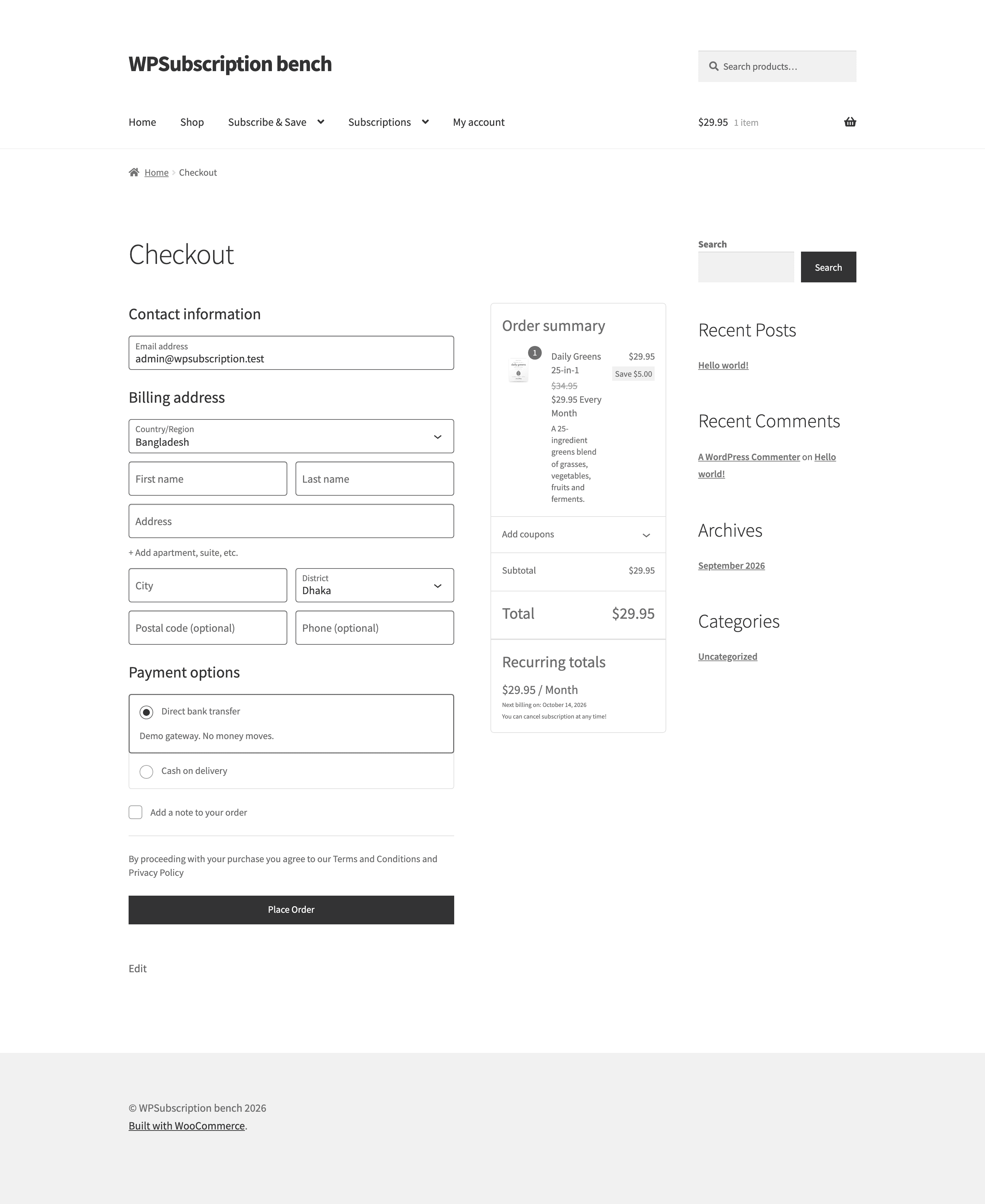
Following a Checkout link takes the customer straight to checkout with the product on the chosen duration, the discount applied, and the recurring total spelled out.
Writing links by hand
The links are plain URLs, so you can build them yourself — useful for bulk campaigns.
https://example.com/checkout-link/?products=1421:1&subscrpt_plan_id=27
https://example.com/?add-to-cart=1421&subscrpt_plan_id=271421is the product ID — for a Checkout link on a variable product, the variation ID.:1is the quantity.27is the duration's ID — the #number shown on its row in the plan's Durations tab.Leave
subscrpt_plan_idoff for a one-time purchase.
Note: A link whosesubscrpt_plan_idis not one of that product's own durations is ignored rather than obeyed. A link with no plan on a product that has no one-time option falls back to the product's first duration, so a bare?add-to-cart=link can never add a subscription product at the wrong price.
What to do next
How plans look on the product page — the page the link skips.
Plan products and pricing — where the prices in the link come from.