
A duration is one billing schedule inside a plan: every month, every 3 months, every year. A plan can hold as many as you want, and each one becomes a button the customer can choose on the product page. A plan with no active duration cannot be sold.
This article assumes you have already created a plan.
The Durations tab
Open a plan from WPSubscription → Plans. It opens on Durations.
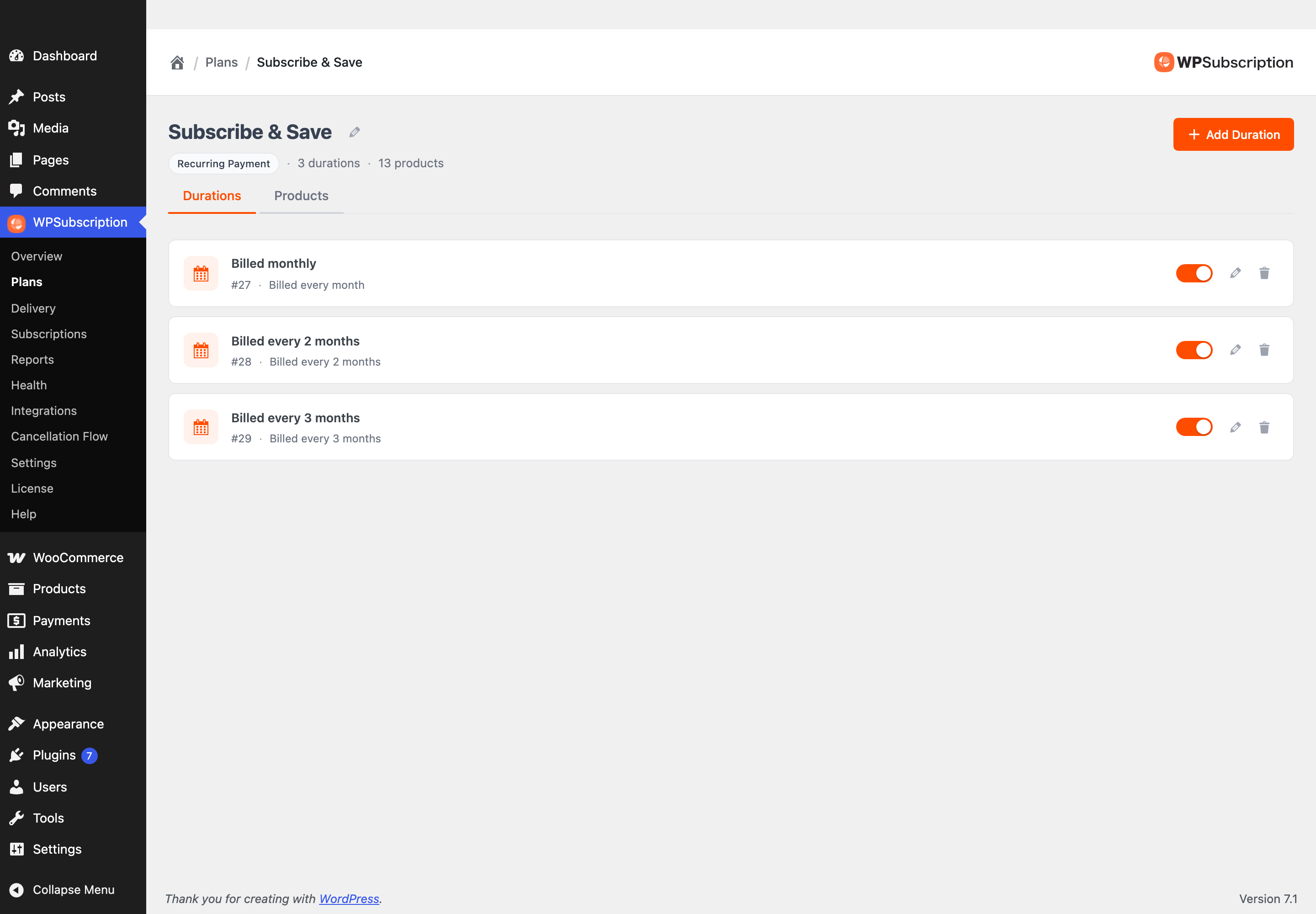
Each row is one duration.

The name is what the customer sees on the duration button.
The #number is the duration's ID. You will need it if you write your own checkout links by hand.
The summary after it spells out the schedule, plus any trial, signup fee or expiry.
The toggle switches the duration between active and draft.
Step 1 — Add a duration
Click Add Duration.
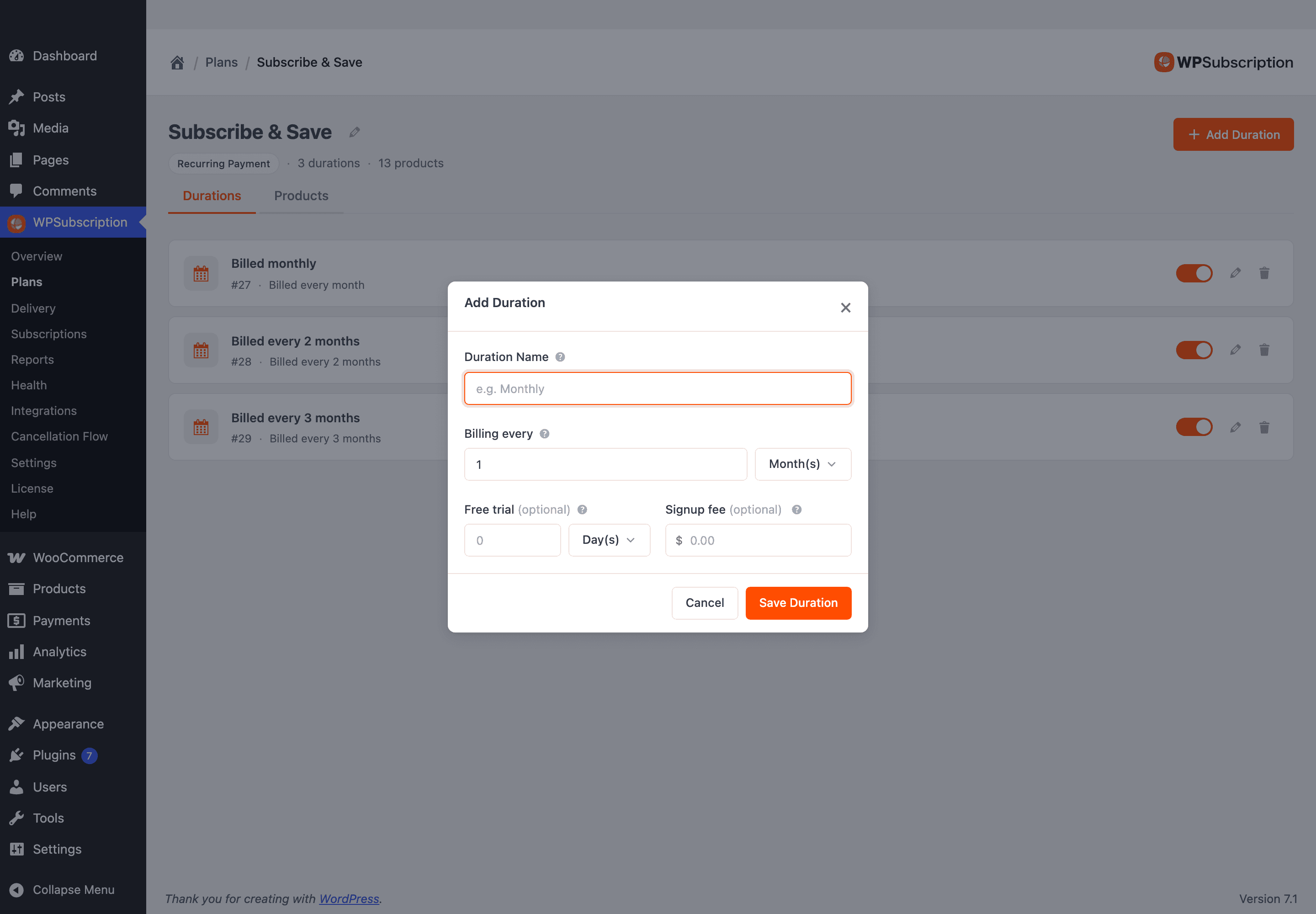
Duration Name
Shown to customers when they pick this duration, so write it the way it should read on a button: Monthly, Billed every 3 months, Yearly.
Billing every
How often the customer is charged: a number, and a unit — Day(s), Week(s), Month(s) or Year(s). 1 + Month(s) charges monthly; 3 + Month(s) charges once a quarter.
Free trial (optional)
Charges nothing until the trial ends. Enter a length and a unit — 14 + Day(s) gives two free weeks, after which the first payment is taken and the schedule starts.
Signup fee (optional)
A one-time amount added to the first payment only. Renewals are charged at the plan price without it.

Note: Signup fee requires WPSubscription Pro. On a free-only install the field is disabled and carries a Pro badge. Free trials work in the free plugin.
Fill the dialog in and click Save Duration.
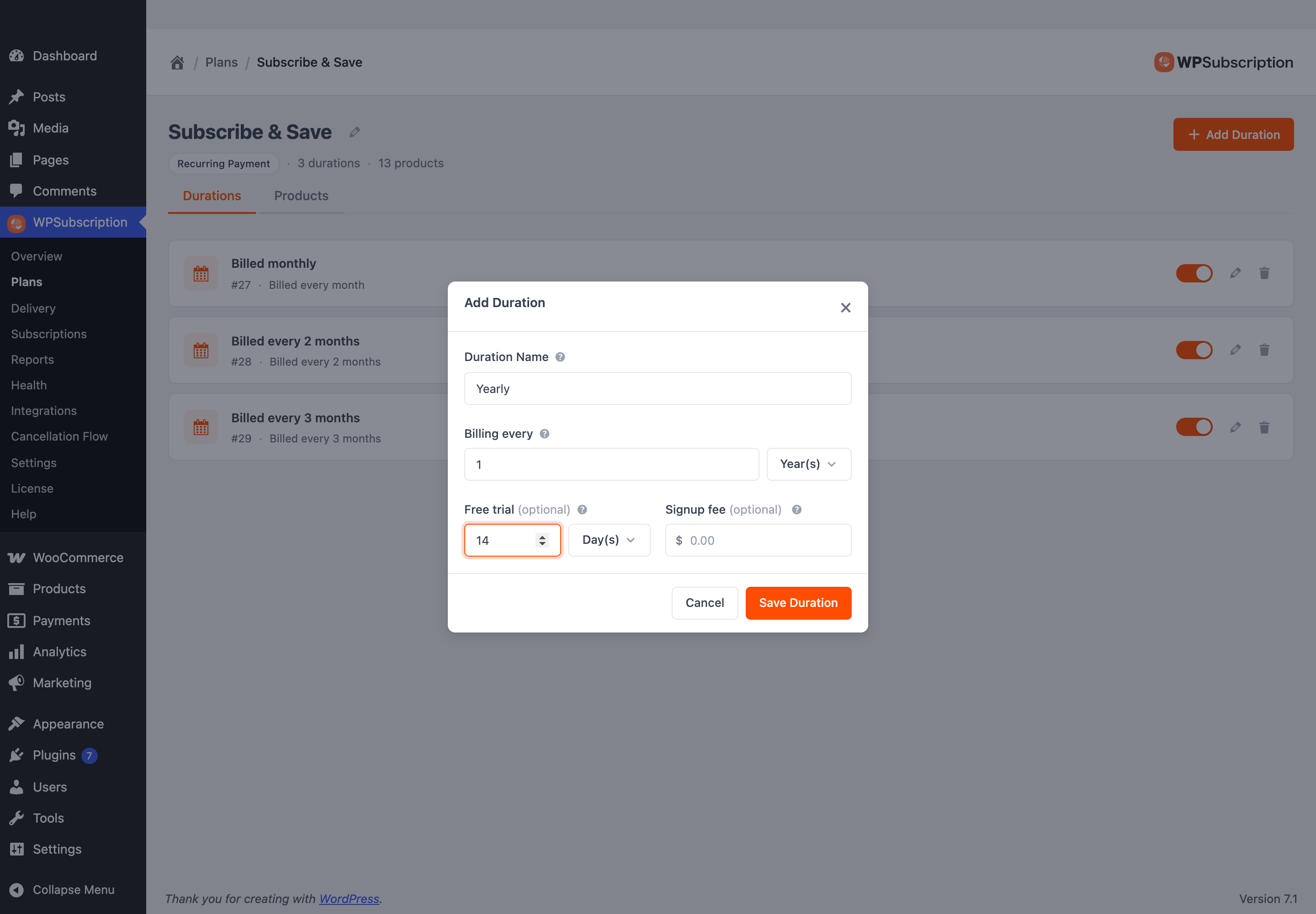
Note: A new duration is attached to every product already on the plan, at the price that product uses on the plan's other durations. You do not have to revisit each product — though you will usually want to, because a yearly price is rarely twelve times a monthly one. Plan products and pricing covers that.
Step 2 — Edit a duration
Click the pencil on a duration's row. The same dialog opens, filled in, titled Edit Duration.
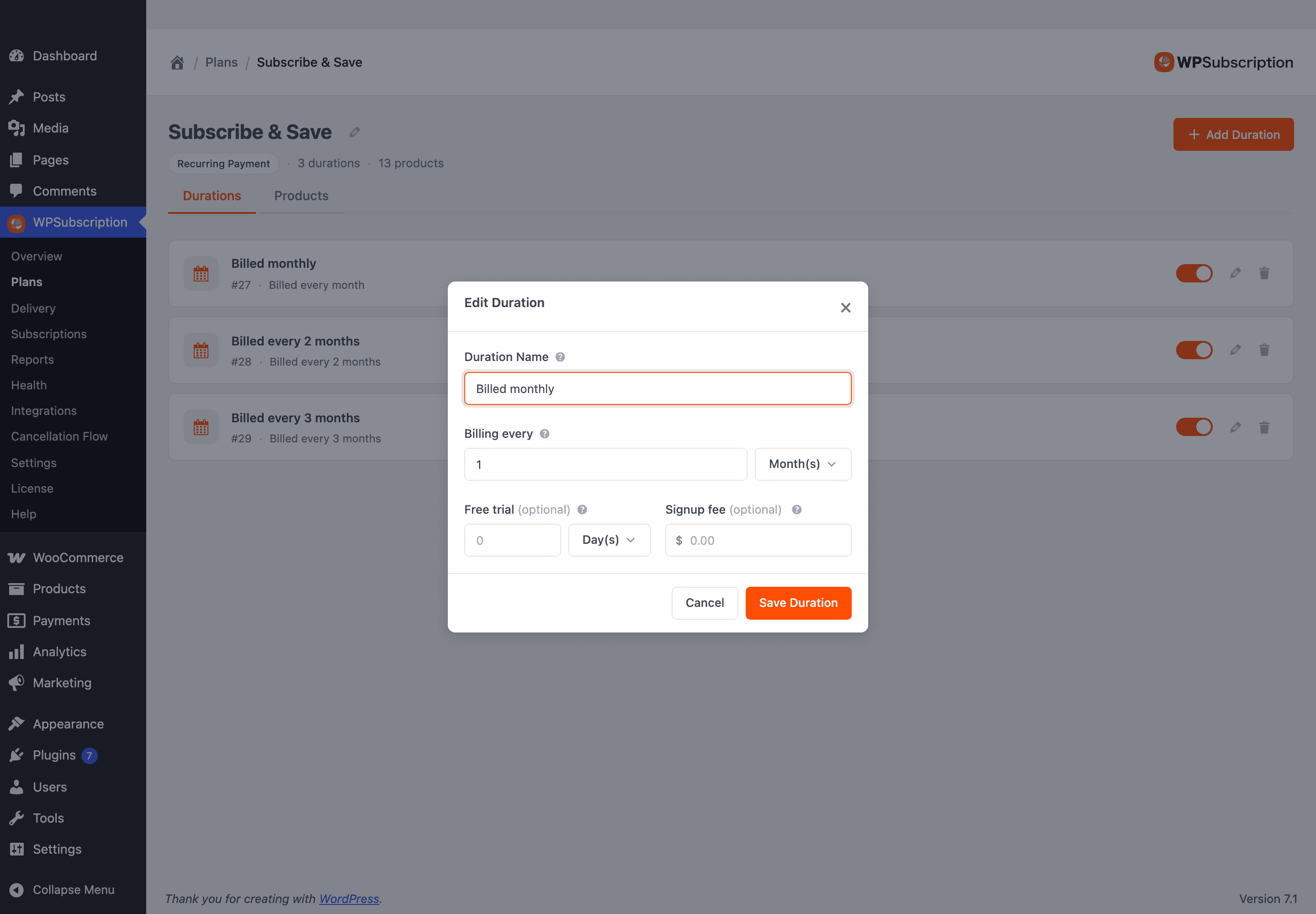
Warning: Editing a duration changes what new customers buy. Subscriptions that are already running keep the schedule they were sold on — WPSubscription records the terms at checkout and renews against that record. Changing a plan never silently re-bills an existing subscriber on a different schedule.
Draft and active
The toggle on each row is the duration's on/off switch.
Active — customers can buy it. It appears as a button on every product attached to the plan.
Draft — it exists and keeps its prices, but no customer sees it.
Draft is how you build a duration in advance, or retire one without deleting it. Retiring keeps every subscription already on that duration renewing; new shoppers simply cannot pick it any more.
Note: The Monthly duration WPSubscription creates with every new plan starts as a draft. Edit it to match what you sell, then switch it on.
Deleting a duration
The trash icon removes the duration and its prices from every product on the plan. It cannot be undone. If you only want to stop selling it, set it to draft instead — that keeps the prices, and you can switch it back on later.
The two Pro plan types
The dialog above is for a Recurring Payment plan. The two Pro plan types add fields to it, because they need more than a billing cycle.
Recurring Delivery
For physical products, where what ships and what is charged can be on different clocks.
Delivery frequency — how often the product ships. Leave it empty to match the billing schedule.
Delivery day — deliver everyone on the same weekday.
Synchronize schedule — line every subscriber up on the same cycle rather than on their own signup date.
Split Payment
For splitting one price into a fixed number of payments and then stopping.
Number of payments — how many payments to collect in total. Minimum 2.
Access ends — when the customer loses access once the payments finish: never, immediately after the final payment, or after a Custom access duration you set.