
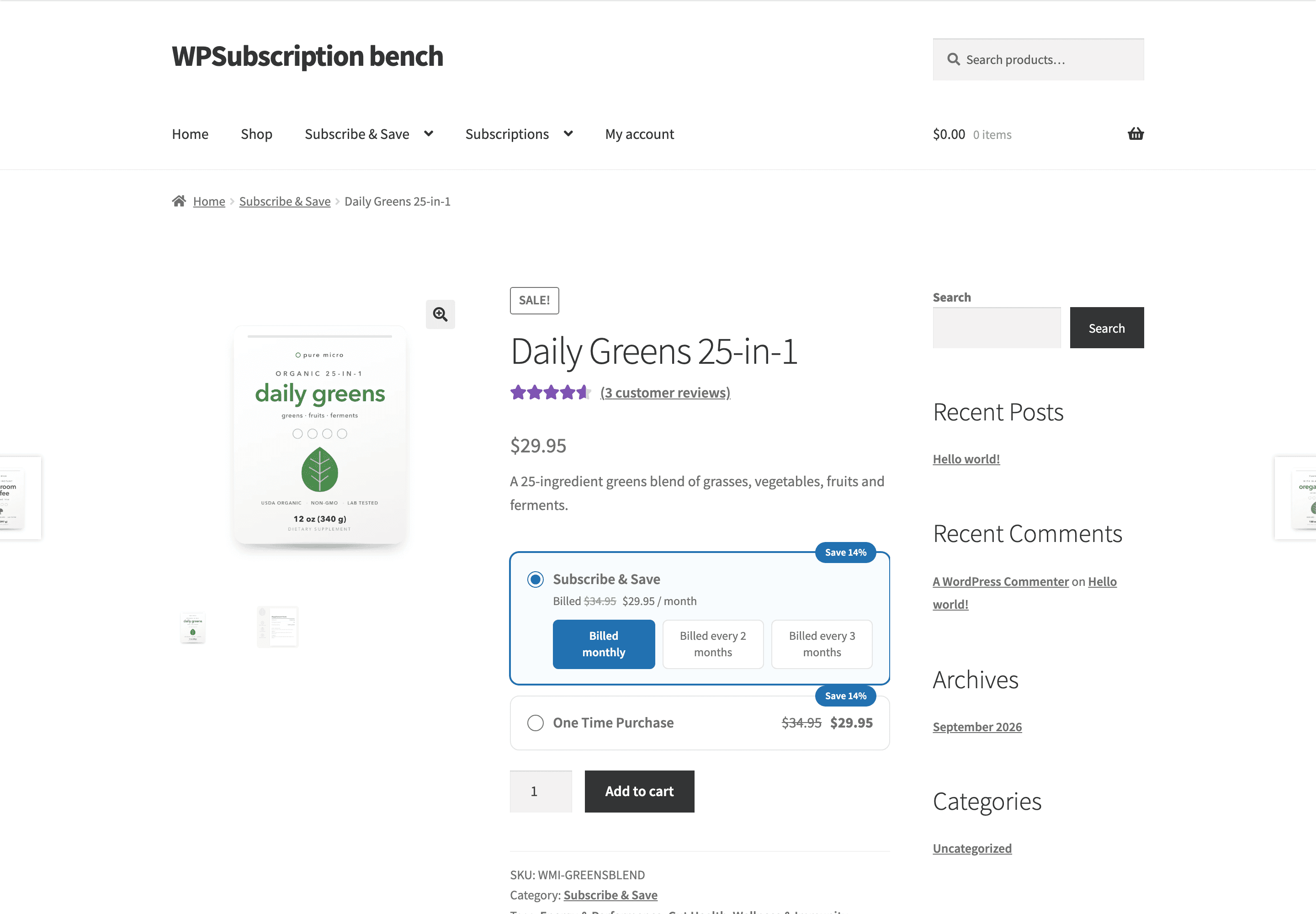
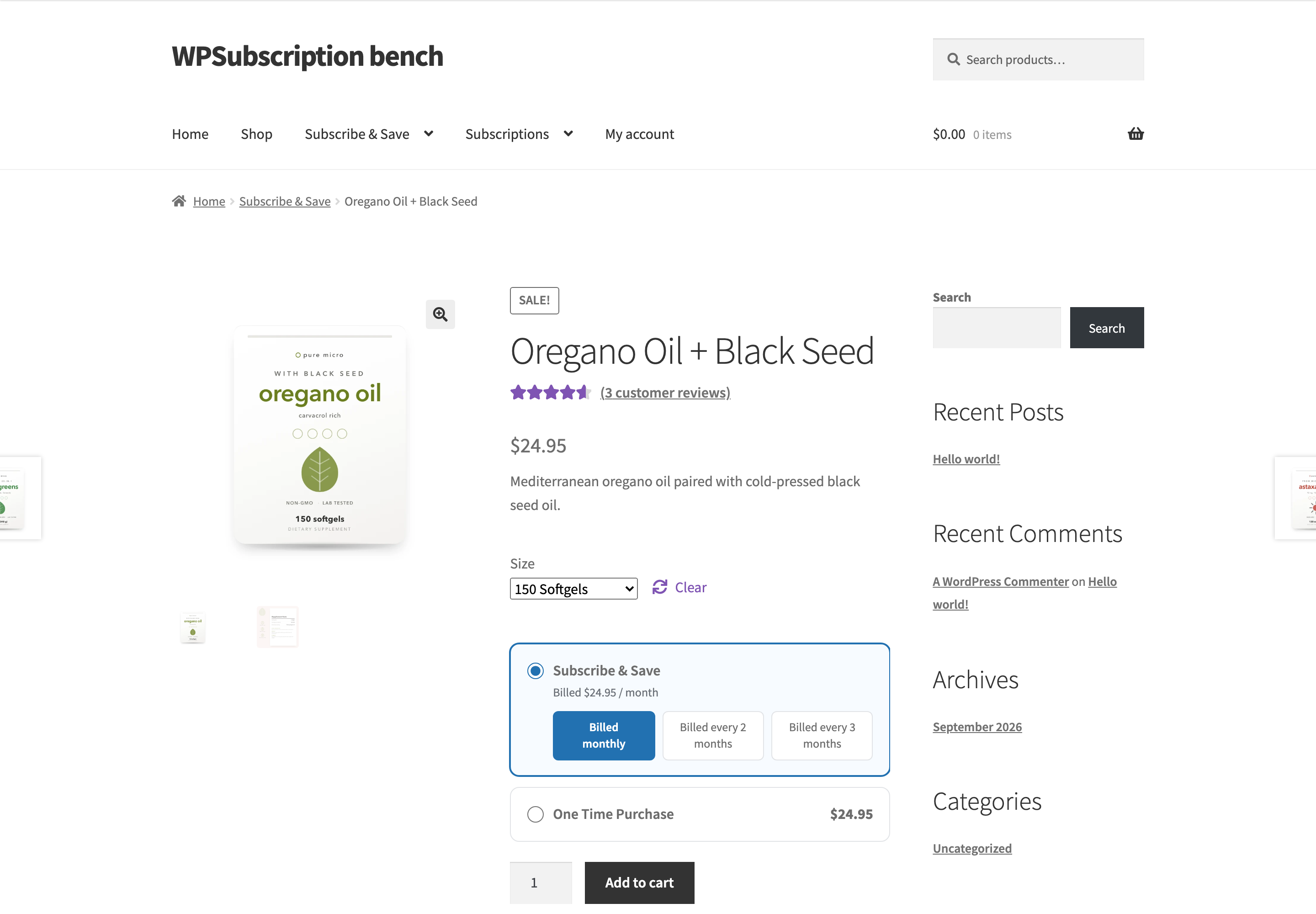
Everything set up in the plan comes together on the product page. WPSubscription 2.0 replaces the old single line of subscription text with a plan selector — a card per plan, a button per duration, and a badge showing what subscribing saves against buying once.
It needs no theme work and no shortcode. Connect a product to a plan and the selector appears above the Add to cart button.
The product page
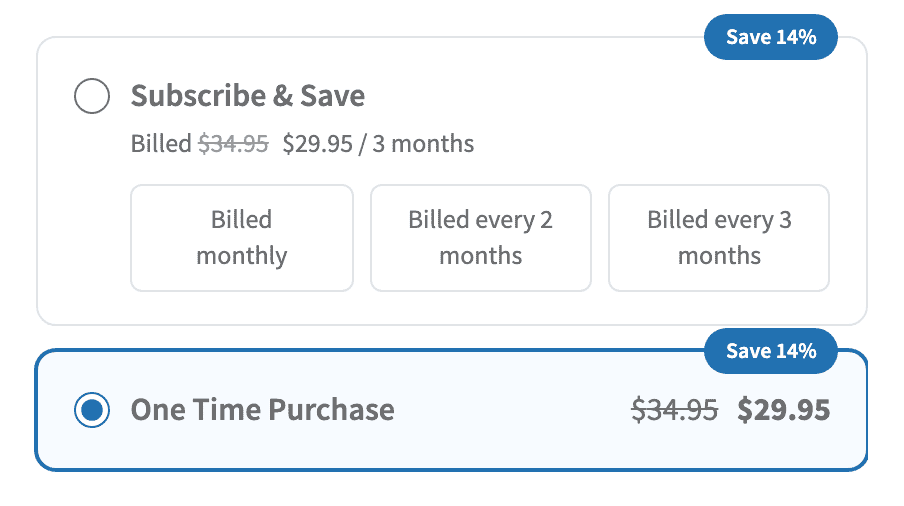
The selector, close up
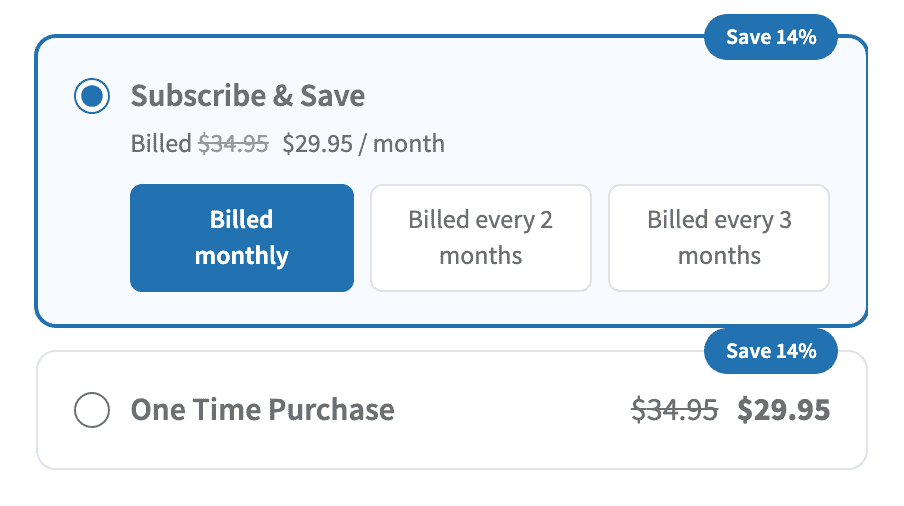
Each card is one plan. Its heading is the plan's name, exactly as you typed it when you created the plan.
The line under the heading is the billing note — the price and how often it is charged, with the regular price struck through when there is a discount.
Each button is one of the plan's active durations, labelled with the duration's name.
One Time Purchase is a card of its own, shown only when you have turned one-time purchase on for the product.
The first card is selected by default, on its first duration — so a customer who reads nothing and clicks Add to cart gets a subscription on your leading plan.
The discount badge
When a duration's offer price is below its regular price, WPSubscription works out the percentage and shows it on the card.
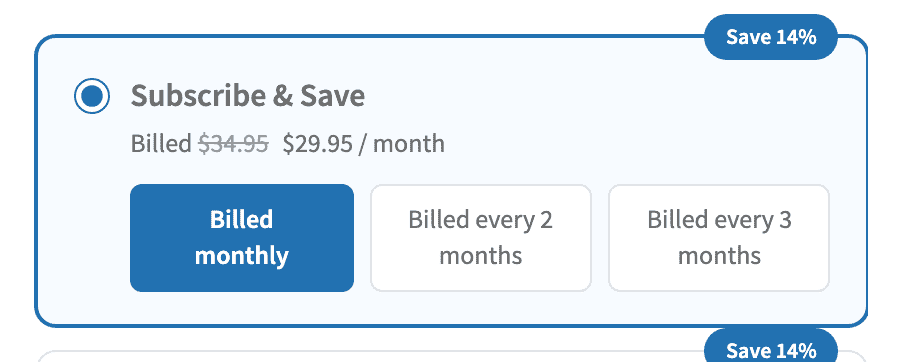
All the durations on a card discount by the same amount → Save 14%.
They discount by different amounts → Save up to 20%, quoting the best one.
No offer price anywhere on the card → no badge.
Note: The badge is measured against the Regular Price you set for that duration on the plan, not against the product's WooCommerce price. If you want the badge to read "what you save by subscribing", set the duration's regular price to the one-time price and the offer price to the subscriber price. See Plan products and pricing.
Choosing a duration
Clicking a duration button rewrites the card's billing note in place — no page reload, no flicker.
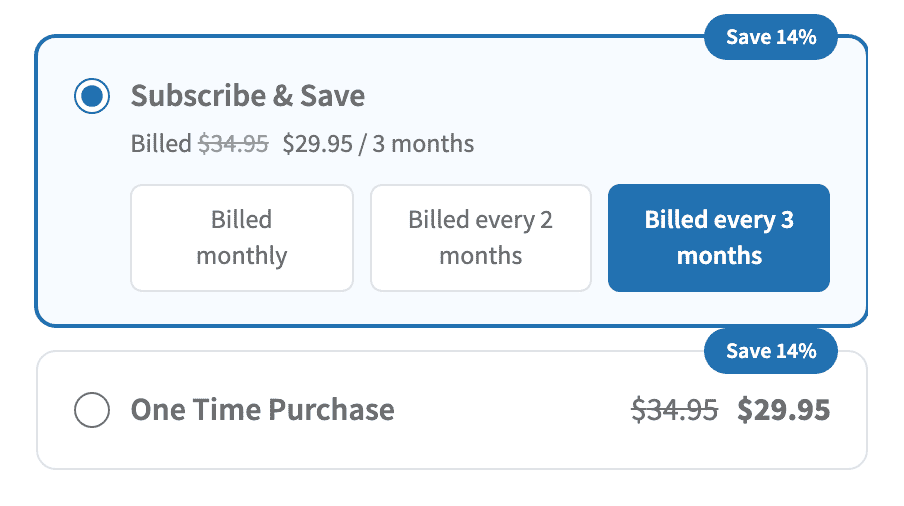
Whatever is highlighted when the customer presses Add to cart is what goes into the cart.
One-time purchase
Where you have allowed it, the last card lets the customer opt out of subscribing entirely.
It is deliberately placed last, under the subscription cards, so the subscription is what the customer reads first and what they get by default.
Variable products
Note: Variable products require WPSubscription Pro.
Plans can differ per variation, so the selector waits until the customer has chosen one.
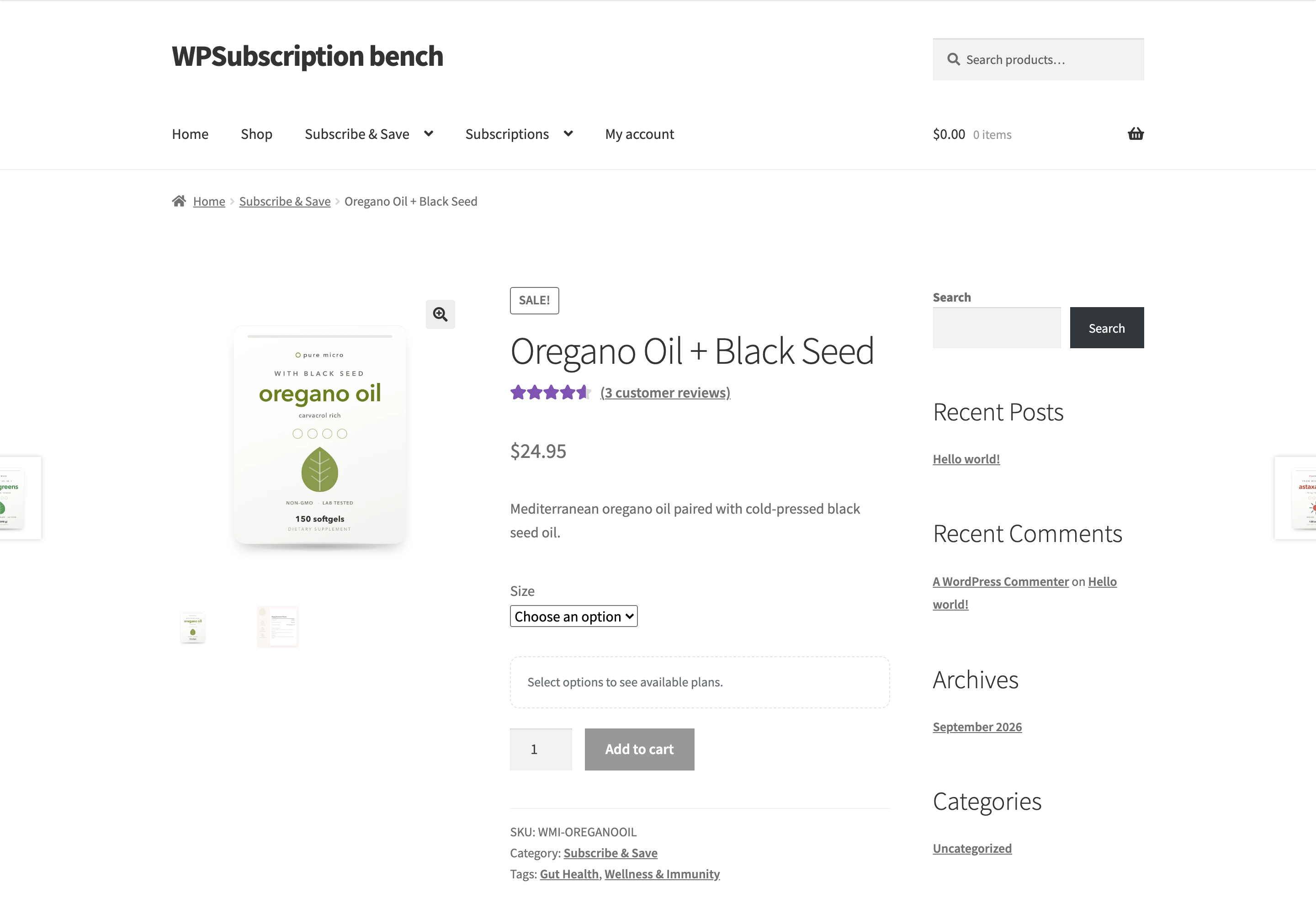
Choose a variation and its plans appear, priced for that variation.
A variation that is not on a plan simply shows no selector and sells as an ordinary product; the rest of the variations are unaffected.
The catalogue
Shop and category pages show the plan price too, so the price on a listing matches the price on the product page.
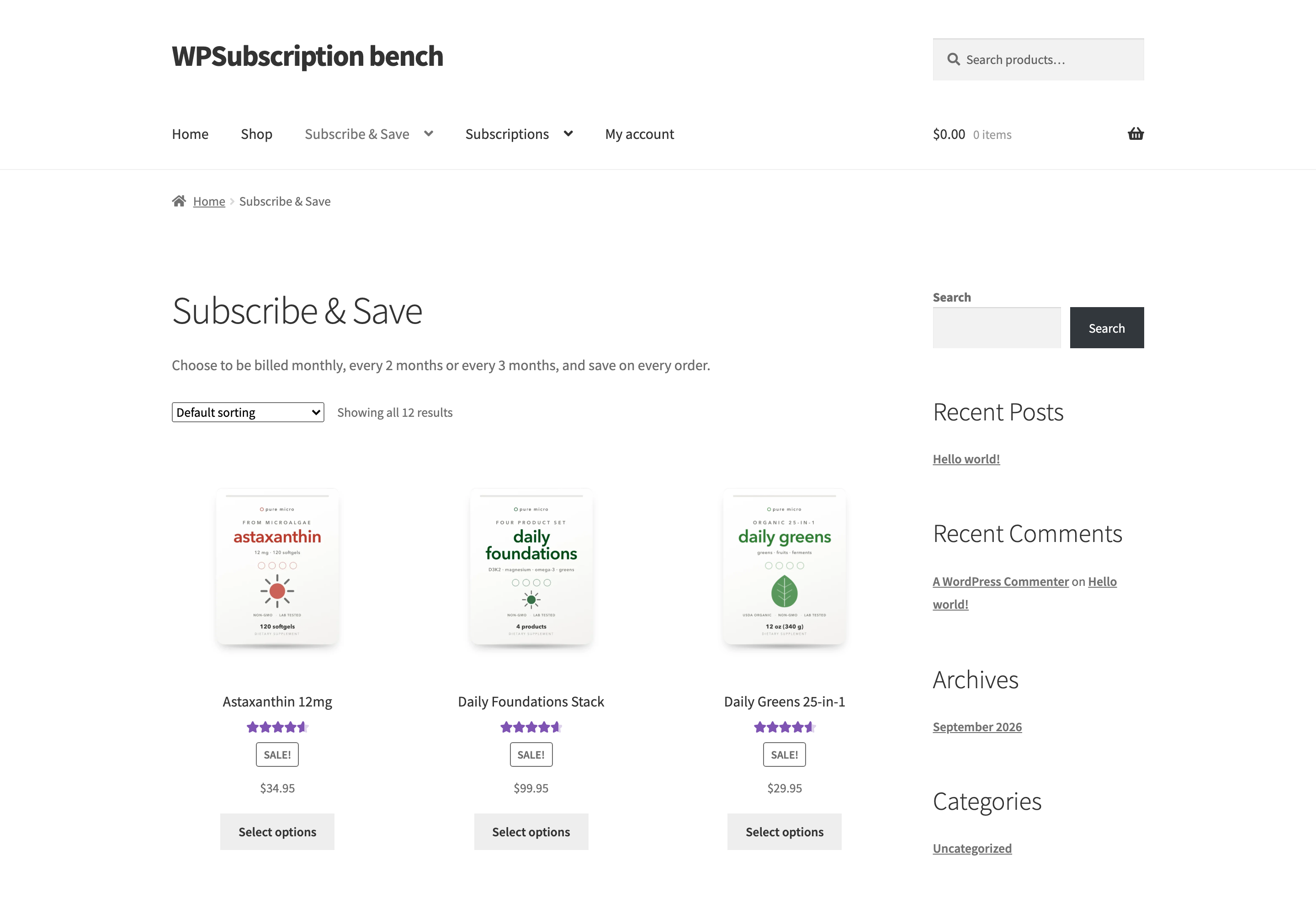
A listing has no room to ask which duration the shopper wants, so the price is summarised:
One duration, discounted → the regular price struck through beside the offer price.
Several durations that all cost the same → that single price.
Several durations at different prices → the range, cheapest to dearest.
No billing period is shown in the catalogue. The period belongs to a duration, and the listing is not showing one — the product page is where the customer picks.
In the cart
The cart line spells the whole arrangement out: what is being charged, how often, what it saves, and when the next payment falls.
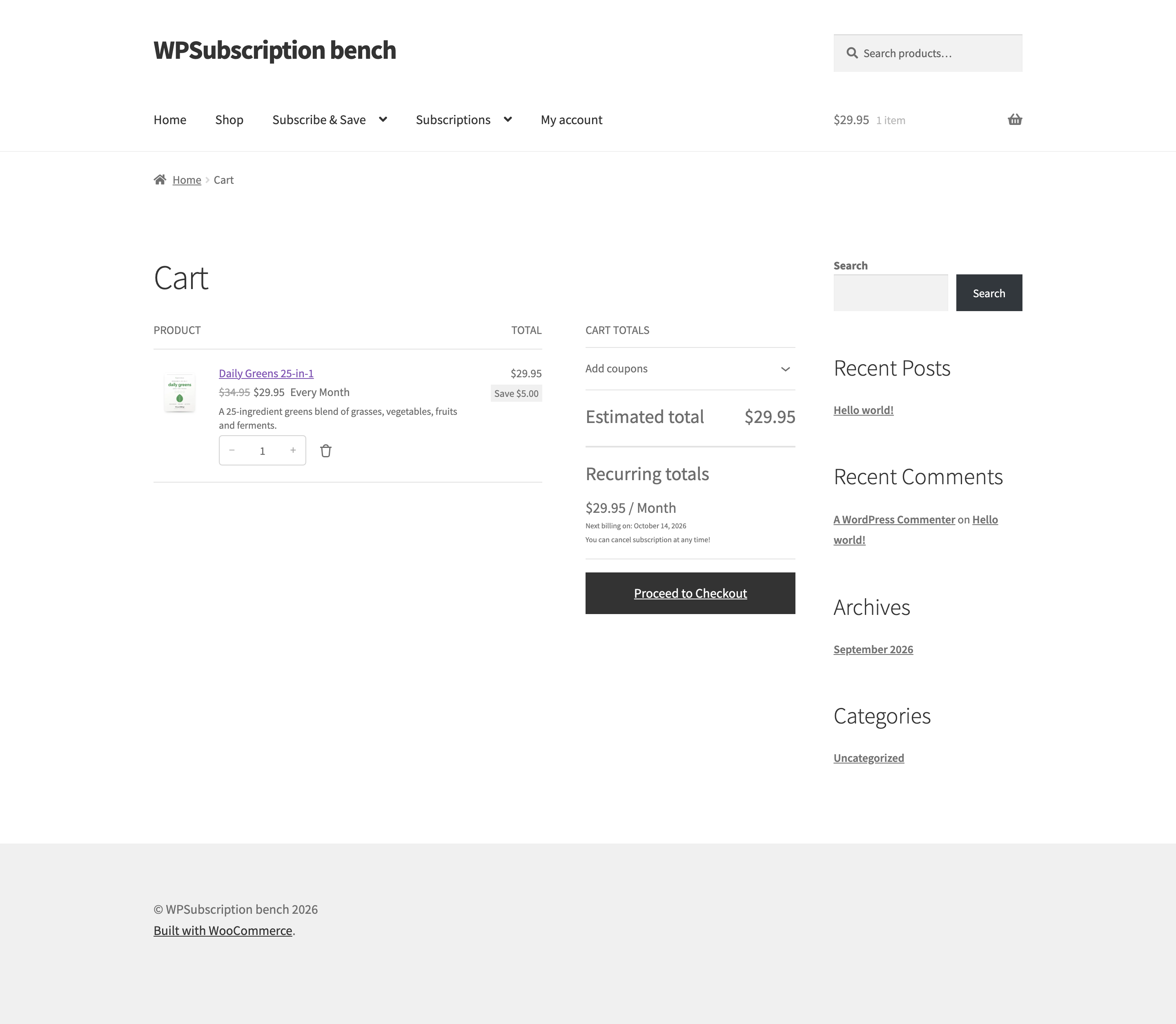
The line shows the struck-through regular price, the price being charged, and the billing period.
Save $5.00 restates the discount in money rather than percent.
Recurring totals gives the amount per cycle and the date of the next payment — the two things a shopper wants confirmed before paying.
Restyling the selector
The selector is a WooCommerce template, so you can override it the usual way — copy it into your theme at:
your-theme/subscription/product/plan-selector.phpFor colours and spacing alone, target the selector's classes in your theme's stylesheet instead; you get the markup updates that way.
Class | Element |
|---|---|
| The selector as a whole |
| One plan card. |
| The "Save 14%" badge |
| The plan name |
| The billing note under the name |
| One duration button. |
| The price on the One Time Purchase card |
The badge wording can be changed in code without touching the template, through the subscrpt_plan_card_badge filter — return an empty string to hide it.
If the selector does not appear
Check | Where |
|---|---|
Is the product on a plan? | Product → Subscription tab. It should name a plan, not offer to connect one. |
Is Enable subscription on? | Same tab, top left. Off means the product sells as an ordinary product. |
Does the plan have an active duration? | Plan → Durations. A draft duration is never shown to customers. |
Is the duration enabled for this product? | Plan → Products → expand the product. The Status column must read Enabled. |
Variable product on the free plugin? | Variable products need Pro. |
What to do next
Plan products and pricing — where the prices and the badge come from.
Direct checkout links — send customers past this page, straight to one price.