
WPSubscription → Overview is the screen you land on. It answers three questions in the order a store owner asks them: is anything wrong, how is the money doing, and what should I set up next.
New in WPSubscription 2.0.
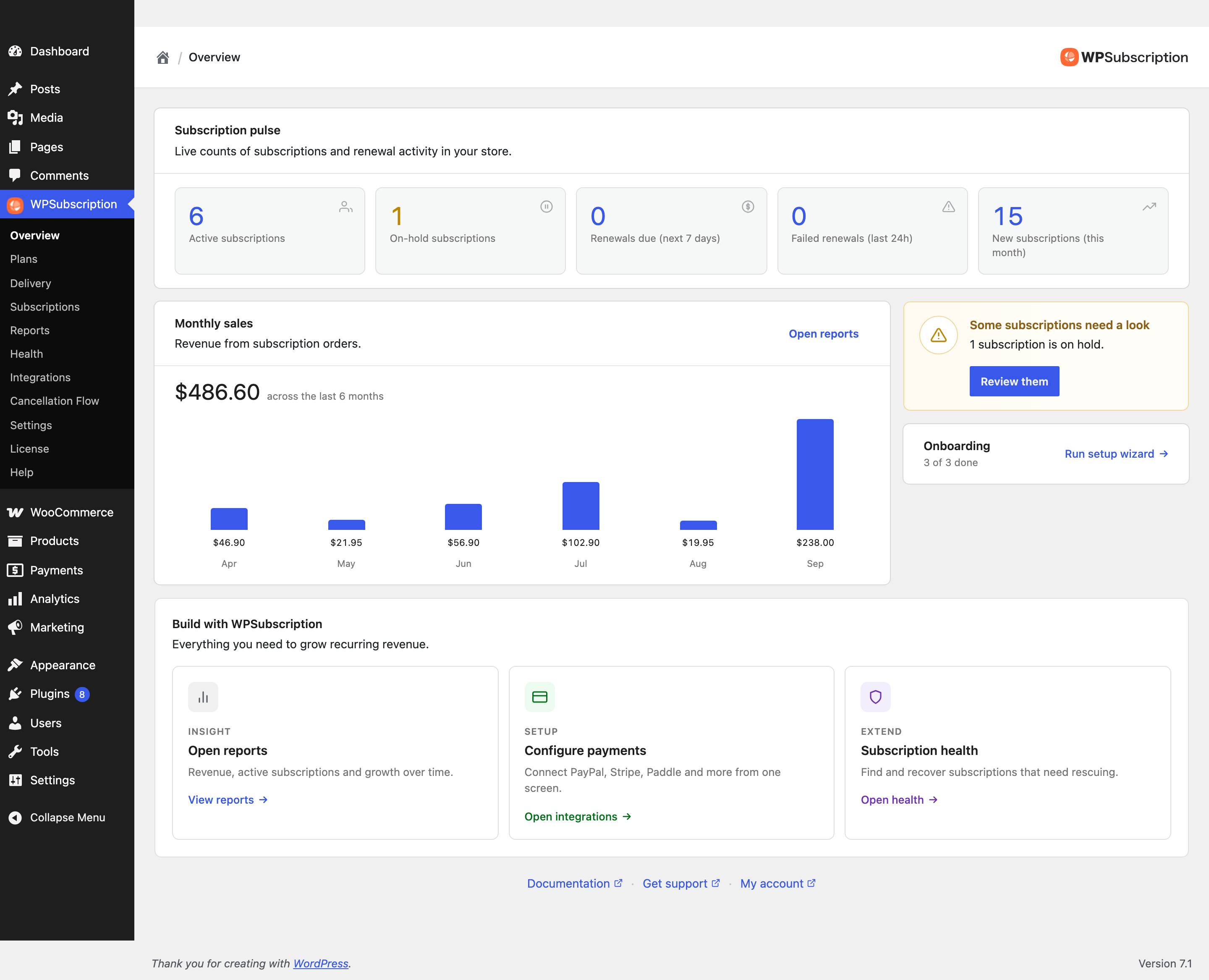
Subscription pulse

Tile | What it counts | What a high number means |
|---|---|---|
Active subscriptions | Subscriptions currently running and billing. | Your recurring revenue base. |
On-hold subscriptions | Paused, usually after a failed payment. | Revenue at risk. These are recoverable, and the sooner the better. |
Renewals due (next 7 days) | Scheduled to charge within the week. | What is about to be collected — worth knowing before you change a price. |
Failed renewals (last 24h) | Charges that failed yesterday. | Anything other than zero is worth opening. A spike usually means a gateway problem, not customers. |
New subscriptions (this month) | Started since the month began. | Growth. Read it against churn, not on its own. |
Note: Failed renewals is a 24-hour window, so it empties itself. A zero does not mean nothing failed this week — it means nothing failed yesterday. Subscription health is where the longer view lives.
Monthly sales
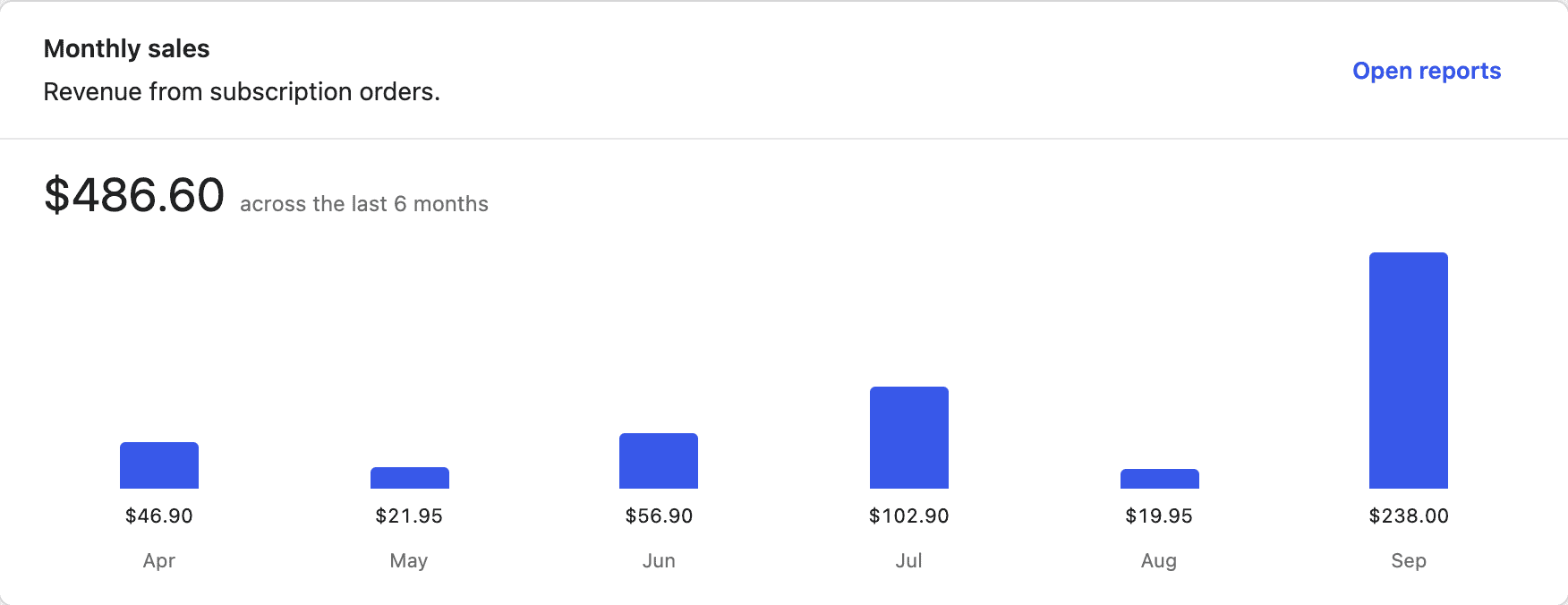
Revenue from subscription orders only — first payments and renewals. Ordinary WooCommerce orders are not counted, which is the point: this is the recurring half of the business on its own.
Open reports goes to the full reporting screen.
The attention card
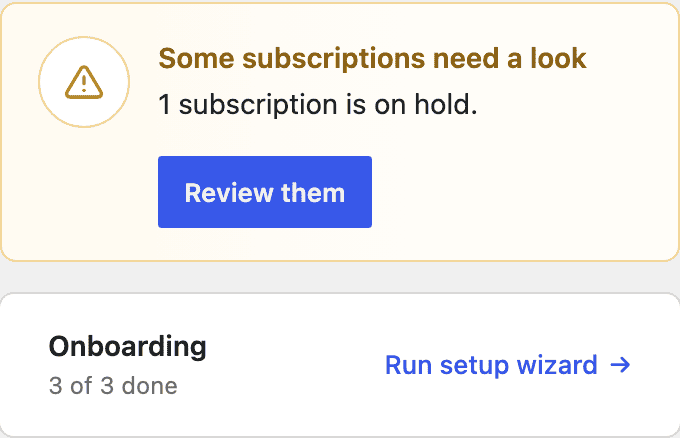
This card shows one thing — the most urgent true statement about the store. It has four states, checked in this order:
# | State | Shown when | Button |
|---|---|---|---|
1 | Finish setting up | An onboarding step is outstanding. | Start onboarding |
2 | Payments are not set up | No payment gateway is enabled, so customers cannot pay. | Set up payments |
3 | Some subscriptions need a look | One or more subscriptions are on hold. | Review them |
4 | All subscriptions look healthy | None of the above. This is the state you want. | — |
The order is deliberate: a store with nothing to sell, or no way to be paid for it, has nothing to be healthy about. So the card will not congratulate you on zero problems while no gateway is switched on.
Note: Review them opens the subscription list already filtered to on-hold, so you land on the ones that need you rather than on everything.
Onboarding

Three steps, in the order a subscription needs them:
Create a plan — a plan exists.
Add billing durations — that plan has at least one active duration. A draft duration does not count, because nothing draft can be sold.
Connect a product — a product is attached and enabled.
Each is ticked by the state of the store, not by you clicking anything, so it stays honest — delete the plan and the steps untick themselves.
Run setup wizard is the way back to the setup wizard, which opens by itself only once. A store owner who skipped it finds it here.
Note: Only the first step goes to the wizard. The wizard always creates a new plan, so once you have one, steps two and three send you to that plan's own screen instead of making a second one.
Warning: Enabling a payment gateway is not one of the three steps — the wizard does not touch gateways, and you can finish onboarding without one. It rides alongside as a separate warning that outlives the checklist, because until a gateway is enabled no customer can pay you. See the Integrations screen.
Build with WPSubscription
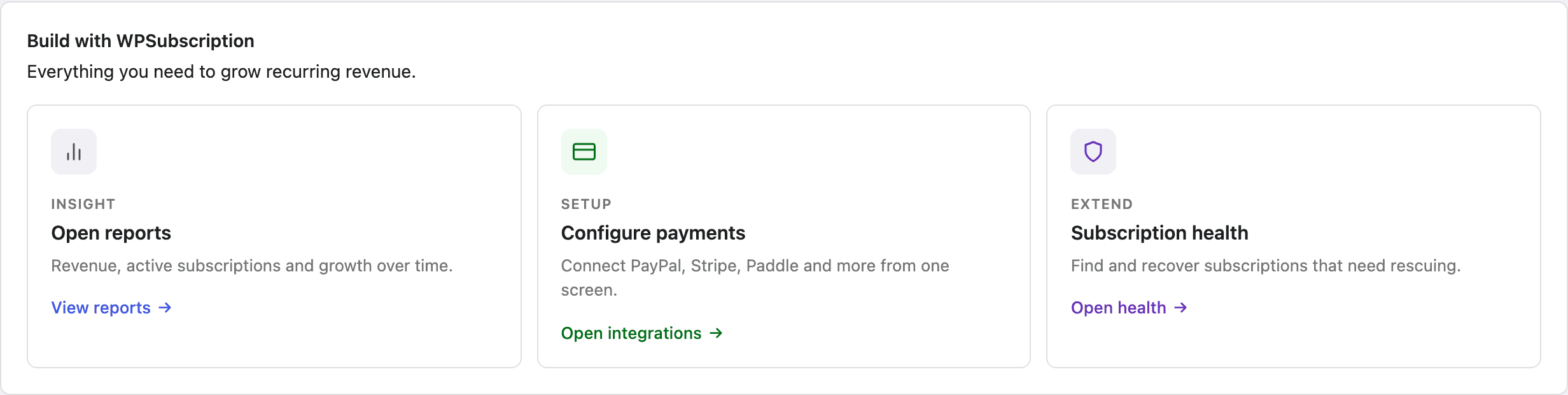
Open reports — revenue, active subscriptions and growth over time.
Configure payments — connect PayPal, Stripe, Paddle and the rest from one screen.
Subscription health — find and recover subscriptions that need rescuing.
On a free-only install a fourth card appears in place of one of these, describing what Pro adds — payment retries, a health queue and revenue reporting.
If the dashboard is blank
The Overview is rendered by JavaScript. If it does not appear you will see a line telling you so, with a note to use the menu on the left instead. That almost always means a script failed to load — a caching or minification plugin is the usual cause. The rest of WPSubscription is unaffected; every screen the dashboard links to works on its own.
An Overview full of zeros on a working store usually means an empty database rather than a broken screen — no subscriptions have been taken yet.
What to do next
Setup wizard — finishing the three steps.
Subscription health — the deeper view behind the on-hold count.
Reports — the full revenue picture.